
You are here:
Set Up a Streaming Data Transform
When you set up a streaming data transform, it reads and processes all records in the source and writes the data to the target object. The source and target objects must be different objects.
-
In Data Cloud, on the Data Transforms tab, click New.
If the Data Transforms tab isn’t visible, click More and select Data Transforms. If your org has already used the maximum number of transforms allowed, the New button doesn’t appear.
- Select Streaming Data Transform, then click Next.
-
Select Data Model Object or Data Lake
Object, then click Next. If you select Data Model
Object, choose a data space from the dropdown menu.
A data transform that runs on data model objects is restricted to read and write to the selected data space.
-
Enter a name for the data transform, and optionally, select a currency.
This setting converts data with multiple currencies to a single value. If you have multiple data transforms that write to the same target, make sure they all have the same currency.
- For the Target Object field, choose a DLO or DMO from the list or select Create New. Only DLOs and DMOs created using Create New are displayed in this list.
- Click Next.
-
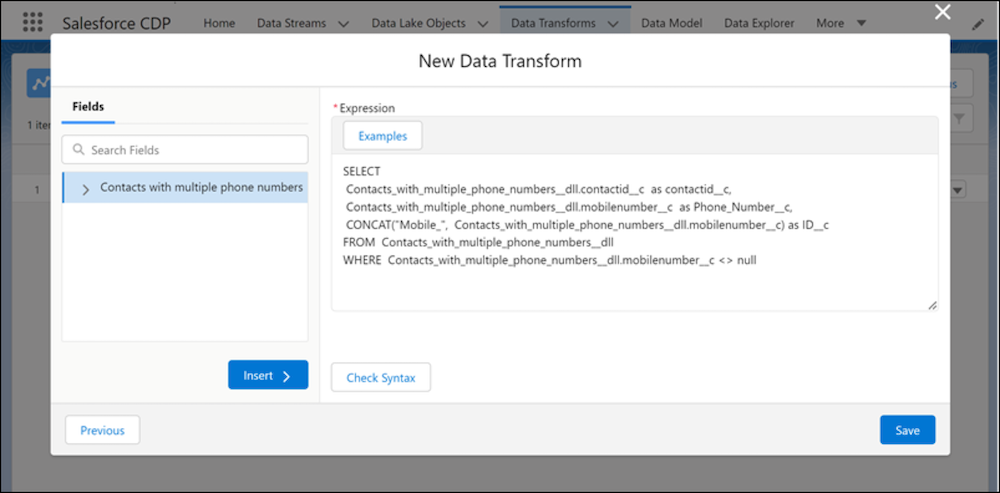
In the Expression field, enter a SQL statement to tell the streaming data transform
which records to process and how to map the transformed output to the target object.
If you chose to create a new DLO or DMO, the syntax will determine the columns and data type for the new DLO or DMO.
-
Verify your SQL statement’s syntax by clicking Check Syntax.
If a streaming data transform contains syntax errors or validation errors, such as incorrect API names for the source and target , you can’t save it. These errors appear on the left side. Fix them before saving.
-
If you chose an existing target DLO or DMO, click Save.
Streaming data transforms are activated immediately when saved. You can’t change a streaming data transform after saving it. If you must change a streaming data transform, delete it and create another one.
-
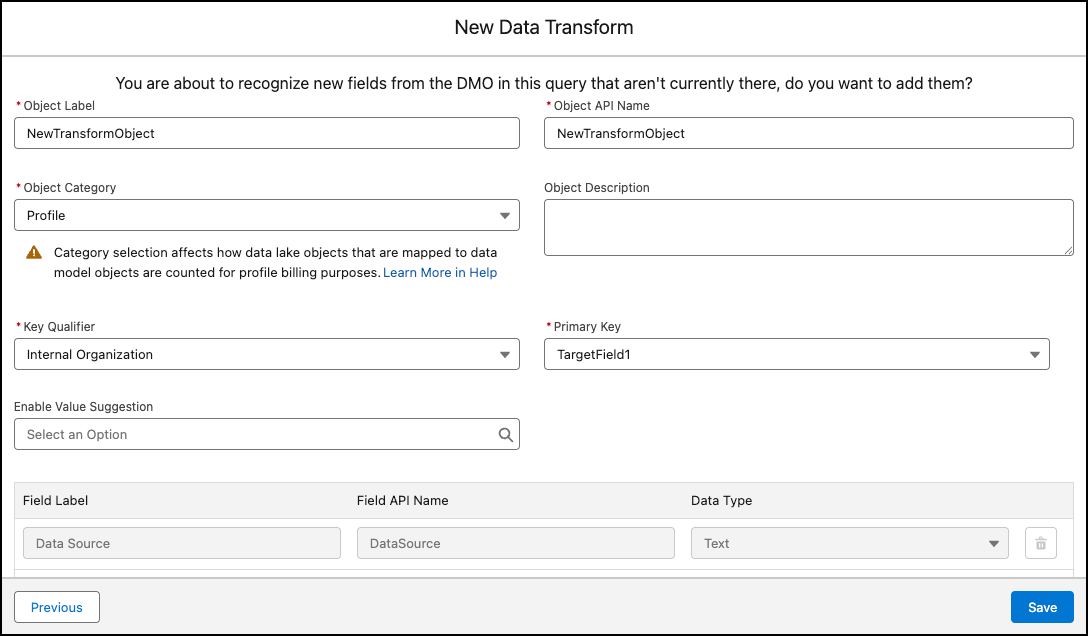
If you are creating a new DLO or DMO, click Next and you are
prompted to enter a name for the DLO or DMO and the category.
-
(Optional) Select a value from the Enable Value Suggestion
field.
Value suggestions streamline the process by providing a list of valid values for fields.
- Choose a key qualifier to create fully qualified keys (FQK) and select a primary key field.
-
Click Save.
After the DLO or DMO is created, a streaming data transform is created that uses it as target data source. Subsequently, this transform executes to populate the DLO or DMO with data.
-
(Optional) Select a value from the Enable Value Suggestion
field.
Did this article solve your issue?
Let us know so we can improve!
