
You are here:
Supported Operators for Event and Action Rule Conditions
To trigger a data action, you can select one or more event rules based on the record actions and specify when to publish data using OR and AND conditions.
Required Editions
| Available in: All Editions supported by Data 360. See Data 360 edition availability. |
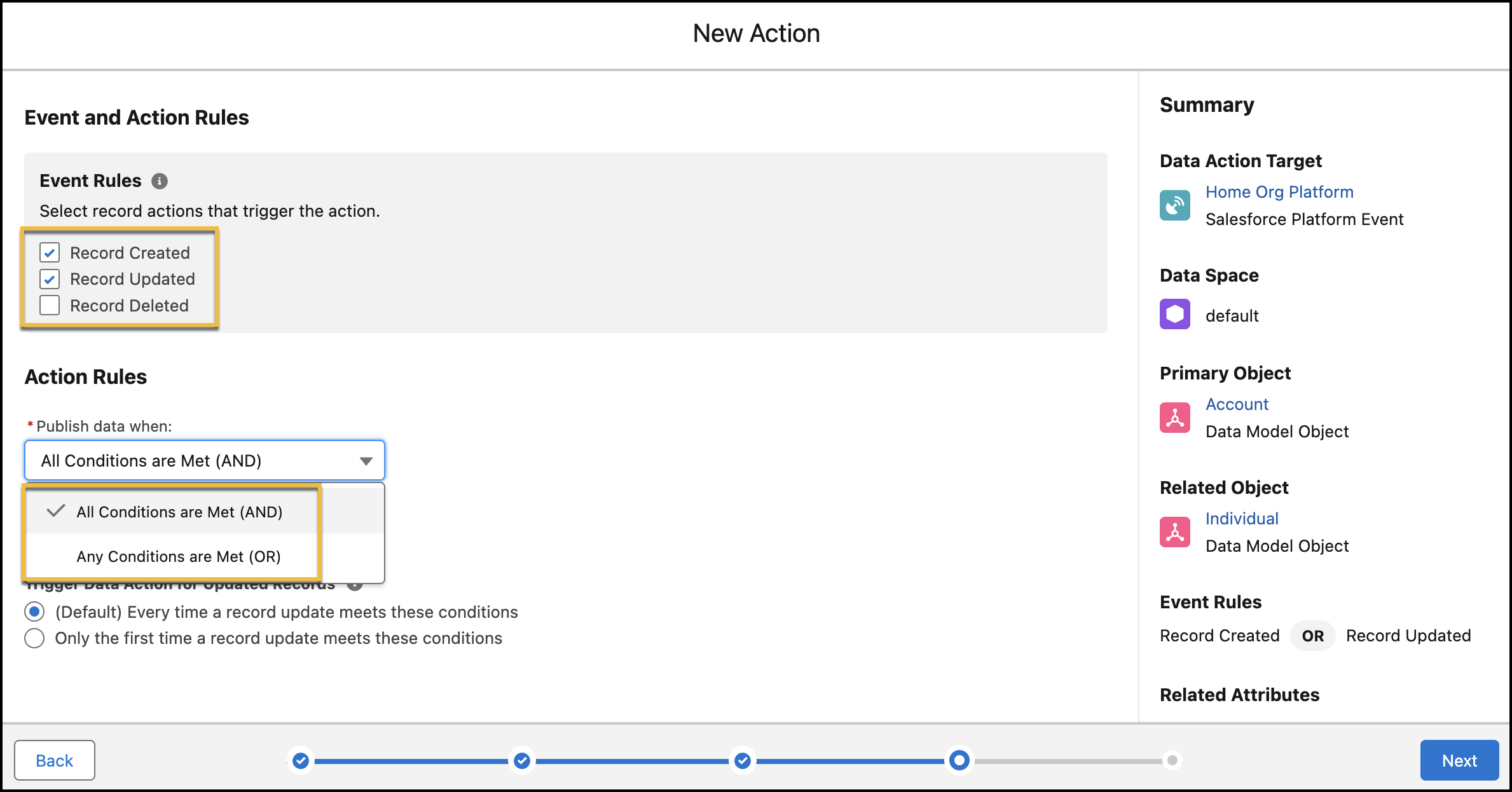
When adding conditions, you can use these operators for objects to evaluate a data action.
| Operator | Description |
|---|---|
| Is Equal To | The attribute value is the same as the specified value. For example, to select records where the product category is Clothing, use this operator and enter Clothing as the input value. |
| Is Not Equal To | The attribute value doesn’t match the specified value. For example, to select records where the product category isn’t equal to Clothing, use this operator and enter Clothing as the input value. |
| Is In | The attribute value must be in a multivalue, comma-separated list. For example, to select records from certain countries in the APAC region, use this operator and specify the list of countries to include such as Japan, Malaysia, Singapore. |
| Is Not In | The attribute value isn’t in a multivalue, comma-separated list. For example, to omit records from certain countries in the APAC region, use this operator and specify the list of countries to exclude such as Japan, Malaysia, Singapore. |
| Does Not Contain | The attribute value doesn't contain the specified value. For example, to select records from a subscription list that doesn’t contain website, phone, and email, use this operator and specify website, phone, email as input values. |
| Contains | The attribute value contains the specified value. For example, to select records from a subscription list that contains website, phone, and email, use this operator and specify website, phone, email as input values. |
| Contains Regular Expression | The attribute value contains or matches the regular expression in the specified value. For example, to select records from cities that contain specific characters, such as San in San Francisco, San Jose, or San Antonio, use this operator and specify the expression San as the input value. |
| Does Not Contain Regular Expression | The attribute value doesn’t contain or match the regular expression in the specified value. For example, to select records from cities that don’t include a specific character, use this operator and specify the expression as the input value. |
| Begins With | The attribute value begins with the specified value. For example, to select records for movies with titles beginning with specific characters such as Life in Life Is Beautiful or Life Is Good, use this operator and specify the expression Life as the input value. |
| Ends With | The attribute value ends with the specified value. |
| Exists As A Whole Word | The attribute value matches the entire word in the specified value. For example, if your subscription ID is Smith, Z07257, use this operator and enter Smith or Z07257 as the input value. |
| Has No Value | Evaluates if the value is null or empty. |
| Is True | Evaluates if the attribute value is present and if it’s true. For example, use this operator to check if an individual user profile is anonymous. |
| Is False | Evaluates if the attribute value is present and if it’s false. For example, use this operator to check whether a user’s subscription is current. |
| Is Null | Evaluates if the attribute value isn’t defined. For example, use this operator to check whether the consent status of a user isn’t defined. |
| Is Not Null | Evaluates if the attribute value is defined. For example, use this operator to check whether the consent status of a user is defined. |
The Record Updated event rule supports these change operators. These change operators aren’t available for related objects.
Did this article solve your issue?
Let us know so we can improve!
