
You are here:
Ingest Data by Uploading a File
Create a data stream by bringing in data from a local CSV file into Data 360.
Required Editions
| Available in: All Editions supported by Data 360. See Data 360 edition availability. |
| User Permissions Needed | |
|---|---|
| To upload data using a file | Permission set:
|
Before you upload data make sure that your file is less than 100MB and that it has a maximum of 100 columns. We also recommend that you use the four-digit (“yyyy”) format for date and time records that include a year. When data from an ingested file uses the two-digit (“yy”) format, additional date and time pattern rules for the “year” are applied. This can result in an unexpected date value.
Watch this video or follow the steps to use this feature.
- In Data Cloud, go to the Data Streams tab and click New.
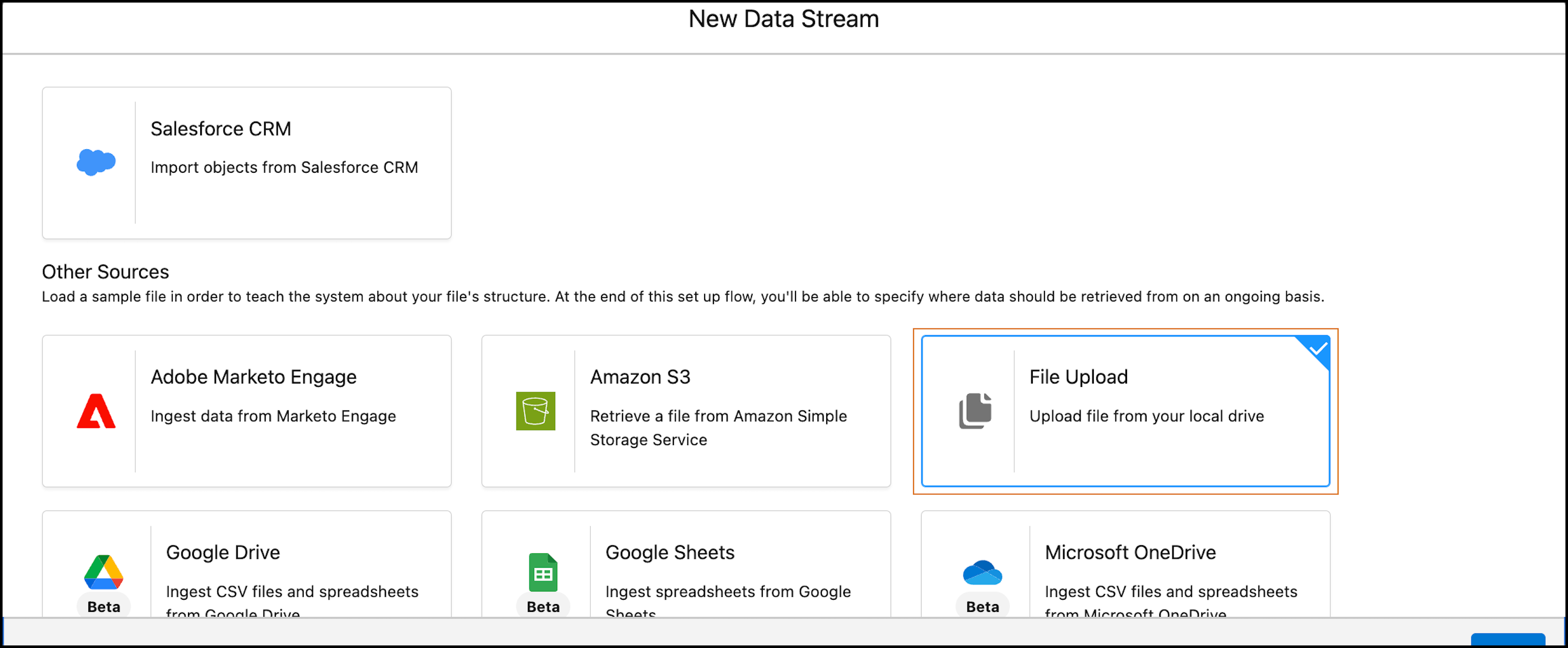
- Select the File Upload tile, and click Next.
- Select the CSV file with your data.
- Specify your data lake object (DLO), and API name.
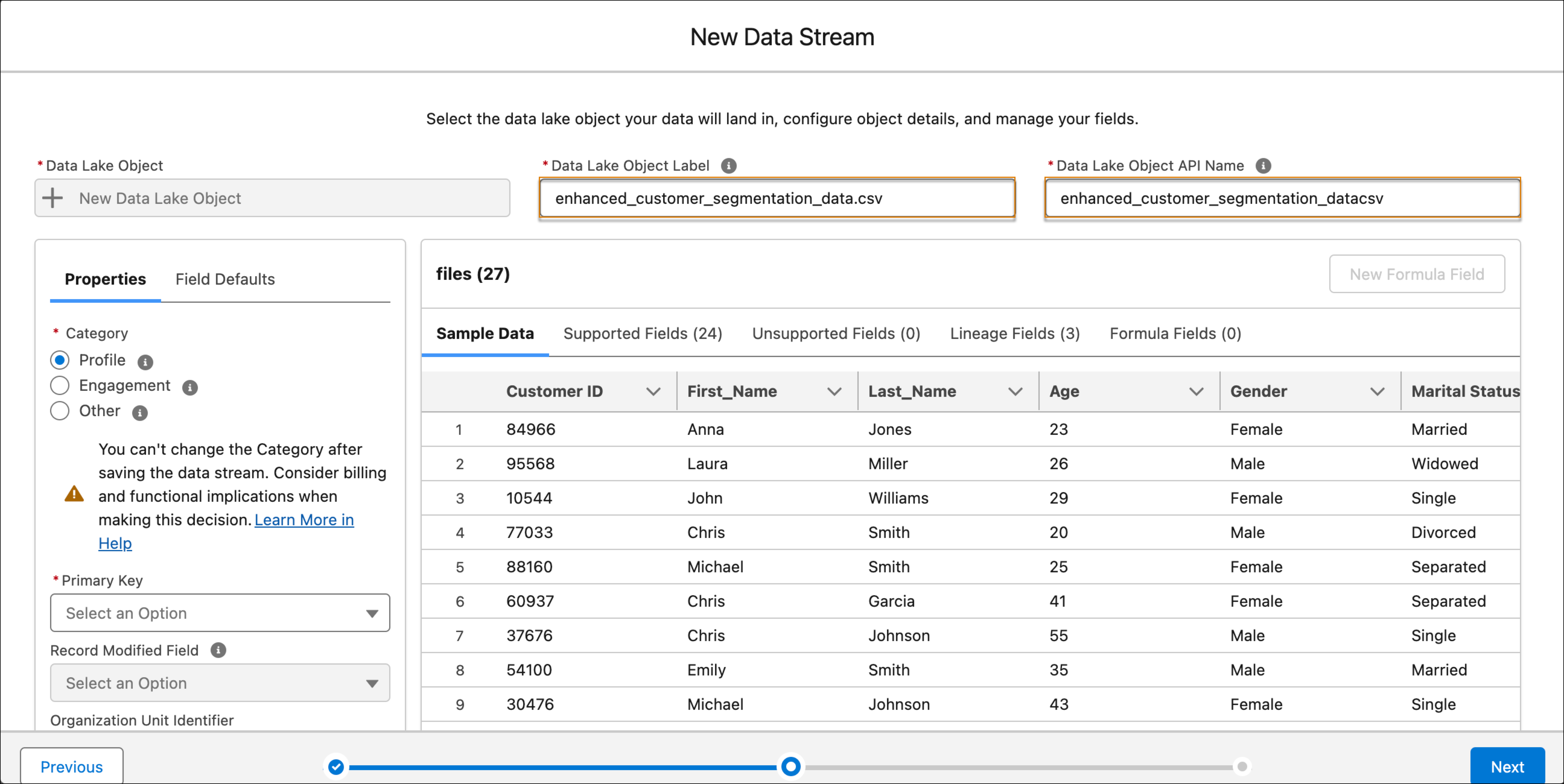
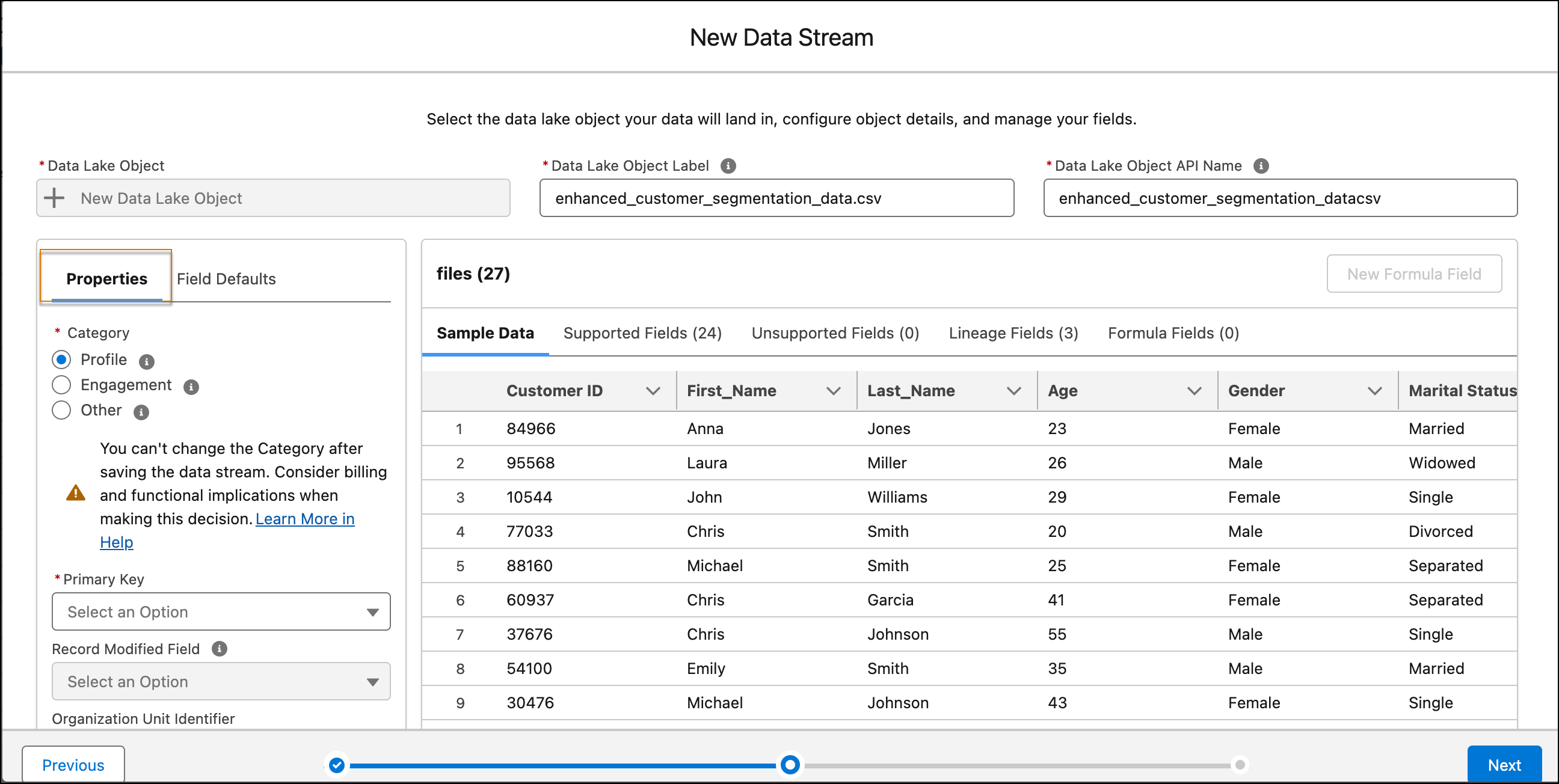
- In the Properties section, select the category for your data stream and primary key.
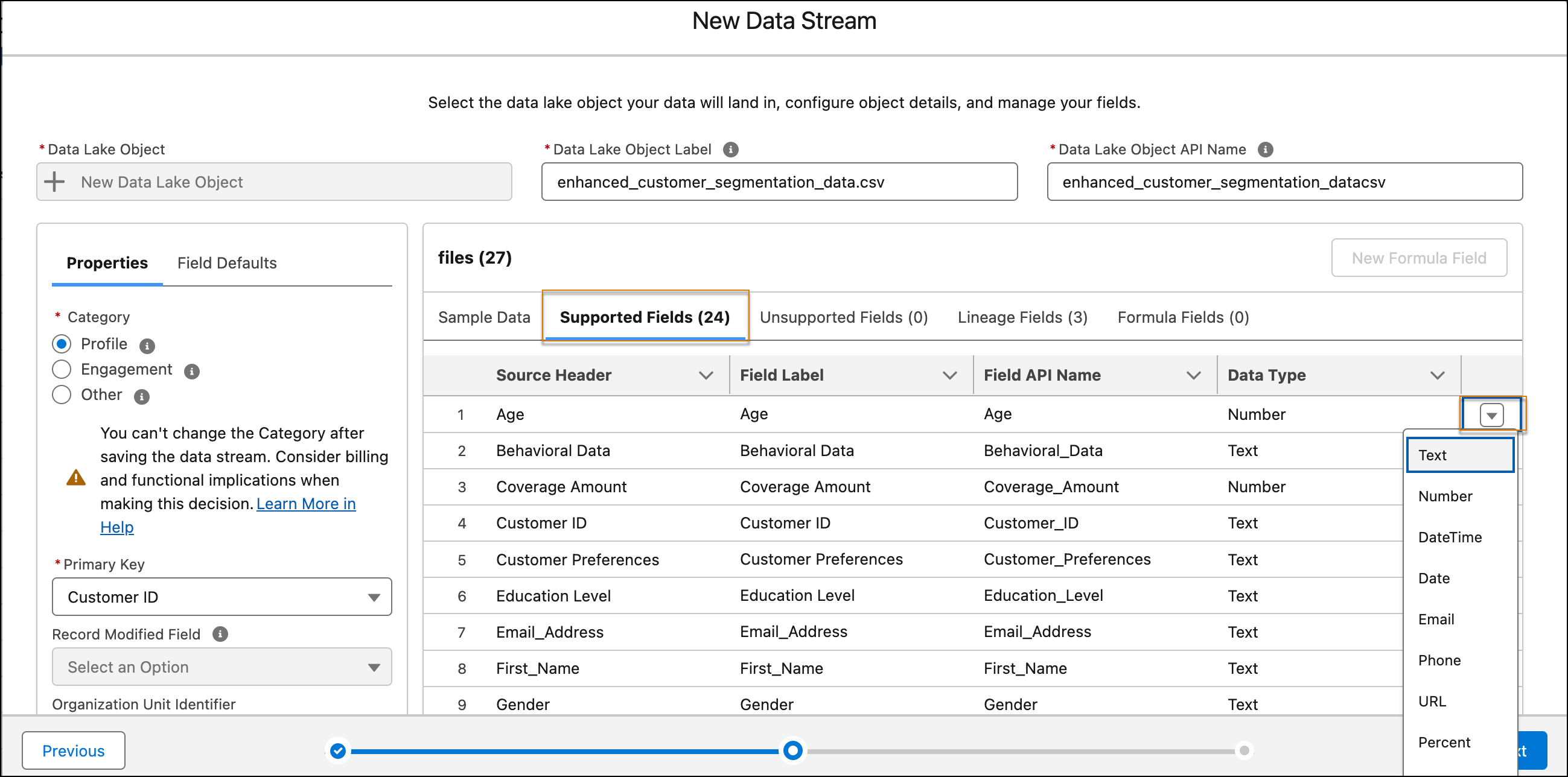
- To change a field's data type, click the Supported Fields tab.
- Click Next.
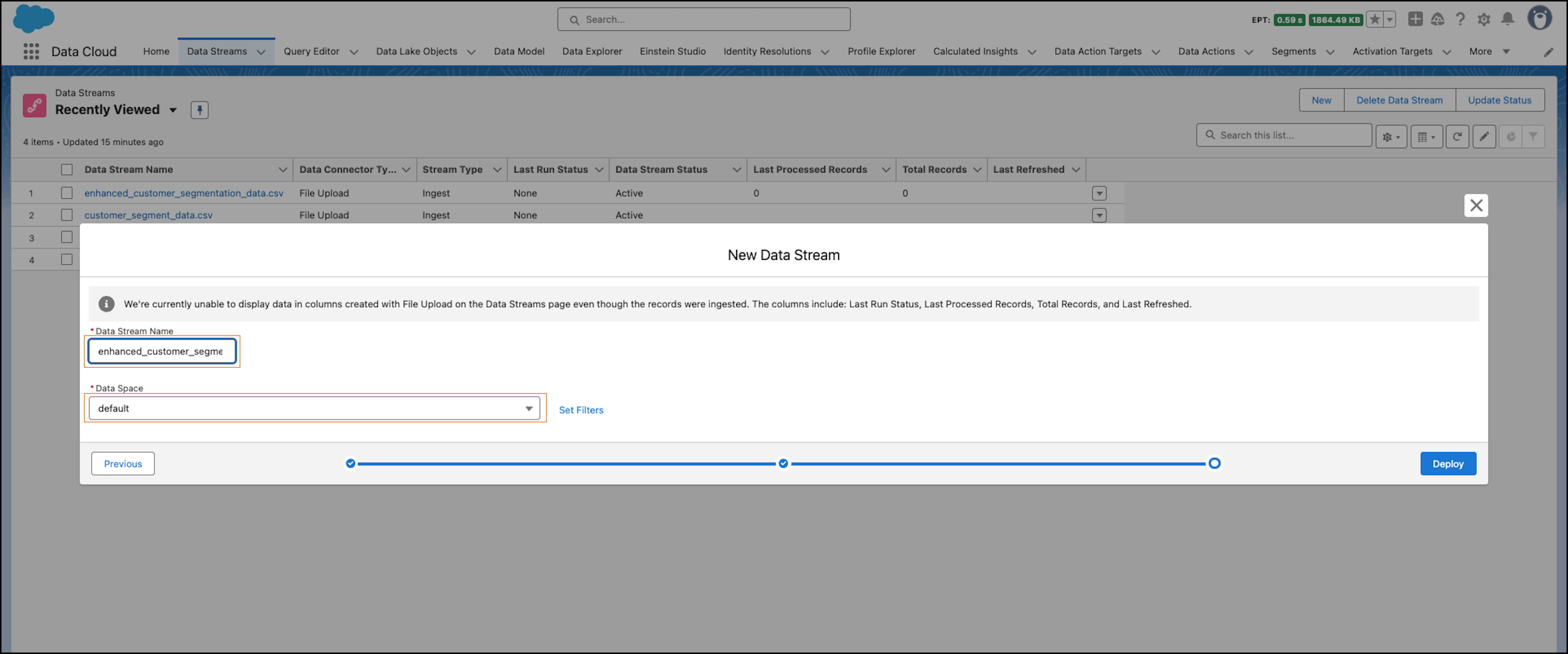
- (Optional) If needed, change the data stream name. The data stream uses the uploaded file name.
- (Optional) If needed, choose a data space and set filters.
-
To create your data stream, click Deploy. This ingests your data
into the DLO.


- Data Stream Updates Using File Upload
Update the data of an existing data stream created using File Upload. Quickly update your data by re-uploading the revised CSV file with added or removed records. Updating data replaces the data that was previously stored in the associated Data Lake Object (DLO). It also ensures that the data stream is always current with the latest information.
Did this article solve your issue?
Let us know so we can improve!
