In Data Explorer, you can view Data 360 data from your data lake
objects (DLOs), data model objects (DMOs), calculated insight objects (CIOs), or data graphs.
You can personalize your view by editing the columns and use filters to show only the most
relevant data for the selected object.
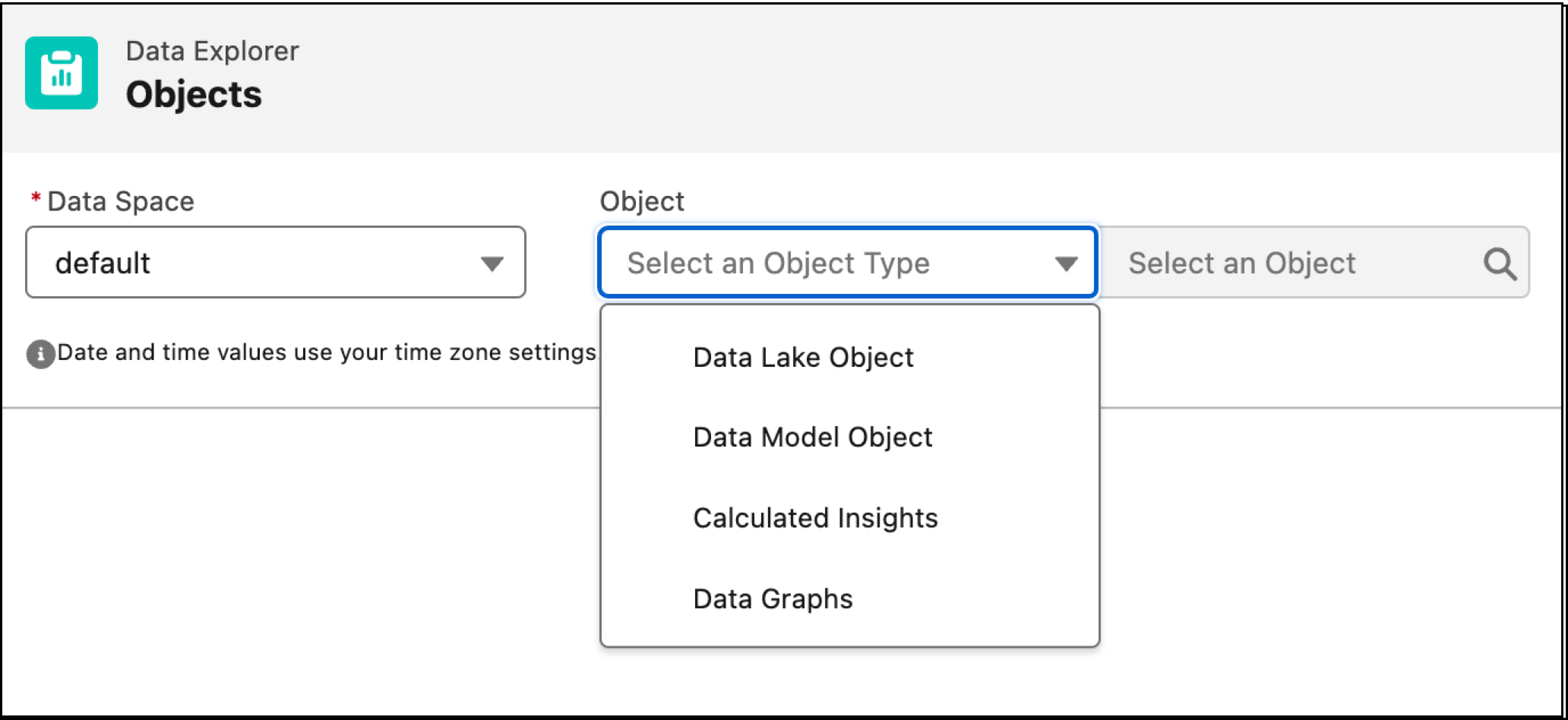
Select a data space, an object type (DLO, DMO, CIO, or Data Graph), and then the
specific object you want to view.
(Optional) Select any data column to sort the data based on that selection.
Some notes on Data Explorer limitations:
Boolean fields store two possible values, ‘true’ or ‘false’. If a selected boolean field
has null or empty values, it always defaults to ‘false’.
The dates and times displayed in Data Explorer are based on the time zone configured in
your Salesforce org. When an ingested date value in a column is 01/01/0001, it's rendered
as 01/01/1901.
For numbers, the digits are truncated to two places to the right of the decimal
point.
The maximum display is 100 rows per view.
Copy SOQL Queries
Use the **Copy SOQL** button to copy the SOQL query
that populates the current table. If a table has more than 10 columns, Data 360 copies only the SOQL for the 10 visible columns.
To run the query:
Select Copy SOQL.
Go to the Data 360 Query Editor.
Use the SOQL you copied to create a new query.
(Optional) Remove the 'LIMIT 100' condition from the query.
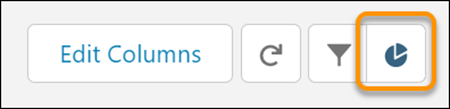
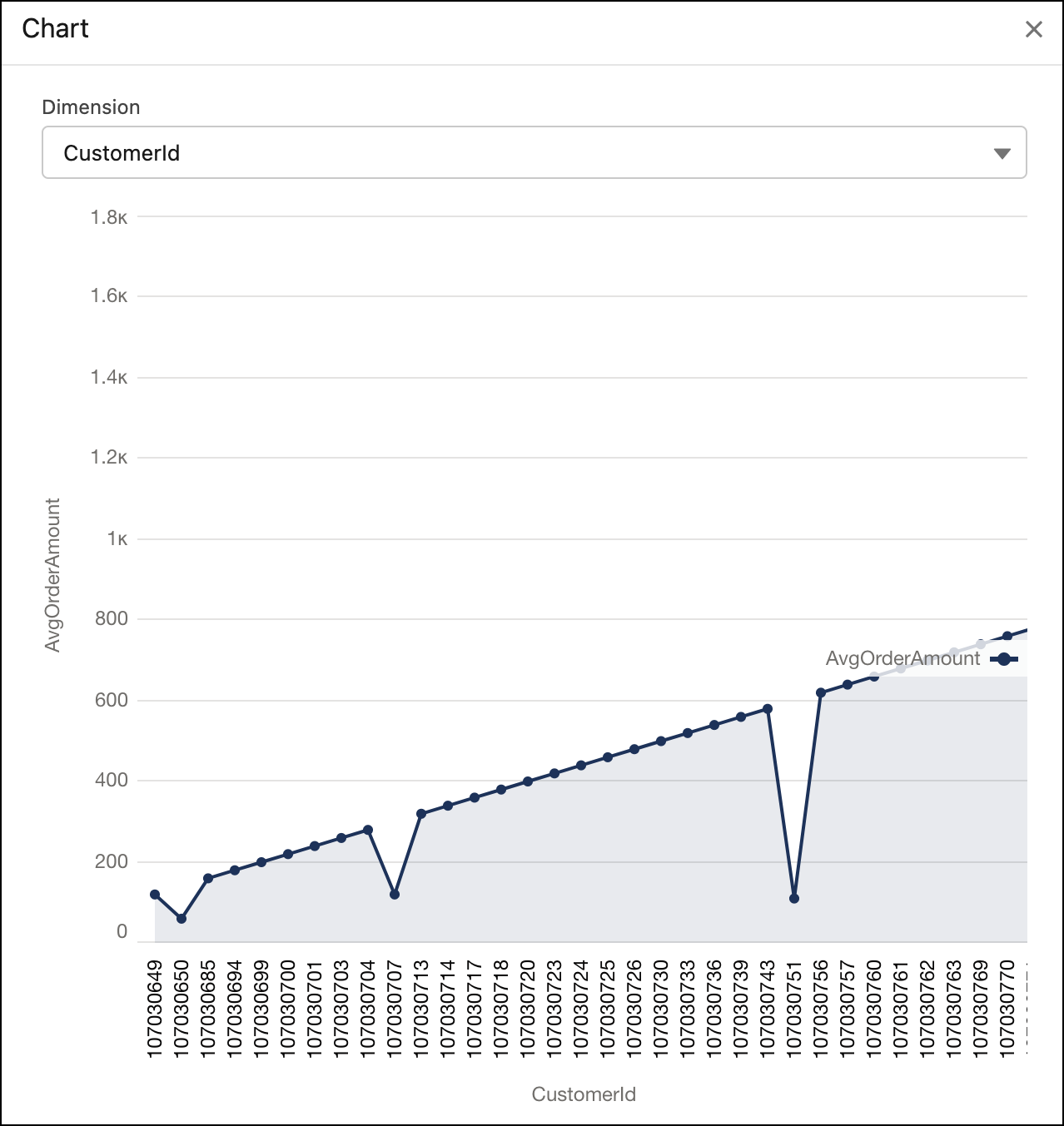
After choosing a CIO, you can view your calculated insight objects in Chart view by
selecting the pie icon.
With this view you can visualize and further analyze your CIOs in a graph.
View Data Graph Records
To view a data graph's records, select Data Graphs as the object type, then select the data
graph. With Data Explorer, you can view and copy the Data Graph data in JSON block format
from cached or real-time data. To view real-time data, select Real-time View:
On in the JSON preview. For more information, see Data Graphs.
We use three kinds of cookies on our websites: required, functional, and advertising. You can choose whether functional and advertising cookies apply. Click on the different cookie categories to find out more about each category and to change the default settings.
Privacy Statement
Required Cookies
Always Active
Required cookies are necessary for basic website functionality. Some examples include: session cookies needed to transmit the website, authentication cookies, and security cookies.
Functional Cookies
Functional cookies enhance functions, performance, and services on the website. Some examples include: cookies used to analyze site traffic, cookies used for market research, and cookies used to display advertising that is not directed to a particular individual.
Advertising Cookies
Advertising cookies track activity across websites in order to understand a viewer’s interests, and direct them specific marketing. Some examples include: cookies used for remarketing, or interest-based advertising.