
You are here:
Welcome to Chatter in Lightning Experience
Whether you’re new to Chatter or switching from Salesforce Classic, Chatter in Lightning Experience offers tons of useful features. Use Chatter to communicate with colleagues, gain insight into your company, and preserve your tribal knowledge.
Required Editions
| Available in: Lightning Experience |
| Available in: Essentials, Group, Enterprise, Professional, Performance, Unlimited, Contact Manager, and Developer Editions |

For information on using Slack, rather than Chatter, to collaborate in Salesforce, see Salesforce Channels.
Depending on how your org is configured, when Chatter is turned on, it can be on records of all types. You can access Chatter on your mobile devices. But let’s start with the Chatter tab, which is its home.
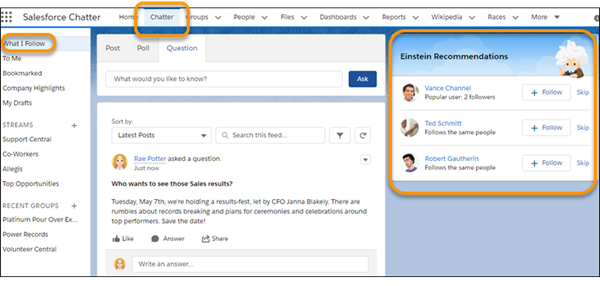
The Chatter tab gives you quick access to some useful feeds, such as What I Follow, To Me, Bookmarked, Company Highlights, and My Drafts. Select a feed to place it front and center on the Chatter tab.
- The What I Follow feed shows post activity on all the people, groups, and objects that you follow. For example, if you follow John Smith, you see the things John Smith posts to all the feeds that you have access to. Typically, the What I Follow feed is the default feed. If you’re following fewer than 10 things, the Company Highlights feed becomes your default.
- The To Me feed shows the posts where you’re @mentioned and the posts to your user profile page.
- The Bookmarked feed shows the posts that you have bookmarked. The Bookmarked feed gives you easy access to the posts you want to revisit.
- The Company Highlights feed shows you the most active posts across your organization. You can use it to find more things to follow. After you follow more than 10, your default feed changes to What I Follow.
- The My Drafts feed shows posts that you’re working on, but haven’t saved. You can use the My Drafts feed to perfect a message and then post it or reconsider a message and toss it out.
The Chatter tab in Lightning Experience shows the five Chatter streams that you visited most recently. Click the Streams heading to open a list page that shows all your streams. Streams offer a way to combine different but related feeds into one super feed. Let’s say you want to read everything that’s posted about a project you’re working on. With streams, you can combine feeds from the groups working on the project, the topics discussing it, the people assigned to it. You can add any feed type that’s related to the project. Suddenly, instead of visiting many different feeds to get the whole story, you have this one stream you can go to for everything. Create up to 100 streams that each combines posts from up to 25 different feeds. Create streams that combine feeds from people, groups, and records.
The Recent Groups list links you to the last five groups that you visited and gives you a way to create groups on the spot. It’s an easy way to get to the groups you visit most often.
In the right column of the Chatter tab, Einstein Recommendations lists people, groups, and objects that Einstein recommends to you. You can follow someone or something on the list or click Skip to dismiss one recommendation and invite another.

