Display Similar Questions and Articles in the Customer Service
Template Search
Different Experience Cloud site users can ask similar questions. Chatter Questions
helps reduce duplicate content in self-service sites that are built on the Customer Service
template by showing similar questions and relevant Salesforce Knowledge articles. Potential
answers appear on a list as a user enters a question in the Search field.
Required Editions
Available in: Salesforce Classic
Available in: Group, Professional, Enterprise,
Performance, Unlimited, Contact Manager, and Developer
Editions
Note Similar Questions and Similar Articles are also available in internal Salesforce
organizations with Chatter and in sites built with Salesforce Tabs + Visualforce. To learn
more, see Display Similar Questions and Articles in Chatter.
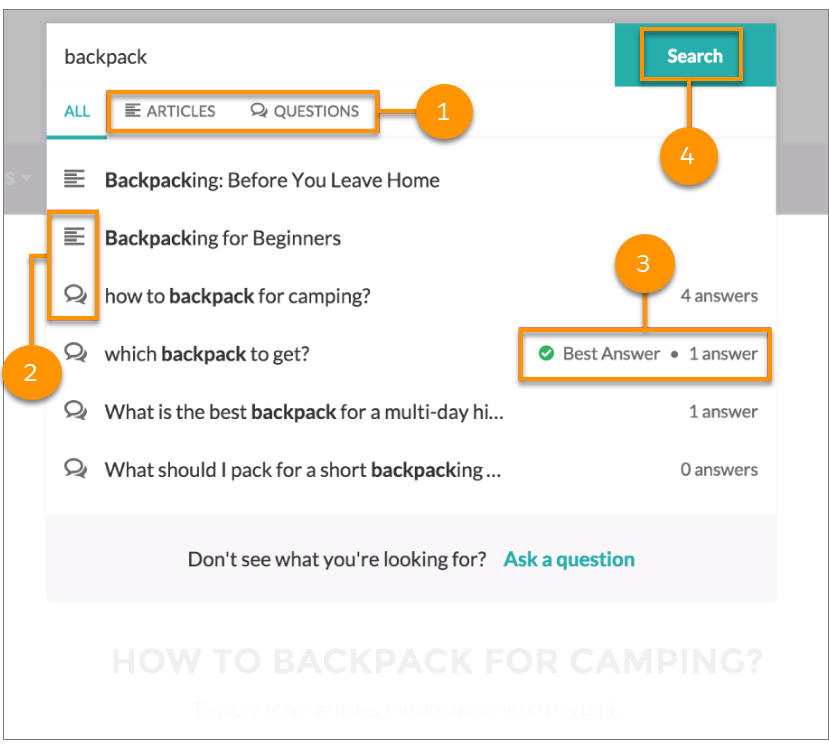
When a user enters a question in the Search field, similar questions and Knowledge articles
appear in a list below the field. The list contains two tabs: Articles
and Questions.
Note To expose an All tab that shows combined results (recommended), enable Similar
Articles.
By default, each tab contains up to six results. The All tab shows
both matching articles and questions, with articles appearing first. It displays an equal
number of questions and articles. If there isn’t enough of one type of result, more results of
the other type are displayed to reach the maximum. To see results of a particular type, users
can click the Articles and Questions tabs. If a
search only returns one result type (for example, questions), users still see all the
tabs.
Note For a user to see similar articles, Knowledge must be enabled in the site and
the user must have access to it.
1: The Articles and Questions tabs let users
view results of each type. Users can use the Up and Down arrow keys to navigate between
results on any of the tabs. Clicking a question or article in the list navigates directly to
it.
2: Text and chat bubble icons indicate whether a search result is an article or a
question.
3: Questions in the list show the number of answers. If a question was answered, a green
checkmark with the text Best Answer appears next to it in the
list.
4: Search results are based on whether the question or article title contains the text
entered by the user. When the user performs a full search by clicking
Search, the search engine also scans question descriptions and
article text for matching terms.
To customize the search settings, edit the Search Publisher component in Experience
Builder.
We use three kinds of cookies on our websites: required, functional, and advertising. You can choose whether functional and advertising cookies apply. Click on the different cookie categories to find out more about each category and to change the default settings.
Privacy Statement
Required Cookies
Always Active
Required cookies are necessary for basic website functionality. Some examples include: session cookies needed to transmit the website, authentication cookies, and security cookies.
Functional Cookies
Functional cookies enhance functions, performance, and services on the website. Some examples include: cookies used to analyze site traffic, cookies used for market research, and cookies used to display advertising that is not directed to a particular individual.
Advertising Cookies
Advertising cookies track activity across websites in order to understand a viewer’s interests, and direct them specific marketing. Some examples include: cookies used for remarketing, or interest-based advertising.