
You are here:
Chatter Streams
Chatter streams are custom feeds that you create by combining multiple related feeds into one feed. Look for streams on your Chatter home page. Create up to 100 streams that each combine posts from up to 25 different feeds and feed types. Create streams that combine feeds from people, groups, and records, like accounts, opportunities, cases, and more.
Required Editions
| Available in: Essentials, Group, Professional, Enterprise, Performance, Unlimited, Contact Manager, and Developer editions |
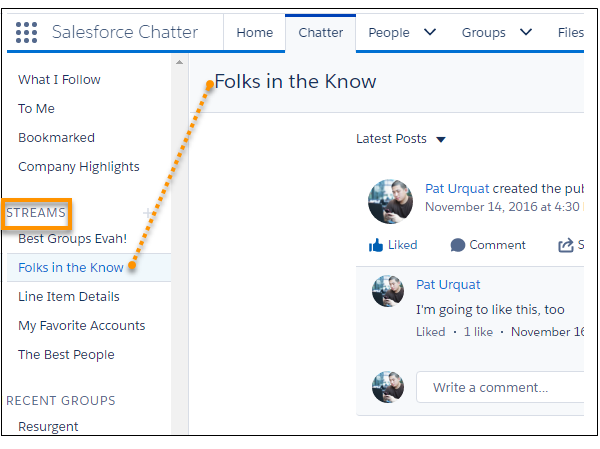
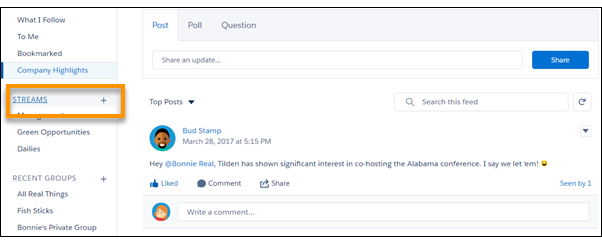
Visit the stream home by clicking the Streams heading on the Chatter home page.
The streams home lists all your streams and shows the people and records that you added. Each stream has its own row and its own set of row actions, including Edit and Delete.
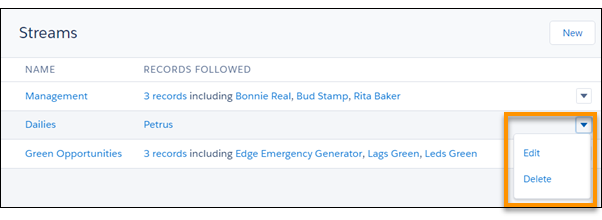
Click the number of records on a row to see a full list of people and records that you added to the stream.
Click a stream name to open that stream. Once there, you can see that the stream page has some actions of its own.
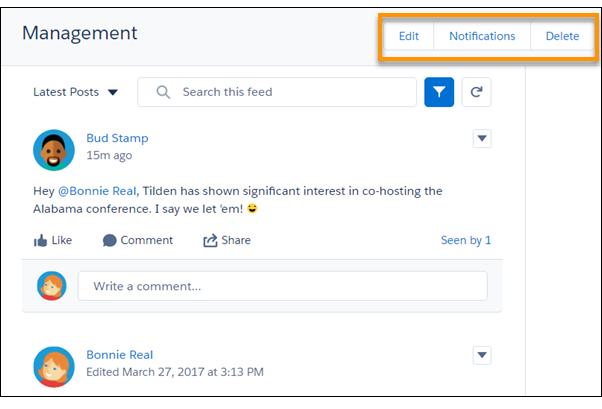
Use these actions to edit the stream, set up stream notifications, and delete the stream.
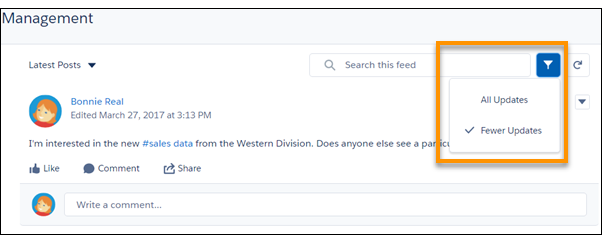
Each stream has a couple of filters. Choose All Updates to see everything, including Feed Tracked Changes (FTCs) in the stream. Choose Fewer Updates to omit FTCs from the stream.

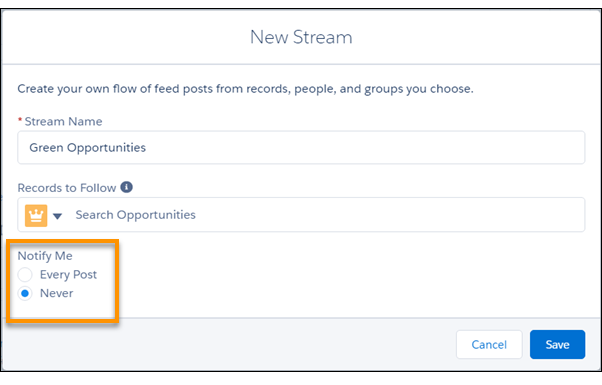
When you create a stream, an Every Post option is available in the create dialog for enabling notifications for the stream. Every Post is the default setting. Notifications are sent to you via email and are pushed to your in-app notifications. Select Never to prevent notifications from this stream. You can also visit a stream page to adjust its notification settings.
Knowledge articles (KAs) aren’t fully supported in streams. You can add them when you create and edit a stream by searching for the article’s ID number rather than its title. But you can’t add a KA to a stream from its Follow button like you can with other record types. Articles added to Streams using the article’s ID don’t appear in Records to Follow on the Stream's edit page. KAs also don’t appear when viewing the Follow button details on the article's detail page.
- Create Chatter Streams
Create a Chatter stream to get a combined view of feeds from the profiles, groups, and records that you select. Include up to 25 feeds in each stream. Create up to 100 Chatter streams. You don’t have to follow a person, group, or record before you add it to a stream. The great thing about adding a feed to a stream is that it doesn’t count against the number of follows you’re allowed. You can create a Chatter stream from the Chatter home page, from the streams home page, and from a profile or record detail. - Edit a Chatter Stream
Edit a stream to change its name or to add or remove some of its feeds. You can edit a Chatter stream from the streams home page or from the stream itself. - Set Up Notifications for a Chatter Stream
Notification settings are available in the New Stream dialog and on the stream itself. You can create a stream and decide later whether you want to be notified when new posts are added to a stream. The default is to send a notification for every new post. So if you create a stream without touching its notification settings, you receive email and in-app notifications for that stream. If you like, you can change your selection later in the stream feed. - Delete a Chatter Stream
You can delete a Chatter stream from the streams home page and from the stream itself. Deleting a Chatter stream doesn’t delete the records or posts that it contains. It deletes only the stream, which frees up space for you to add more streams.
