You are here:
Draft Posts in Chatter
Save Chatter posts as drafts and access them later to edit, publish, or delete.
Required Editions
| Available in: Lightning Experience |
| Available in: Essentials, Group, Professional, Enterprise, Performance, Unlimited, Contact Manager, and Developer editions. |
| User Permissions Needed | |
|---|---|
| To see drafts: | Allow draft posts |
| To save and publish drafts: | Edit my Own Posts AND Allow users to edit posts and comments |
The Draft Posts feature automatically saves your Chatter posts as you create them, including content like files, links, images, mentions, hashtags, and other rich text.

The Drafts Posts feature is available only for Chatter Posts, and not for Questions or Polls. You also can’t create Chatter Posts on draft Knowledge articles.
Draft posts save automatically as you type a post. Once you’ve added text or a rich text item to your post, Saving... appears next to Share and then changes to Saved. When your draft is saved, you can access it from My Drafts.
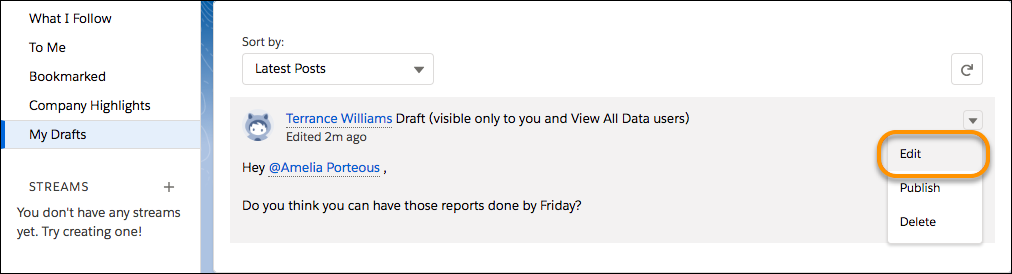
To access a draft post from My Drafts:
- Go to the Chatter tab and select My Drafts.
- From the post’s dropdown menu, you can select Edit, Publish, or Delete.
When a draft is saved,
- Attached files remain private until the post is published.
- If the draft contains a hashtag, the corresponding topic is not created until the post is published.
- It can be found in My Drafts, but doesn’t appear in search.
Post visibility settings are saved only for the first draft. After a draft post has saved, you can edit the post in My Drafts, but you can’t change the post’s visibility.

Here’s how you edit a post from My Drafts: