You are here:
Access and Share Files Connect External Files
After your admin enables Files Connect, you can access files from external sources, like Google Drive and SharePoint, or share them through feeds and Files home.
Required Editions
| Available in: both Salesforce Classic and Lightning Experience |
| Files Connect for cloud-based external data sources is available in: Professional, Enterprise, Performance, Unlimited, and Developer Editions |
| User Permissions Needed | |
|---|---|
| To access cloud-based data sources like SharePoint Online: | Files Connect Cloud |
Download or Share Files on Files Home
Download external files to your local system or share them with a set of people in your org from Files home.
- Navigate to Files home.
- The External Files list in the left column shows available external data sources. Select
one and navigate through the folders, or use the search bar to find a file.
 Note
Note- Salesforce supports Google documents, spreadsheets, presentations, and drawings. In the Recent list, Google Drive content is limited to the 24 most recently accessed documents from the last 30 days.
- SharePoint folders with special characters, such as # or %, appear in the list, but you can’t see or access any files in them.
- Click
 next to the
file name, and choose one of the following:
next to the
file name, and choose one of the following:- Open the file in the external data source, such as SharePoint.
- Download the file to your local system.
- Share the file either as a copy or as a reference. Your admin
has determined which type of sharing is used in your org. When sharing, you do one of
the following:
- Share a copy of the external file stored in Salesforce. If files are shared with a Chatter group, all group members can access the files, even if members lack access to the external system. Salesforce Files doesn’t reflect any revisions to the file in external systems.
- Share a reference to the external file stored outside Salesforce. Only users with access to the external system can download files. (Users must enter credentials for the system in the Authentication Settings for External Systems section of personal setup). Salesforce Files doesn’t reflect revisions to the file in external systems, but the reference points to the latest file version in those systems.
When a user selects an external file from the file selector, a file reference or copy is created in Salesforce. If a file reference exists, it’s reused.
Share Files in the Feed
If you want to include external files in a specific Chatter conversation, use the feed. All files shared in the feed are either copies or references, as determined by your admin.
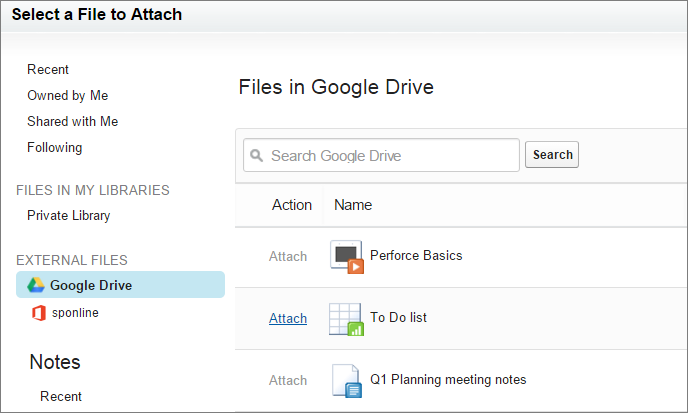
- While authoring a post, click File above the feed, and then click Select a file from Salesforce.
- In the left column, click the external source, such as SharePoint.
- Next to the file you want to share, click Attach.
- In the body of your post, @mention the groups or people you want to share with.
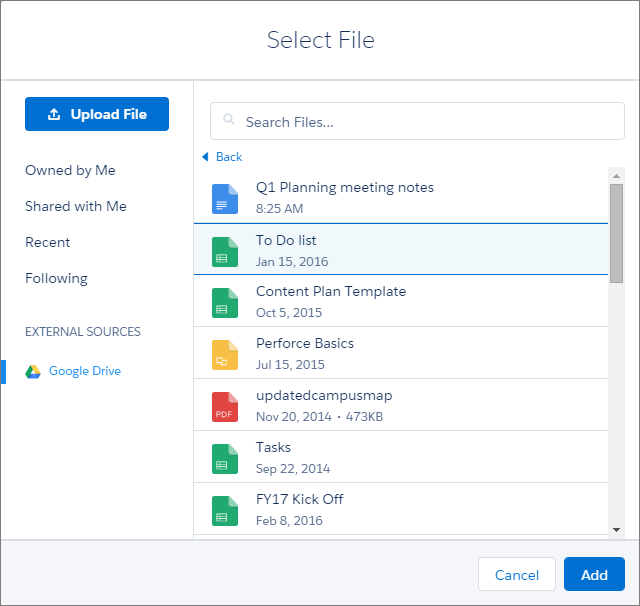
- While authoring a post, click the paperclip icon below the post to open the Select File window.
- From the left column, click the external source, such as SharePoint or Google Drive.
- Select the file you want to share, and click Add.
- In the body of your post, @mention groups or people that you want to share with.
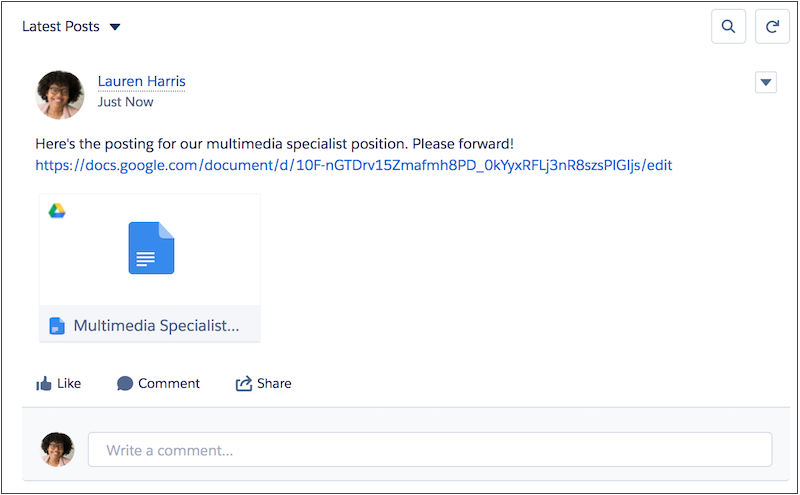
When you paste a link to an external document into a Chatter post, it’s converted into a Files Connect file reference. Under the body of your post, the file title and icon appear. Click the icon to open the file preview right from your feed. A file reference is created for the first link in each post. File references are not created for links in comments.