You are here:
Malware Scanning for Salesforce Files
Files are scanned for viruses or other malware when they’re uploaded or downloaded. New files are scanned when users upload them, and uploads are blocked when a file is malicious. Any existing malicious files in your org are listed in the Malicious Files list in Files home.
Required Editions
| Available in: Salesforce Classic and Lightning Experience |
| Available in: Group, Essentials, Professional, Enterprise, Performance, Unlimited, Developer, and Contact Manager Editions |
The setting Scan files for viruses or malware is on by default in Setup | Salesforce Files | Malware Scanning. To turn on notifications for users with the Manage Malicious Files permission, select Notify users when a malicious file is detected.
When a user attempts to upload a new file to Salesforce Files, Salesforce scans the file and blocks the upload process if the scanned file is malicious. When a user uploads a file via the API, Salesforce allows the upload and scans the file asynchronously. If the scanned file is malicious, it appears in the Malicious Files list.
Any file that was uploaded to Salesforce Files before this feature was enabled doesn't get scanned until a user tries to download it. When a user first tries to download the file, Salesforce allows the download to proceed and scans the file asynchronously. If the file is malicious, it appears in the Malicious Files list, and Salesforce blocks any future download attempts.
Malicious files can appear in any list view in Files home, but not all list views indicate when a file is malicious. To know if a scanned file contains malware, look for it in the Malicious Files list. Users can't preview malicious files.
Files are scanned only when they're 100 MB or smaller. If a file is larger than 100 MB, Salesforce doesn’t scan it or block users from uploading, previewing, or downloading it.
Malware scanning flags files only if they have a high probability of being malicious. If you require more stringent scanning, consider using one of Salesforce’s malware scanning partners.
Mark a Malicious File as Safe
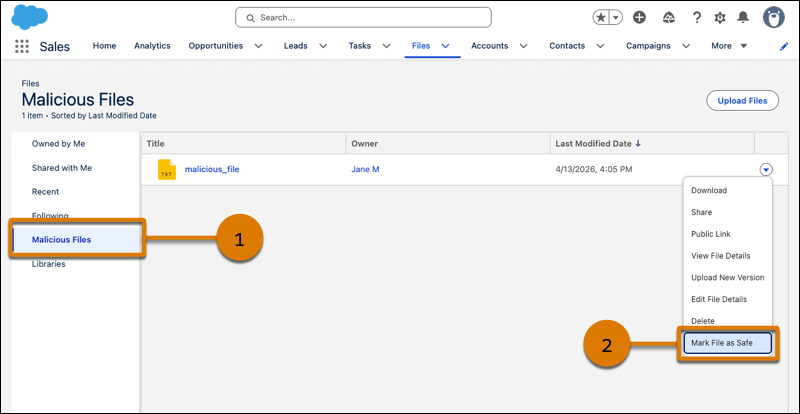
When a scanned file is incorrectly identified as malicious, designate it as safe. After you mark a file as safe, it's removed from the Malicious Files list, and users can preview or download it.
Required Editions
| Available in: Lightning Experience |
| Available in: Group, Essentials, Professional, Enterprise, Performance, Unlimited, Developer, and Contact Manager Editions |
| User Permissions Needed | |
|---|---|
| To access the Malicious Files list, get notified when a malicious file is detected, mark a file as safe, and download a malicious file: | Manage Malicious Files |
| To download a malicious file: | Download Malicious Files |
- In Lightning Experience, from the App Launcher, open Files.
- To see malicious files, open the Malicious Files list (1).
- Find the file that was incorrectly identified as malicious and open its row-level actions dropdown.
-
Click Mark File as Safe (2).