
You are here:
Files Home
Files Home is the central location of your files in Salesforce. See all files that you’ve stored privately, view files that are shared with you, and share files with others.
Required Editions
| Available in: Salesforce Classic and Lightning Experience |
| Available in: Group, Essentials, Professional, Enterprise, , Performance, Unlimited, Developer, and Contact Manager Editions |
Watch a demo:  Checklist for Salesforce Files
From Files home, you can:
- See all the files that you own or have access to, and filter your list of files.
- Search for files by using filters and by entering terms in the Files search box or the search box at the top of the page.
- See your favorite files and most recently accessed files under the Files dropdown.
- Upload private files or upload and share files with people, groups, or via a link.
- Preview a file without downloading it.
- Follow a file and receive updates about it in the Chatter feed. To stop receiving updates
about a file, click
 next to the file that you're following (requires Chatter).
 - To download, share, get a public link, view file details, upload a new version, edit file
details, and delete files, click
 .
. - If Files Connect is enabled in your org, browse, search, and share files that are stored in an external data source right from Salesforce.
- To view the file detail page, click a file name.
- To see a file owner’s profile, click the owner’s name.
Files home provides powerful tools for working with and managing your files.
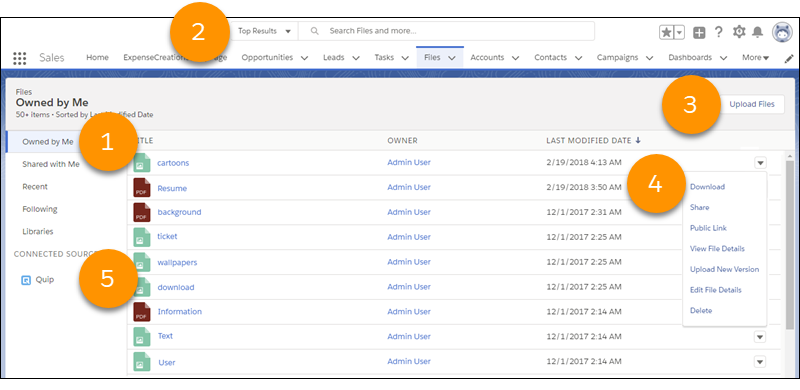
- To refine the list of files you see, filter your file list (1).
- Access files in your libraries from Libraries in the left navigation panel.
- Search (2) to find the files you need. In Salesforce Classic, filtering your file list also filters your search. To search all files you have access to, select the Recent filter.
- Upload files to Salesforce (3).
- All file types are supported, including everything from Microsoft® PowerPoint presentations and Excel spreadsheets, to Adobe® PDFs and image files. You can upload and download audio and video files, but you can’t parse or preview them.
- Preview, download, share, and rename files directly from the file list (4).
- If Files Connect is enabled for your org, the left navigation panel shows a section for external file sources (5).
Files are automatically added to the file list when:
- You upload a file.
- You attach a file to a record.
- You or someone else attaches a file to a Chatter feed or comment.
- Someone else shares a file privately with you by using the Sharing dialog box.
- You upload a file to a Salesforce CRM Content library.
- Someone else uploads a file to a library that you're a member of.
- You or someone else creates a content pack or uploads a web link in Salesforce CRM Content. You see only files from content packs and web links that you have access to.
Did this article solve your issue?
Let us know so we can improve!
