
You are here:
Create a Stream from the Streams Home Page
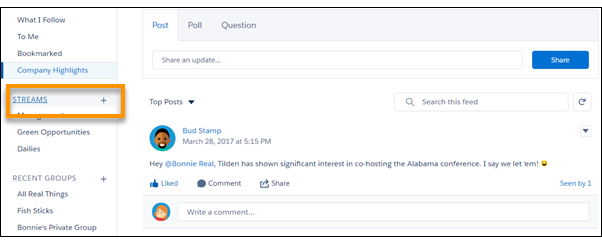
You can get to the streams home page by clicking the Streams heading on the Chatter home page. The Streams home page has controls for managing existing streams and making new ones.
Required Editions
| Available in: Essentials, Group, Professional, Enterprise, Performance, Unlimited, Contact Manager, and Developer editions |
To create a Chatter stream, provide a title and select the feed types and feeds that you want in your stream.
-
To open the Streams home page, go to the Chatter home page and click the Streams
heading.
-
To open the New Stream dialog (1), click New.
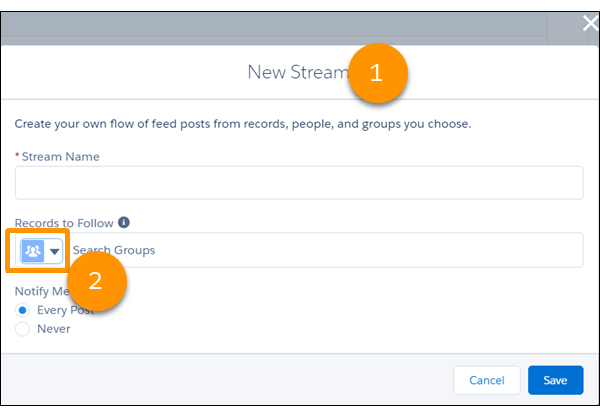
- Enter a name for your stream.
- In the Records to Follow field, click the down arrow (2) and choose a type of feed to add to your stream.
-
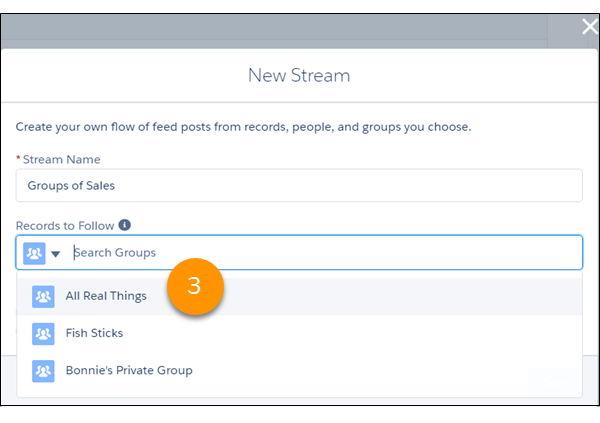
When you’ve made a selection, click in Records to Follow again to
search within the selected type of feed (3).
 Note Knowledge articles (KAs) aren’t fully supported in streams. You can add them when you create and edit a stream by searching for the article’s ID number rather than its title. But you can’t add a KA to a stream from its Follow button like you can with other record types. Articles added to Streams using the article’s ID don’t appear in Records to Follow on the Stream's edit page. KAs also don’t appear when viewing the Follow button details on the article's detail page.
 -
Select a listed feed.
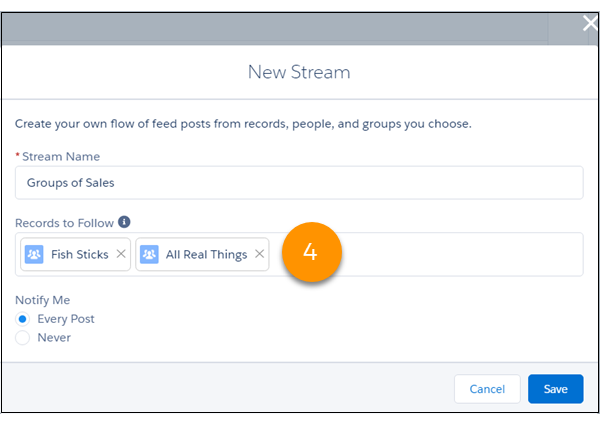 Repeat steps 3 through 5 until you have all the feeds (up to 25) that you want in this stream (4).Note You can add up to 25 unique record, group, and profile feeds to a stream. If your access to any of the 25 is removed, the removed entity is still counted as part of the 25. You can't replace it with something else. But you can remove it from the stream and then add another feed.
To include a person account in your stream, add it as an Account in the Records to Follow field. If you add a person account as a Contact, the related feed posts don’t appear.
-
Set up notifications for this stream by selecting either Every Post
or Never (5).
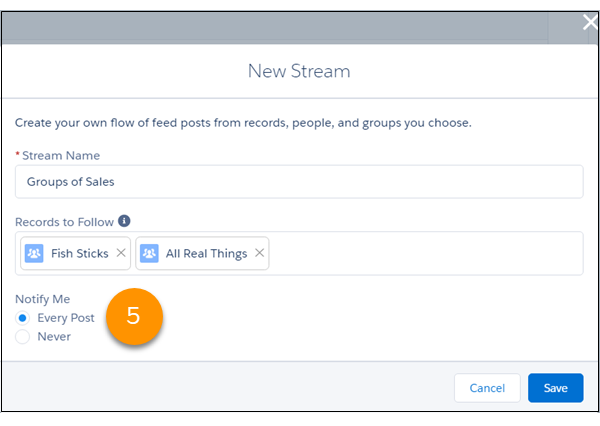 Every Post gives you email and in-app notifications whenever a new post is added to the stream. Never turns off notifications for this stream.
 - To save your selections, click Save.
-
To save your stream, click Save again.
Your stream is listed in the left column on the Chatter home page, under Streams (6). To open the stream, click its name.
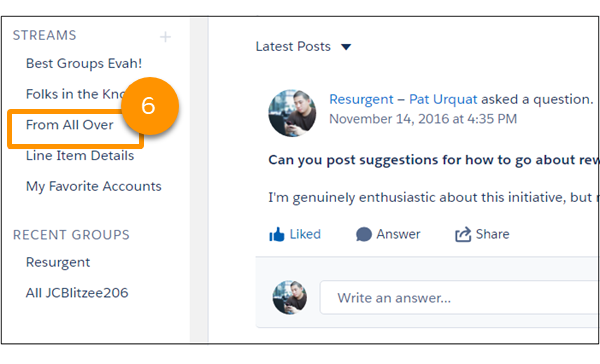 Note If your stream isn’t listed on the Chatter home page, click the Streams heading to go to the streams home page. All the streams that you created are listed there.
Did this article solve your issue?
Let us know so we can improve!
