
You are here:
Update Your Experience Builder Site’s Template
We introduce amazing features and enhancements with every release, so it pays to keep your Experience Builder site up to date! Typically, we automatically update your template to the latest version, so you can start adding the newest features to your site right away. However, when the changes are significant, you’re required to update your template manually.
Required Editions
| Available in: both Salesforce Classic and Lightning Experience |
| Available in: Enterprise, Performance, Unlimited, and Developer Editions |
| User Permissions Needed | |
|---|---|
| To update your template | Create and Set Up Experiences AND Manage Experiences |

All template improvements are made on the latest version. Avoid missing out by keeping your template current.
The Koa and Kokua templates are in a phased retirement. From Summer ’17, you can no longer use them to create sites. We therefore recommend working with Salesforce Support to replace your existing Koa and Kokua sites. Take advantage of the latest templates, which provide richer support for Knowledge and case management, along with a slew of other new features.
We no longer support Koa, Kokua, and Customer Service template versions from before Winter ’16 (October 2015).
The impact of updating a template depends on the version your site is using. When a
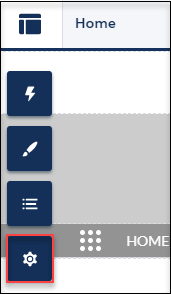
manual template update is available, a red notification icon ( ) appears over the Settings icon.

| My Current Template Type and Version | What Can I Expect When Updating to Spring ’19? |
|---|---|
| Winter ’19 templates and Lightning Bolt solutions |
If you’ve applied CSS customizations, migrate them in the upgraded components. Overriding CSS isn’t recommended. The best way to update the styling of your components is to use the Theme panel in Experience Builder. To update existing CSS overrides see CSS mappings for updated components. |
| Summer ’18 templates and Lightning Bolt solutions | Your site is updated automatically with all the features of the Winter ’19 release. No need to manually update. |
| Spring ’18 templates and Lightning Bolt solutions |
Overriding CSS isn’t recommended. To update existing CSS overrides, see CSS mappings for updated components and Standard Design Tokens for Sites. |
| Winter ’18 templates and Lightning Bolt solutions |
|
| Spring ’17 and Summer ’17 Customer Service, Partner Central, and Lightning Bolt solutions |
|
| Winter ’16 to Spring ’17 Customer Service (Napili) |
|
| Pre-Winter ’16 Koa, Kokua, or Customer Service (Napili) | Most component customizations and properties are overwritten. However:
|
| Pre-Spring ’16 Aloha template | Most branding properties defined using the Branding Editor in Experience Builder are maintained. However, sometimes your site’s colors are reset to the default value. After you update the template, check the branding properties and update the ones that were reset |
| Salesforce Tabs + Visualforce | Template updates for sites using Salesforce Tabs + Visualforce aren’t managed from Experience Builder. |
For information on component compatibility with older template versions, see Which Components Can I Use with Each Template?
To update your template:
-
In Experience Builder, click
 | Updates.
- Click Update and confirm the update when prompted.
- Make sure that your login pages look correct, and reconfigure missing branding properties, custom code, and component customizations.
- Publish your site to apply the template updates.
If you are upgrading from a pre-Winter ’18 template, some of the old branding properties are reorganized but still there, while others map to different properties. Let’s take a closer look at the changes.
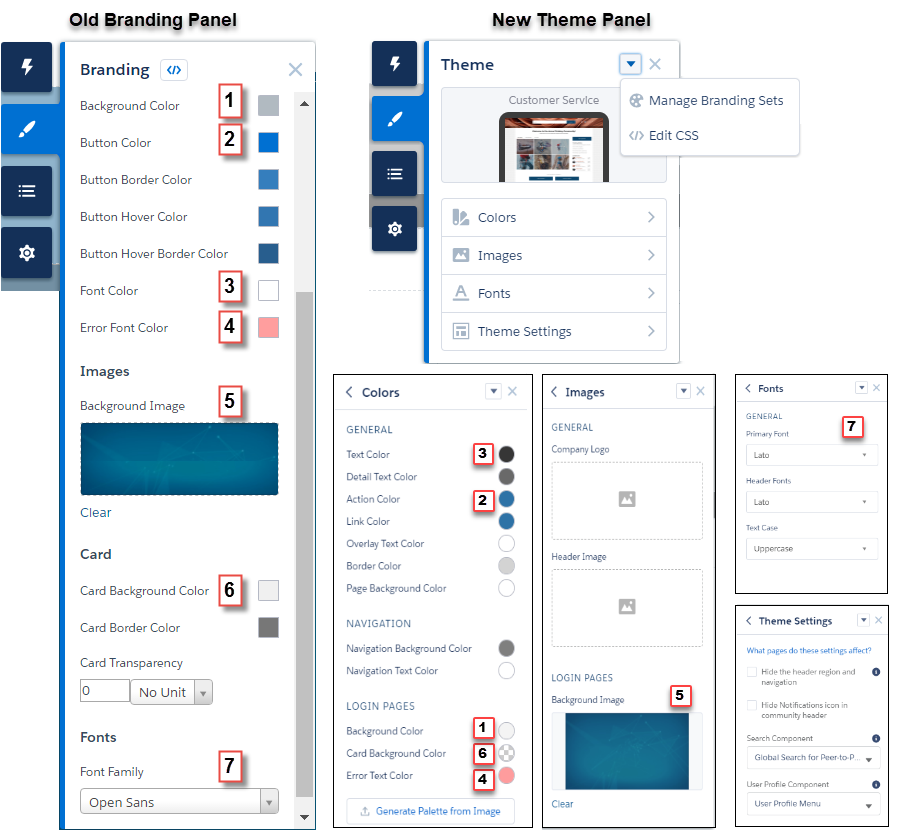
| Pre-Winter ’18 branding properties ... | Map to these updated branding properties ... |
|---|---|
| Background Color (1) | Background Color (1) |
| Button Color (2) | Action Color (2) |
| Button Border Color | — |
| Button Hover Color | — |
| Button Hover Border Color | — |
| Font Color (3) | Text Color (3) |
| Error Font Color (4) | Error Font Color (4) |
| Background Image (5) | Background Image (5) |
| Card Background Color (6) | Card Background Color (6) Also controls card transparency |
| Card Border Color | — |
| Card Transparency | — |
| Font Family (7) | Primary Font (7) |
