Quickly change the look of your Experience Builder site pages by switching to a
different content layout. You can even create your own custom content layout components in the
Developer Console and import them to use in your site.
Required Editions
Available in: both Salesforce Classic and Lightning Experience
Available in: Enterprise, Performance, Unlimited, and
Developer Editions
User Permissions
Needed
To customize or publish an Experience Cloud site:
Create and Set Up Experiences AND View Setup and Configuration AND be a member
of the site
OR
View Setup and Configuration AND be a member of the site AND have appropriate
role-based site access
Tip When you set up a new page or page variation, use a flexible layout. These
highly customizable layouts are more adaptable than ready-to-use layouts, and you can
re-create most fixed layouts by using a flexible layout.
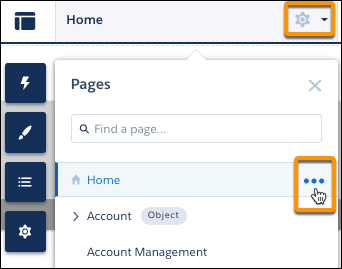
In Experience Builder, open the
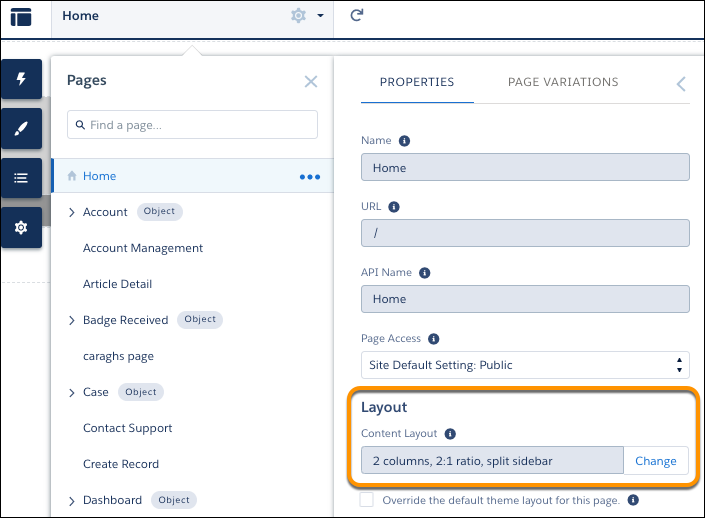
page’s properties. Click beside the page on the top toolbar, or click | Page Settings beside the page in the Pages dropdown menu.
In the Layout section of Page Properties, click Change.
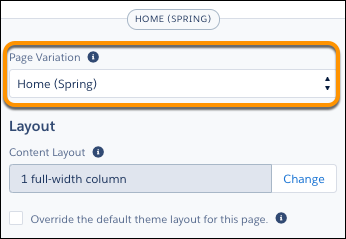
If a page variation is available, you can make it the active page by selecting the page
variation. You can then change its content layout as required.
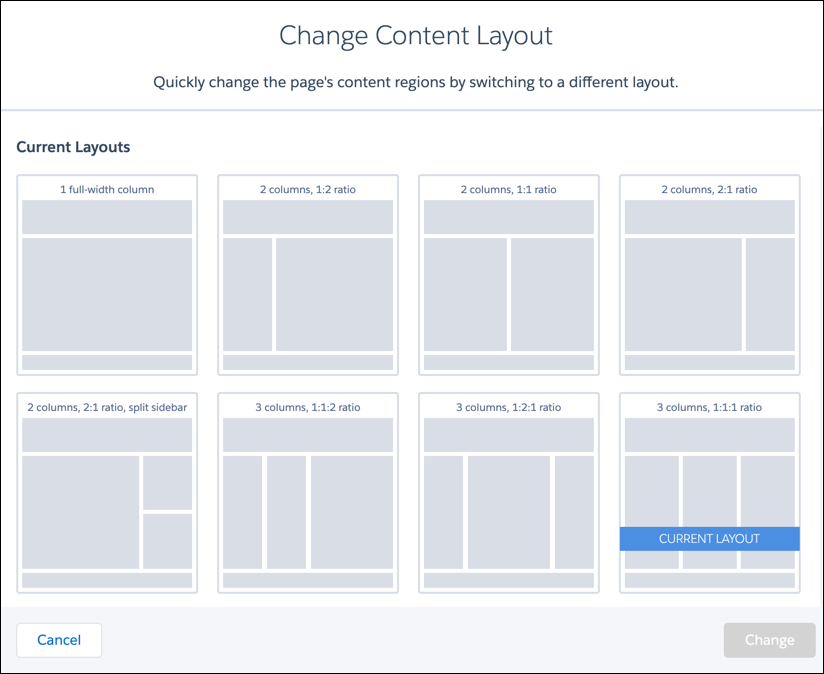
Select the new layout. If you created a custom content layout component, you see both
ready-to-use and custom content layouts displayed together.
You can’t use Lightning web components with the 2 column, 2:1 ratio, split-sidebar
fixed layout. To incorporate Lightning web components on a page with this layout, use a
flexible layout to create a page or page variation that’s arranged the same
way.
Click Change.
If the structure of the new layout is different from the current layout, some
regions aren’t visible. However, the regions are still available and you can switch to a
different layout at any time. If you change the layout of a default template page, the
only way to revert to the original layout is to click
Undo.
We use three kinds of cookies on our websites: required, functional, and advertising. You can choose whether functional and advertising cookies apply. Click on the different cookie categories to find out more about each category and to change the default settings.
Privacy Statement
Required Cookies
Always Active
Required cookies are necessary for basic website functionality. Some examples include: session cookies needed to transmit the website, authentication cookies, and security cookies.
Functional Cookies
Functional cookies enhance functions, performance, and services on the website. Some examples include: cookies used to analyze site traffic, cookies used for market research, and cookies used to display advertising that is not directed to a particular individual.
Advertising Cookies
Advertising cookies track activity across websites in order to understand a viewer’s interests, and direct them specific marketing. Some examples include: cookies used for remarketing, or interest-based advertising.