
You are here:
Create Custom Site Pages with Experience Builder
To extend your Experience Builder template, create custom site pages. To get the most from your Salesforce data, add custom record detail, list, and related list pages. To display individual pieces of content along with any combination of components, use CMS content pages.
Required Editions
| Available in: Salesforce Classic and Lightning Experience |
| Available in: Enterprise, Performance, Unlimited, and Developer Editions |
| Applies to: LWR and Aura sites |
| User Permissions Needed | |
|---|---|
| To customize or publish an Experience Cloud site: |
|
| To create a site page from a preconfigured page or an installed object page: | Customize Application |
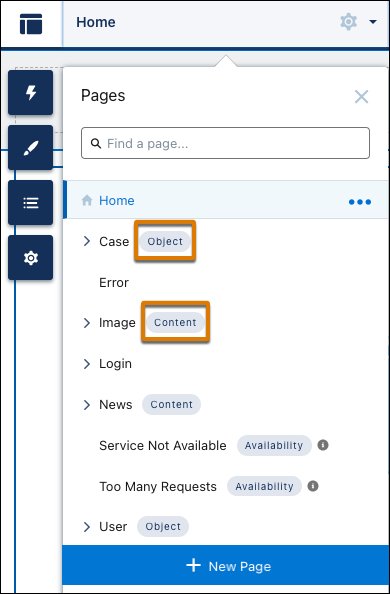
Your site’s pages appear alphabetically in the Pages menu. To differentiate them from standard pages, object and content pages are labeled. Other page types, such as availability pages for sites that use the Salesforce content delivery network (CDN), also show an identifying label.
Create a Standard Page
Create a standard page based on a blank layout or on a preconfigured page (if available). Standard pages are the default pages that come with the Experience Builder template or that you create.
- In Experience Builder, open the Pages menu and then click New Page.
-
Click Standard Page and then choose a layout.
- For LWR sites, the page uses a flexible layout by default unless a custom content layout is available to choose.
- For Aura sites, choose a fixed or a flexible layout. Alternatively,
if preconfigured pages are available for your template, choose a preconfigured page,
or click New Blank Page to select a fixed or a flexible layout.
Then click Next.
 Note For sites created with the Build Your Own (Aura) template, you can choose from several preconfigured pages to build out your site. For example, in a site where Chatter is enabled, select Feed Detail to create a Chatter feed page, or Question Detail for a page where users can post questions and answers. When you add a standard Feed Detail or Question Detail page to your site, community members can use the Share feature to include links to other sites or Chatter groups in their posts.
-
Give the page a name, specify the static portion of the page’s URL, and then provide
an API Name (optional). Click Create.
To avoid performance problems on Aura sites, you can’t specify any of these reserved words on their own as the static portion of a standard page’s URL: on, once, before, after. However, you can specify these words in combination with other words.
- Add and configure page components on your new page.
- Preview and publish your site.
Create an Object Page
Create an object page that connects to your Salesforce data. When you create an object page, you actually create three new pages related to the object: a record detail page, a record list page, and a related list page. Each page provides different views and details about the object’s data. Generic object pages display record information for a Salesforce object when custom object pages don’t exist.
- In Experience Builder, open the Pages menu and then click New Page.
-
Click Object Pages and then choose the object that you want to
associate with the page.
To toggle between all object pages and installed object pages, use the Show Objects dropdown menu. Installed object pages are pages that were exported from or imported into your org. Objects for object pages that already exist on the site are not available in the Page list, while for standard pages, exported versions still appear as choices.
- Click Create, and then click Create again if prompted.
- Add and configure page components on your new page.
- Preview and publish your site.
Create a Content Page
Create a content page to display individual pieces of your Salesforce CMS content. The content types available for the page depend on what content pages you previously created for your site as well as what content types are contained in the CMS workspace connected to your site. For example, if you previously created a news content page for your site, the news content type isn’t available.
Before you create a content page, add your Experience Builder site as a channel in a Salesforce CMS workspace. This step creates the connection between your site and your CMS content. Next, ensure that all content that you want to display on your site is published in your workspace. Content must be published before you can use it on your Aura or LWR site.
- In Experience Builder, open the Pages menu and then click New Page.
- Click CMS Content Page and then choose a content type for the page. Click Create.
- Go to your new content page to add and configure page components.
- Preview and publish your site.
Create a Page Variation
In Aura sites, you can use page variations to create personalized versions of the same page that are targeted to different audiences. For example, you can create region-specific variations of the Home page instead of creating two separate pages.
-
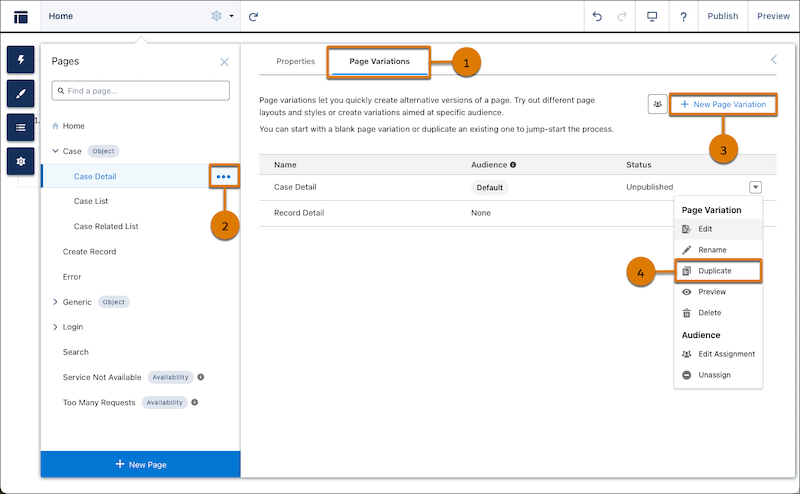
To access the Page Variations tab (1) for a page, from the Pages menu, click
 (2) | Page Settings.
-
To duplicate an existing page variation, click
 | Duplicate (4).
A copy of the page variation appears in the page variations list. To customize the name of the duplicate page variation, click | Rename.
| Duplicate (4).
A copy of the page variation appears in the page variations list. To customize the name of the duplicate page variation, click | Rename. -
To create a page variation, click New Page Variation (3) and
then choose a layout.
- To create a unique layout, click New Blank Page. Select a layout option then click Next. Give your page variation a name then click Create.
- To use a preconfigured layout, select one of the available options then click Next. Give your page variation a name then click Create.
- Add and configure page components on your new page variation.
- Assign the page variation to an audience.
- Preview and publish your site.
In Aura sites, if an audience doesn't have an assigned page variation and the default page variation for the object is deleted, users see a generic record layout when they try to access the record. Generic record layouts can include record detail, record list, and record-related list pages.
