
You are here:
Export a Customized Experience Builder Template for a Lightning Bolt Solution
You can customize and export an Experience Builder template to use as a base for creating Experience Builder sites. Create custom pages, layouts, and components. Export and package the template on its own or distribute it for others to use as a part of a Lightning Bolt Solution.
Required Editions
| Available in: both Salesforce Classic and Lightning Experience |
| Available in: Enterprise, Performance, Unlimited, and Developer Editions |
| User Permissions Needed | |
|---|---|
| To create an Experience Cloud site: | Create and Set Up Experiences AND View Setup and Configuration |
| To customize or publish an Experience Cloud site: |
|
| To create a Lightning Experience Builder template, theme, or page: | Customize Application AND Create and Set Up Experiences AND View Setup and Configuration |
| To create a Lightning Bolt Solution: | Customize Application AND View Setup and Configuration |
If your customized template isn’t based on the latest version, you can’t export it until you update the template.
-
In Experience Builder, select Settings | Developer, and click Export a Template.
The information that you add on this page appears in the Experience Creation wizard and helps others understand your template’s purpose and benefits.
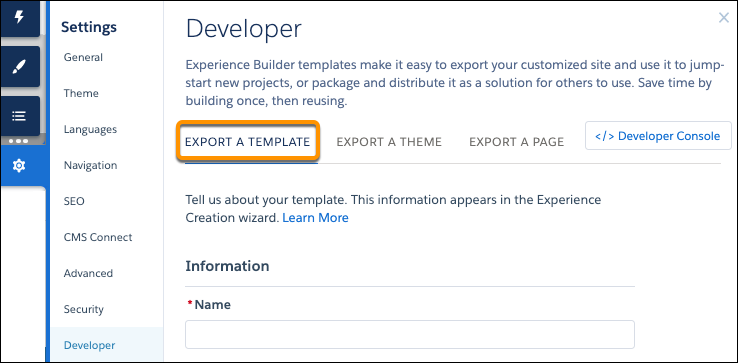
- Add a unique template name, a publisher name, and select a category.
-
Add at least one image as the thumbnail image. The recommended image dimensions are
1260 x 820 pixels.
You can add two more images that appear in the detailed description of the template.
- Enter a summary that describes the purpose of the template.
-
Enter at least one key feature.
The feature titles appear under the thumbnail in the Experience Creation wizard. The feature descriptions appear in the solution’s detailed description.
-
Click Export.
After you export the template, it appears in the Experience Creation wizard in your org. You can then use it as a base for building new Experience Builder sites. If you package the template in a Lightning Bolt Solution and install it in another org, it appears in that org’s Experience Creation wizard.
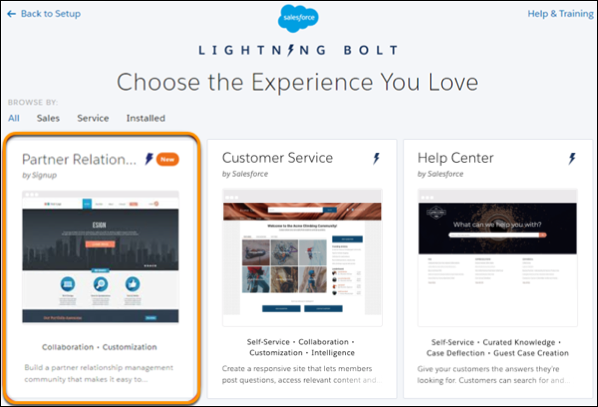
- To distribute the template, create a managed package. Or, add the template to a Lightning Bolt Solution, and include it in the package.
To delete an exported or imported template, from Setup, in the Quick Find box, enter Digital Experiences, and then click Templates.

Note
- If you create an Experience Builder site in your org that’s based on an imported or exported template, you can’t delete the template.
- If you include object pages in a custom template, you can’t delete the object from your org unless you remove the template’s object pages.
- If you add subpages to an Experience Builder site in your org and export the template, the new site doesn’t have the same page hierarchy as the original. All pages in the exported site are found at the top level.
Did this article solve your issue?
Let us know so we can improve!
