
You are here:
Experience Builder Settings
Use the Settings area to track which template you’re using, view your site’s status and publication history, and customize your template. If you’re using the Customer Service template, access your navigational and featured topic settings.
Required Editions
| Available in: Salesforce Classic and Lightning Experience |
| Available in: Enterprise, Performance, Unlimited, and Developer Editions |
| Applies to: LWR and Aura sites |
| User Permissions Needed | |
|---|---|
| To customize or publish an Experience Cloud site: |
|
To access the Settings area in Experience Builder, click  on the left sidebar. Not
all settings are available for all sites.
on the left sidebar. Not
all settings are available for all sites.
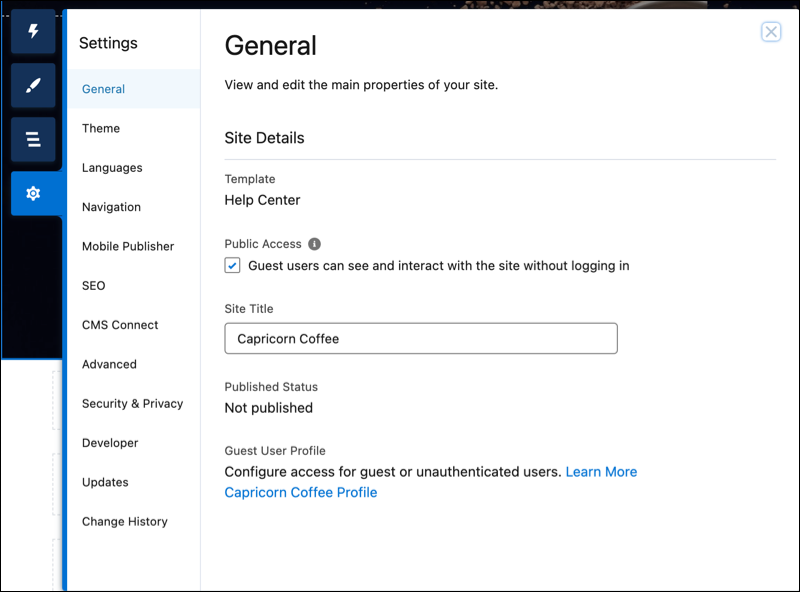
- General
- In the General area, settings include:
- Template
- Shows the name and version of the template that your site uses.
- Public Access
- Specifies the level of access to the page. When you enable public access, guest
users can view asset files on public pages by default. However, users whose
profile settings are more restrictive can’t always view this page, even if you
choose Public.
When you enable public access, the preference Let guest users view asset files on public pages in Administration | Preferences is automatically enabled.
- Site Title (Aura sites only)
- Lets you set the title for your site. The title briefly appears in the browser’s title bar before your site’s Home page loads.
- Published Status
- Indicates whether your site is published. If it’s published, click the link to open the live site in a separate browser tab.
- Preferred Domain
- Lets you choose which domain to use for indexing your site’s pages to improve search engine results. (Multiple domains for the same site can dilute search engine results and lower page ranking.) The Preferred Domain dropdown appears only after you set up a custom domain for your site in Setup. You can set only HTTPS preferred domains.
- Guest User Profile
- Shows the associated guest user profile. When you click the link, you go to the Profile page in Salesforce Setup, where you can modify profile settings, such as which permissions the guest user has. For more information about configuring the guest user profile, see Give Secure Access to Unauthenticated Users with the Guest User Profile.
- Set Featured and Navigational Topics (Customer Service template only)
- Define featured topics and topics to be used for navigation in Experience Workspaces or Experience Management.
- Theme
- In the Theme area, you can control the layout and appearance of each page in your site.
- Languages
- In the Languages area, set the multilingual properties for your site. When you set these properties, the Language Selector component uses them to let guest users select their preferred language on a page in your site.
- Navigation
- In the Navigation area, create and manage navigational menus for your site. You can use menus in Navigation, Tile Menu, Profile, and custom menu components.
- Mobile Publisher
- Configure navigation options and settings for your Mobile Publisher app.
- SEO (Aura sites only)
- In the SEO area, you can define what information can be indexed by external services
and discovered through online searches. From the Guest User Profile, make an object’s
records public and available for SEO indexing. You can also generate a manual sitemap
refresh for your site.
 Note To access SEO settings in Experience Builder, enable public access for your site from the General area in Settings.
 - Search (enhanced LWR sites only)
- In the Search area, you can rebuild the index after you publish fresh content in your site or in the connected CMS workspace. Your site visitors can then see your new content in their search results. This feature is available only after you set up a standard Search page.
- CMS Connect (Aura sites only)
- Add a header and footer from a connected CMS source to your site.
- Advanced
- In the Advanced area, you can track
page views, mask IP addresses, add markup to the page head, and show
all components in the Components panel.
By default, we filter the components available in the Components panel according to each page’s purpose. For example, the Case Comments Publisher is available only for the Case Details page. When you enable Show all components, you see the complete list of components when you open the Components panel for any page except login pages. (For limitations in enhanced LWR sites, see LWR Template Limitations.) However, you can still add the Related Questions List component only to the Question Detail page and the Related Articles List component only to the Article Detail page.
 Important Some components require the page to pass specific parameters. When you remove component filtering, you can add a component that relies on a passed parameter to a page that doesn’t pass any values. For the component to work correctly, you must manually configure the component’s parameters.
For example, some components that take
{!recordId}as a parameter expect to get this value from the page’s URL. If you add the component to a page that doesn't pass this value through the URL, you must manually provide it.Similarly, let’s say you add the Group Detail component, which requires a
{!recordId}value, to the Case Detail page instead of the Group Detail page. Although both pages pass a{!recordId}value, the ID that Case Detail passes is incorrect. - Integrations (LWR sites only)
- Add functionality such as Google Analytics to your site.
- Security & Privacy
- Manage security and privacy settings for your Experience Cloud site, including Clickjack protection, Content Security Policy (CSP), and site cookie usage.
- Updates
- In the Updates area, you can update your site’s template to the latest version.
- Developer (Aura sites only)
- In the Developer area, you can export customized Experience Builder templates and pages. You can add these templates and pages to a Lightning Bolt Solution to distribute to other orgs or publish on AppExchange.
- Change History
- The Change History area shows a chronological list of publication dates for your site. When you publish a site and enter a summary of the site changes in the publication confirmation window, that summary appears here. The panel also shows any changes made to the configuration of domains that are associated with your site and identifies which user made each update.
