
You are here:
Considerations for Page Hierarchy and URL Conflicts in Experience Builder
When you create and organize pages in your Experience Builder site, some pages behave differently than others. Keep these page management considerations in mind when you use the Page Action menu.
Required Editions
| Available in: both Salesforce Classic and Lightning Experience |
| Available in: Enterprise, Performance, Unlimited, and Developer Editions |
| User Permissions Needed | |
|---|---|
| To customize or publish an Experience Cloud site: |
|
Page Level Limits
You can have up to six levels of pages when you use the Page Action menu to add subpages or move pages. Because of this limit, the option to add a subpage or move a page within your page hierarchy is disabled from the Page Action menu.
When you create an object page, a page base (1) is created on one level, and the Detail, List, and Related List subpages (2) are created on a second level. When you create a content page, its Content Detail subpage is also on the second level.
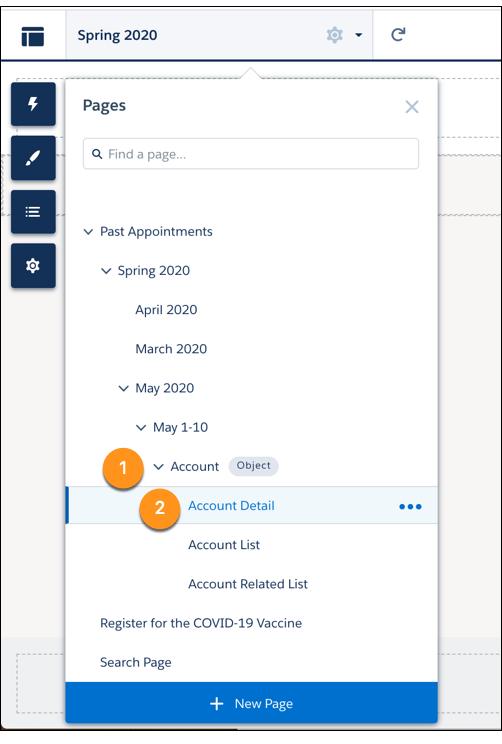
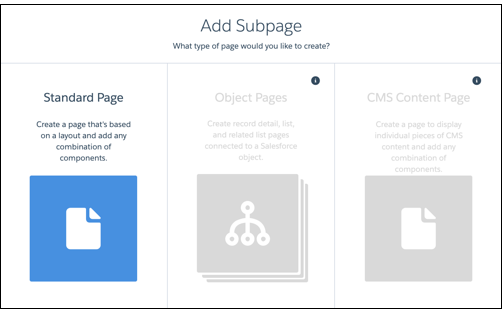
Because object and content pages take up two levels, adding them under the fifth level of an existing hierarchy exceeds the level limit of six pages. When a page is on the fifth level of the page hierarchy, you can only add a standard page as a subpage. The object and content pages are disabled and can’t be added.
Dynamic URL Conflicts
Some preconfigured pages (1) in your site contain a dynamic portion in the page URL, indicated with specific parameters (2).
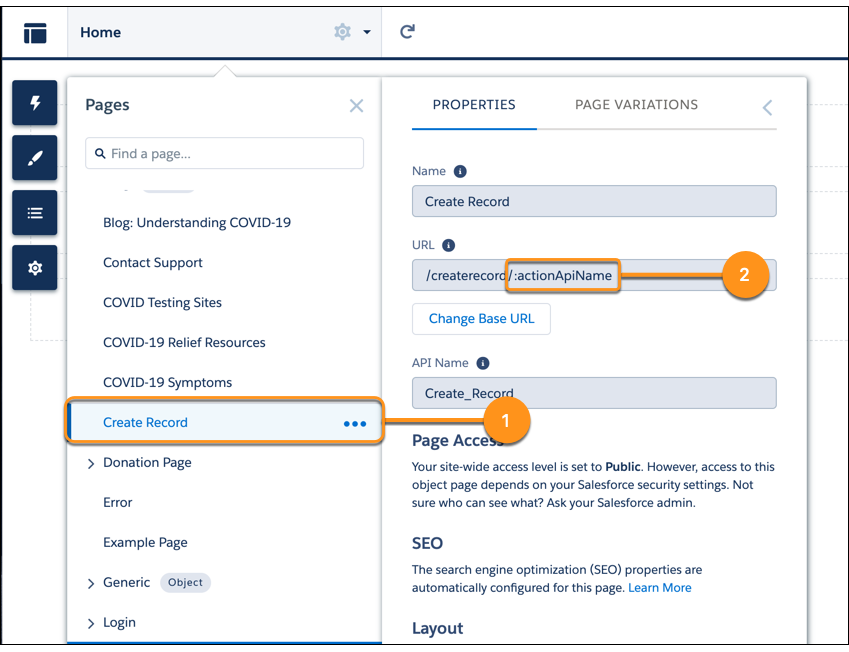
To avoid URL conflicts, the Add Subpage option is always disabled for these pages, and other pages can’t be moved under them.
URL Conflicts Between Sites
If you host multiple sites on the same Salesforce-managed domain, be sure to review your site URLs for conflicts, as it’s possible to configure the same URL for pages on two different sites.
Let’s say you use https://ExperienceCloudSitesSubdomain.force.com for Site A’s homepage, and https://ExperienceCloudSitesSubdomain.force.com/products for Site B’s homepage. If you create a page on Site A that uses the subpath /products, that page and Site B’s homepage both use the URL https://ExperienceCloudSitesSubdomain.force.com/products.
In this scenario, a site visitor can only access the Site A page through a navigation menu on Site A. If a site visitor navigates to http://ExperienceCloudSitesSubdomain.force.com/products any other way, they’re directed to Site B’s home page.
General URL Conflicts
A page that exists at the same level as another page with the same base URL (1) and has a dynamic URL (2) can’t have subpages.
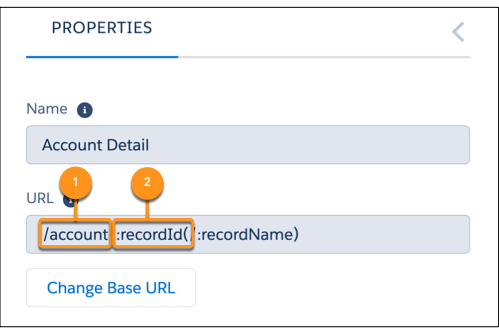
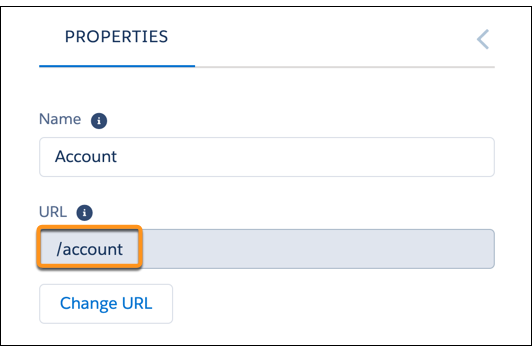
In this example, the Account standard page and the Account object page have the same base URL, /account/. To prevent URL conflicts, the Add Subpage feature is disabled for the Account standard page.

Now let’s say the Account standard page is a subpage of another standard page in your site.
When the Account standard page has no subpages of its own, you can move the Account object page under the Experience page as an immediate subpage. Here, the Account standard and Account object pages can exist on the same level within a single page hierarchy.
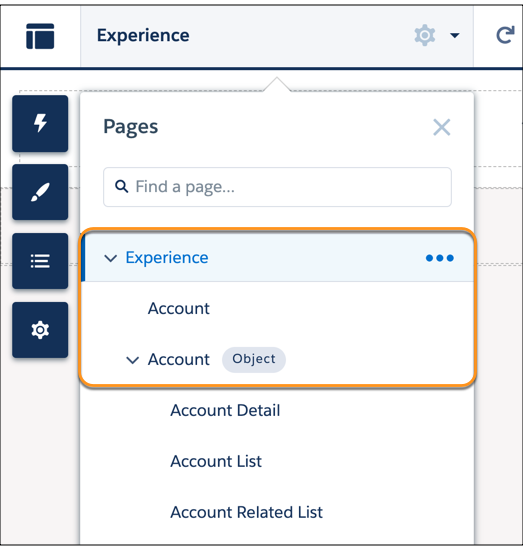
But if the Account standard page has a subpage, the Account object can’t be in the same page hierarchy at the same level as the Account standard page. In this case, the base URLs of both pages conflict, which means that you can’t move the Account object page under the Experience page. When you click Move Page for the Account object page, the Experience standard page and its subpages are disabled as destinations.
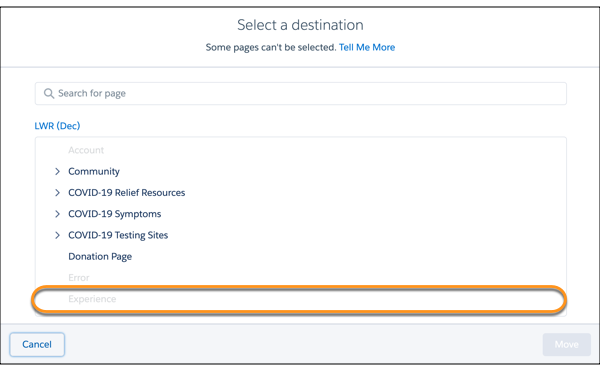
The Add Subpage option is always disabled for pages with dynamic URLs, such as object and content pages, to avoid URL conflicts with their default subpages.
Move Page Conflicts
From the Select a destination dialog, you can select a parent page to move your selected page under. Some pages are disabled because they can’t be parent pages for the page that you want to move.
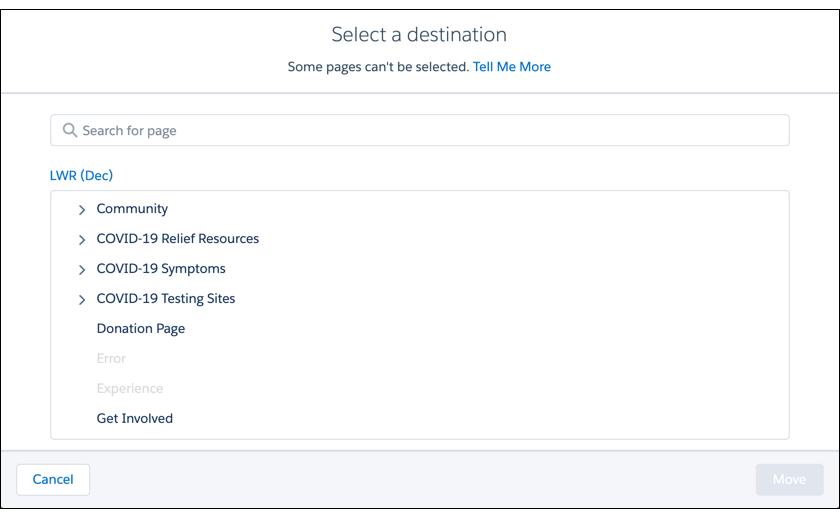
Some possible reasons include:
- Page Level Limits: You can’t move a page under a parent page that results in a page
hierarchy exceeding six levels. Say you want to move a page with a subpage, such as an
object page, under a new parent page. You can only select a destination page up to the
fourth level because the object page’s current page hierarchy consists of two pages.
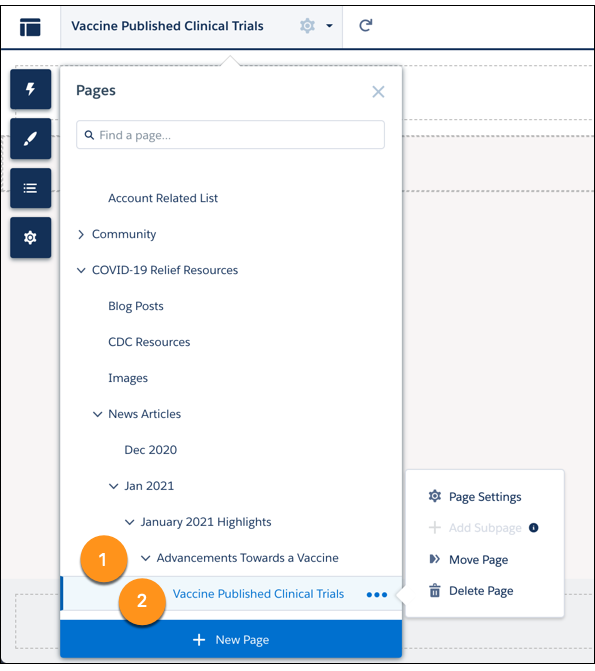
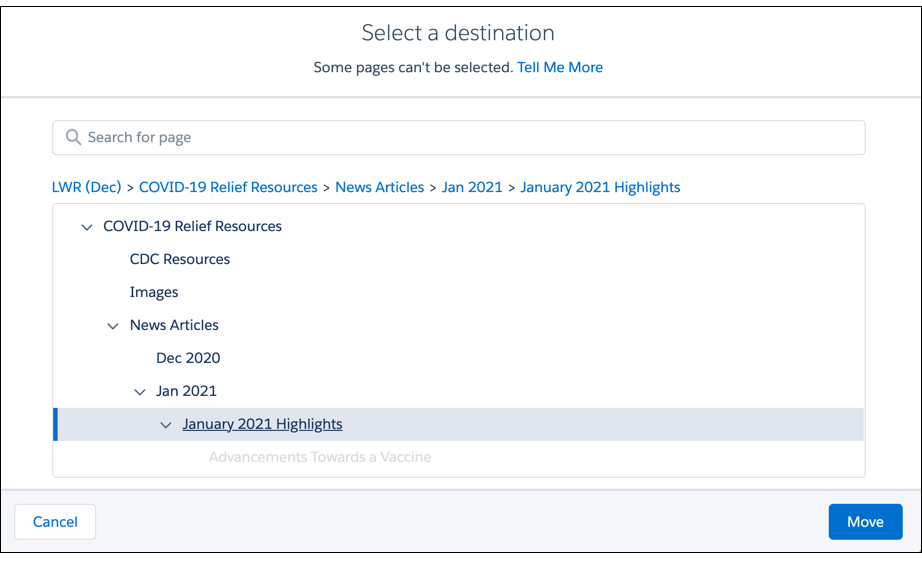
Moving it to a fifth (1) or sixth (2) level page exceeds the six-level limit of the new
parent page’s hierarchy.
- URL conflicts: Review the suggestions in Dynamic and General URL Conflicts to easily move pages around in your site.
- Some pages are always top level and can’t have subpages: Examples include the Home, Login, and Flow pages, as well as pages in the B2B template: Checkout, Flow, Order, and Confirmation. You can’t move these pages or move other pages under them.
From the Select a destination dialog, you can move a page to the top level when you click the site name (1) and then click Move to Root (2).
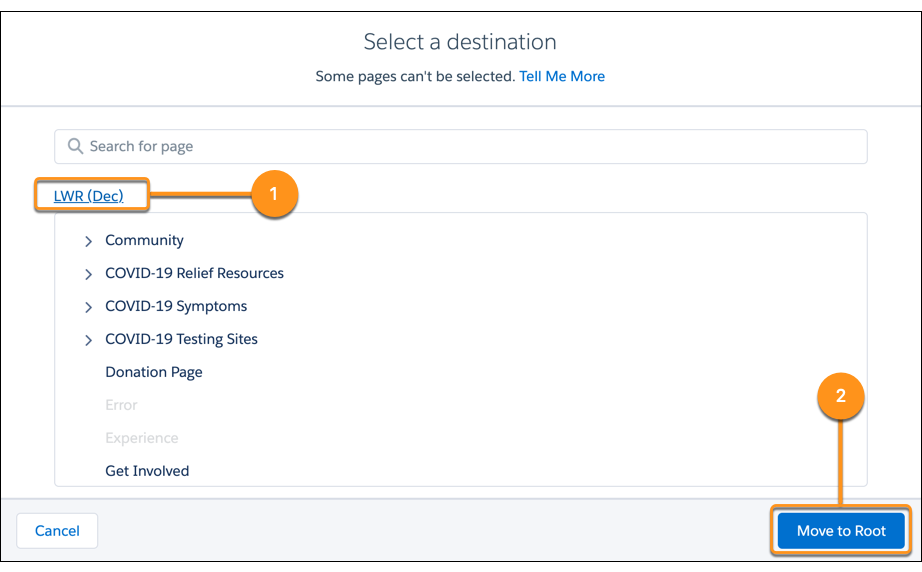
The Move to Root button is disabled if a page is already at the top level in your page hierarchy. It’s also disabled when the page you want to move has a URL conflict with an existing top-level page. Review the suggestions under General URL Conflicts to move your page to the top level.
