
You are here:
Page Properties and Types in Experience Builder
Use the Page Action menu to view and edit the properties of the pages that make up your Experience Builder site.
Required Editions
| Available in: both Salesforce Classic and Lightning Experience |
| Available in: Enterprise, Performance, Unlimited, and Developer Editions |
| User Permissions Needed | |
|---|---|
| To customize or publish an Experience Cloud site: |
|
Page Types
Experience Builder sites comprise of standard, object, content, and login pages.
- Standard pages are default pages are the default pages that come with the Experience Builder template or that you create.
- Object pages display object properties, such as the object’s record detail, list, and related list pages. Generic object pages display record information for a Salesforce object when custom object pages don’t exist.
- Content pages are pages you create to display your Salesforce CMS content.
- Login pages are default pages that come with the Experience Builder template.
Page Properties
To edit a page’s properties, open the Pages menu in
Experience Builder. Then, click  to open the Page Action menu and select Page Settings. The
properties available to each page depend on the selected page type.
to open the Page Action menu and select Page Settings. The
properties available to each page depend on the selected page type.
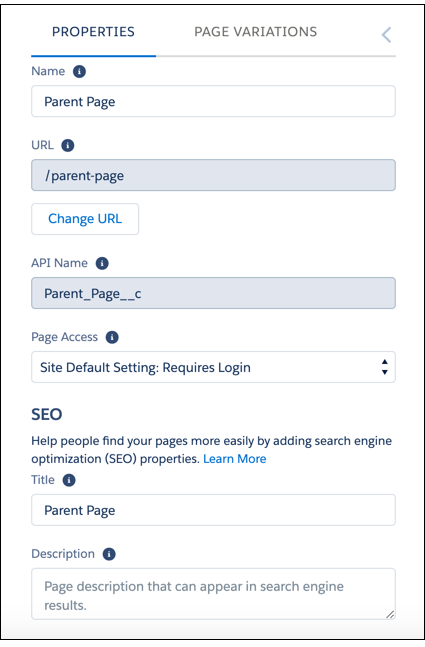
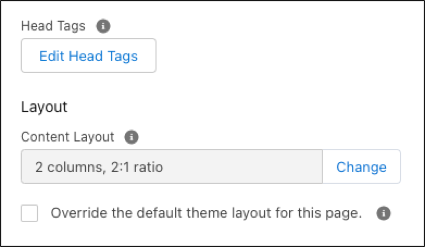
| Page property | Description |
|---|---|
| Name | The name of the page as it appears in Experience Builder. Editable only in the standard pages that you create. |
| URL | The URL of the page. Editable only in custom standard pages. Manage the URLs for each page after creating your page hierarchy. Anytime you move pages around and alter the page hierarchy in your site, the subpage URLs automatically update to reflect your changes. Some pages can’t be moved. Review Considerations for Page Hierarchy and URL Conflicts in Experience Builder. The site URL for each page reflects the structure you set up in Experience Builder when you share the live site with your users. 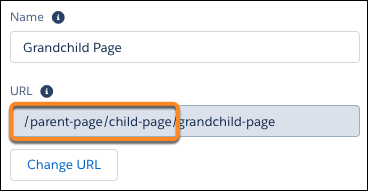 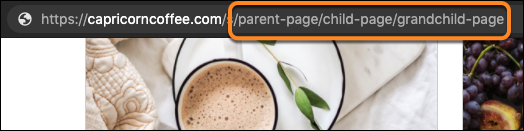 |
| API Name | A unique name you define when you create a page. |
| Page Access | Specifies the level of access to the page. When you enable public access, guest users can view asset files on public pages by default. More restrictive profile settings can prevent certain users from viewing this page, even if you choose Public. Page access for some pages, like My Account, is automatically set to require users to log in and can't be modified. When you enable public access, the preference Let guest users view asset files and CMS content available to the site in Administration | Preferences is automatically enabled. |
| Title | The SEO title of the page. Shown in search engine results, the browser’s tab or window title, and bookmarks. For data-based pages, such as object and content pages, the title is set dynamically. |
| Description | The SEO description of the page. Shown in search engine results to help people decide if this page is the one they want. For data-based pages, such as object and content pages, the description is set dynamically. |
| Head Tags | Provides the opportunity to enter specific For data-based pages, such as object and content pages, you can enter expressions to access values from the record associated with the page, such as the name, title, and value of specific fields. |
| Content Layout | Defines the content regions of your page, such as a two-column layout. |
| Theme Layout | By selecting Override the default theme layout for this page, you can choose to apply a different theme layout for the page. |
