
You are here:
Progressive Rendering Overview
Progressive Rendering prioritizes the display order of your page components. With proper planning and testing, it can improve display time performance and polish your site’s experience to better engage customers.
Required Editions
| Available in: Enterprise, Performance, Unlimited, and Developer Editions |
Progressive Rendering improves the performance of your page by fetching and rendering page components in a parallel and prioritized manner. If you notice that your site pages take a long time to load before you see the components rendered on the screen, then progressive rendering can help improve your site’s performance.
Assign one of three priorities to any top-level component.
| Priority | Description |
|---|---|
| Highest | Highest priority components are displayed first. This priority is recommended for key content that you want to display first or content that appears above the fold on longer pages. |
| High | High priority components are displayed after all components in the Highest group. |
| Neutral | Neutral priority components are displayed after all other components that have a higher priority. By default, all components begin with a Neutral priority. |

As an example, assign Highest (first) to the few components that you want to be viewed first. Specify High (second) for those components that can load later without affecting your customer’s experience. Unassigned components are treated as Neutral by default and are displayed last. There’s no right choice for assignments, but a lack of planning can degrade performance and diminish positive experiences on your site.
For instance, sometimes you want a critical notice to appear first, prioritized as highest, and then fill in some of your highlighted content, prioritized as high. All other components, visible and below the fold, load after critical notices are rendered. Whether explicitly prioritized as neutral or not, they’retreated as neutral.
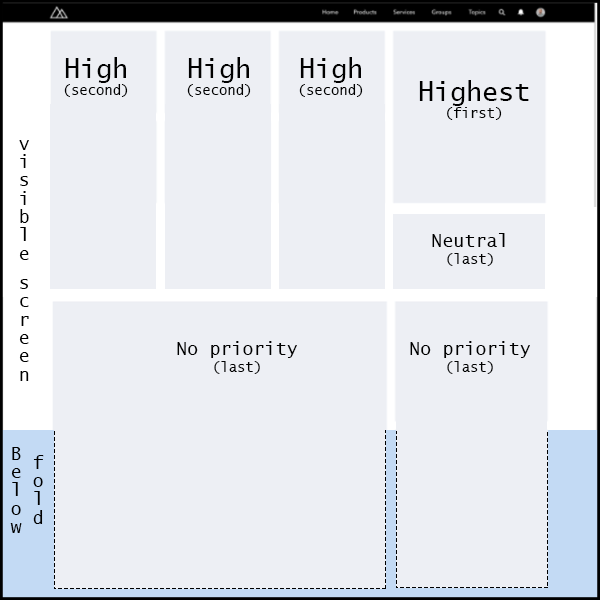
Because Progressive Rendering requires careful planning and testing, it’s off by default. Turn it on from the Advanced section of your Experience Builder Settings. Using this feature requires time and effort. But don’t worry, we provide some ideas to help you get started in the Progressive Rendering Guidelines
So, what happens while Progressive Rendering is doing its thing? Your page layout is roughly rendered and then components are added in order of decreasing priority. Generally, this type of rendering doesn’t cause any visual issues. However, sometimes components rearrange as the page displays, depending on which components you prioritized and how quickly it loads. That’s another good reason to test, test, and retest when you decide to take advantage of this advanced feature.
Assign a priority to a component in the actions menu of the Property Editor.
Turning off Progressive Rendering removes prioritized behavior, but your settings remain. If you turn on Progressive Rendering again later, the original priority settings go back into force. While the continuity makes testing easier, the results can surprise you if you don’t watch for it.
- Progressive Rendering Guidelines
Here are some guidelines for how to get the most out of Progressive Rendering. - Prioritize Component Display Order with Progressive Rendering
Quickly set the display order of components on your Experience Builder pages with Progressive Rendering. By carefully optimizing how your pages display, you can enhance the experience of your site and better engage your community.
