
You are here:
Use a Custom Service Not Available Page for Your Experience Builder Site
Maintain business continuity with customers and enable them to log cases when your site is down using the Service Not Available page in Experience Builder.
Required Editions
| Available in: Salesforce Classic and Lightning Experience |
| Available in: Enterprise, Performance, and Unlimited Editions |
| Applies to: LWR and Aura sites |
This feature is available for most sites that use Salesforce’s CDN for Digital Experiences. The Salesforce CDN is enabled by default for sites that use enhanced domains. You can also configure custom domains to use the Salesforce CDN option.
The Service Not Available Page in Experience Builder
The Service Not Available page is an offline page. It only appears when a site isn’t available. When the site is up and running, the Service Not Available page has no impact on the user’s experience of the site.
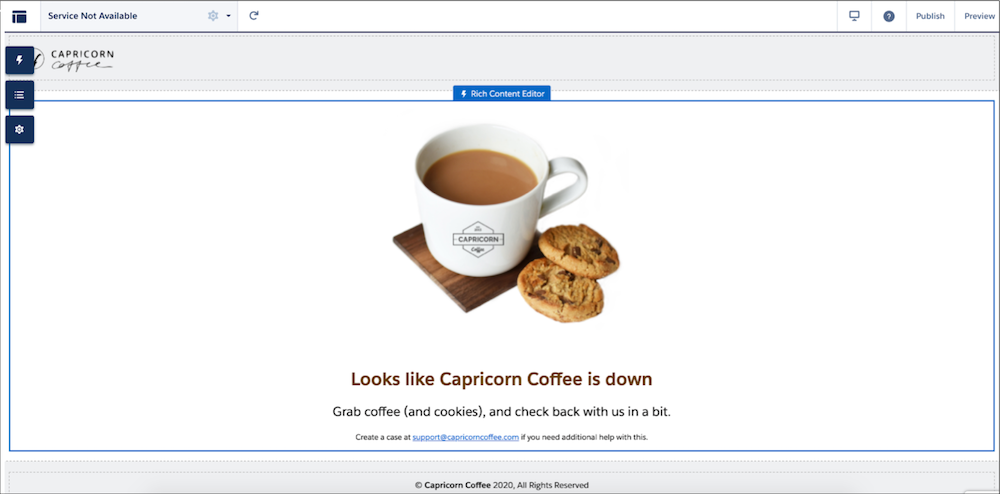
The Service Not Available page also appears to users when the site is down for maintenance. When an admin deactivates a site, they still see the site, but users see the Service Not Available page.
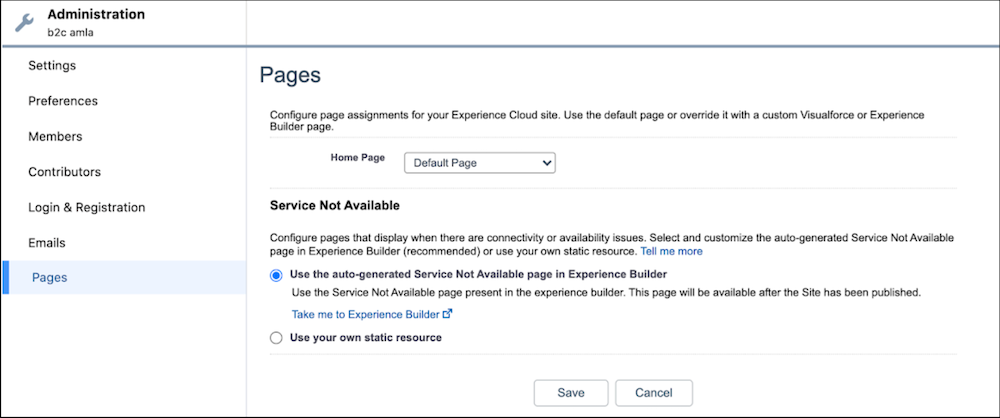
The Service Not Available page is enabled by default, unless you’re using your own static resource. To enable the Service Not Available page instead of using your own static resource:
- Click the Experiences Menu icon.
- Select Administration | Pages.
- Check the radio button next to Use the auto-generated Service Not Available page in Experience Builder and save your changes.
- To make it available for use, publish the page.

Service Not Available Page in ExperienceBundle
The Service Not Available Page also exists as a service-not-available route type in ExperienceBundle. Developers must update their file in order to avoid getting an error on missing this route type.
Maintain Business Continuity with Email-to on the Service Not Available Page
So that users can log cases when the site is down, you can enable Email-to-Case on your Service Not Available page. First set up Email-to-Case, then encourage your users to use the configured email to submit cases using your Experience Builder Service Not Available page. You can also enable users to create additional records from your Service Not Available page, beyond cases, using Email-to-packages found on AppExchange.
Maintain a Consistent Experience Between Your Experience Builder and Visualforce Sites
You can display the same Service Not Available page on your Experience Builder and Salesforce Tabs + Visualforce sites. After you’ve customized your page in Experience Builder and have published it to your site, it automatically becomes a static resource for your org.
The Service Not Available static resource:
- Must be a public .zip file 5 MB or smaller.
- Must contain a page named maintenance.html at the root level of the .zip file. Other resources in the .zip file, such as images or CSS files, can follow any directory structure.
- Must contain only files that have file extensions.
To use the page on your Visualforce site:
- Open Experience Workspaces or Experience Management.
- Navigate to Administration | Pages.
- Select
 next to Service Not Available to search for the Service Not Available static
resource generated for your Experience Builder site. Upload it as a static resource.
next to Service Not Available to search for the Service Not Available static
resource generated for your Experience Builder site. Upload it as a static resource. - Save your changes.
Service Not Available Page and the Salesforce Edge Network
If your site uses the Salesforce Edge Network, the Service Not Available page appears when Salesforce servers are down regardless of whether you enabled enhanced domains.
However, when you deactivate your site or take it down for maintenance, the page that appears depends on your enhanced domain configuration, rather than on your Salesforce Edge Network status.
- If enhanced domains is enabled, the Service Not Available page appears. This occurs because enabling enhanced domains automatically enables the Salesforce CDN, which takes priority over Salesforce Edge Network settings.
- If enhanced domains is disabled, the Visualforce Maintenance page appears.
