
You are here:
Change the Theme of Your Experience Builder Site
Experiment and find the theme that works best for your needs, without changing your content.
Required Editions
| Available in: both Salesforce Classic and Lightning Experience |
| Available in: Enterprise, Performance, Unlimited, and Developer Editions |
| User Permissions Needed | |
|---|---|
| To customize or publish an Experience Cloud site: |
|
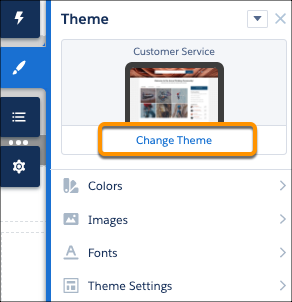
Changing themes is an easy, two-click effort in the Theme panel. Select Change Theme to see a list of available themes for your template.
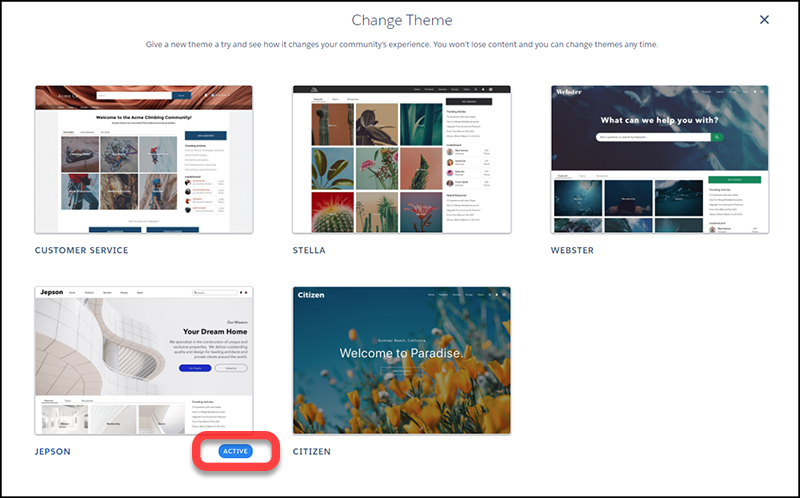
Your current theme is flagged as Active. Select any other theme, activate it, and it’s applied to your site.
Choosing a theme is just the start. Even if the defaults work for you, you’re not stuck with them.
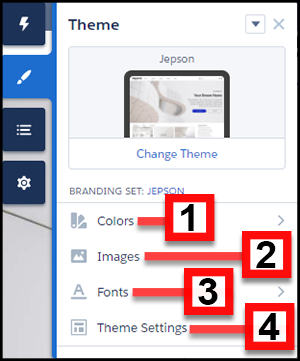
- Adjust the Colors (1) of text, backgrounds, and borders.
- Upload background Images (2) and your company logo.
- Select Font (3) styles.
- Adjust Theme Settings (4) that are specific to the active theme.
For example, choose:
- whether to show the hero
- whether to keep the header from scrolling
- the width of page content
Available settings are unique to the active theme.
- Add, modify, and adjust components on the page individually to complete the experience.
We remember the customizations that you create for your theme, even if you switch from the theme and then reactivate it later.
What if you don’t like what you’ve customized? Easy, start fresh!
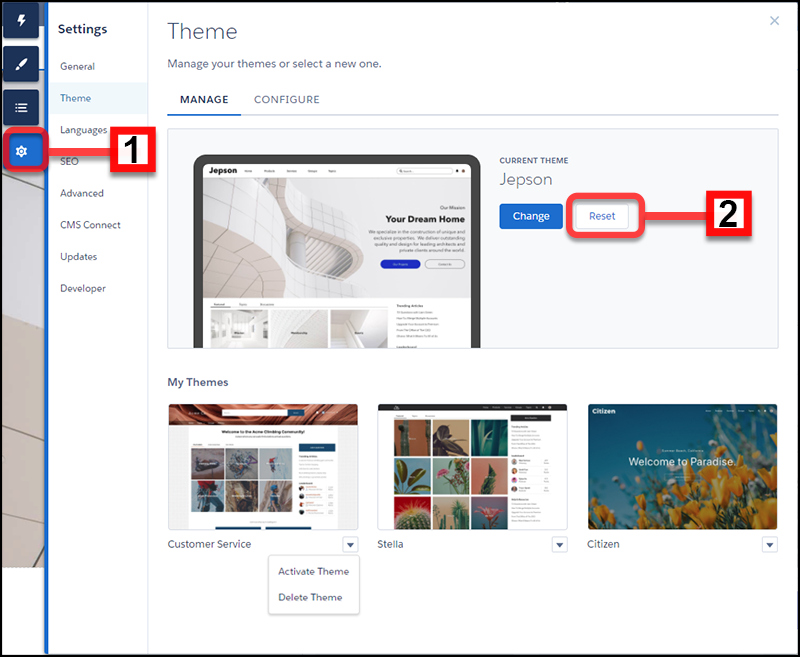
- In Experience Builder Settings (1), select Theme.
- Click Reset (2) for your current theme.
- Read the warning and then click Reset to confirm.
- Alternatively, you can reset a theme back to its defaults the next time you reactivate it in the Change Theme panel by selecting Replace and start fresh.

- Branding sets
- Theme regions (settings for common elements across pages like headers)
- Theme settings
- Custom theme layouts
- Custom theme layout assignments for pages
- Custom CSS overrides
Many pre-built themes have multiple layouts, such as home, login, and content pages.
Changing themes preserves your content, but a new theme doesn’t necessarily display your content in a useful or desirable manner. After a change, always reconfirm that your site still works the way you want it to.
The Manage section of the Theme panel shows your currently active and configured themes.
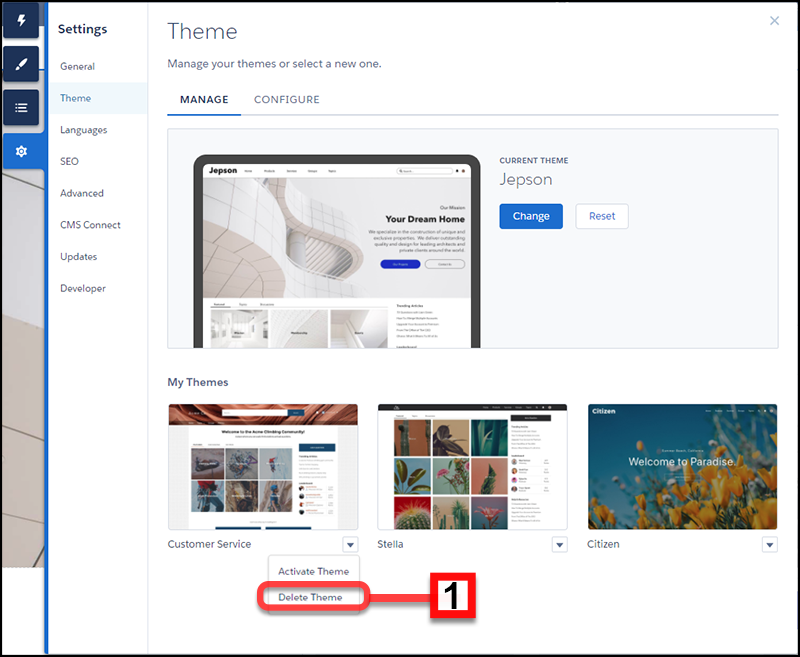
Chances are you aren’t using all of your themes, so you can delete (1) any extras here. Deleting a theme removes all of your customizations, similar to Reset. But you can add a fresh copy of the theme from the Change Theme section of the Theme panel.
