
You are here:
Use Branding Sets in Experience Builder
Branding sets let you automatically change the look of your sites for different audiences and shift quickly between brands or presentations for campaigns or events.
Required Editions
| Available in: both Salesforce Classic and Lightning Experience |
| Available in: Enterprise, Performance, Unlimited, and Developer Editions |
| User Permissions Needed | |
|---|---|
| To customize or publish an Experience Cloud site: |
|
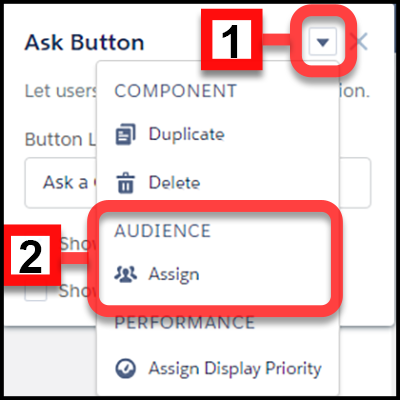
Branding Sets are bundled collections of images, fonts, and colors that can dramatically and dynamically change the look and feel of your site. You manage branding sets in the Experience Builder’s Theme panel. If you’re using a pre-built theme, the branding set doesn’t affect the header and hero areas of your site.

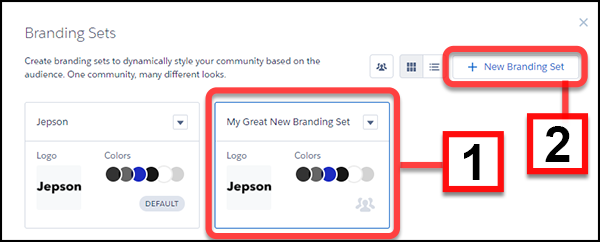
You can maintain and manage several branding sets for any site. Each set (1) is a collection of colors and other elements that you can apply manually or programmatically, using Audiences. You can also start a new set from scratch (2).
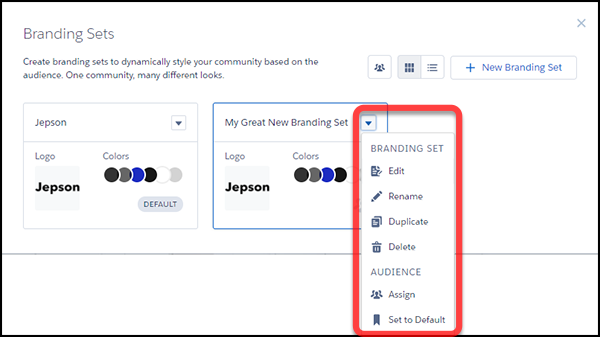
Manage each set, from its menu.
To create or edit a branding set, select it and the attributes you want to bundle.
-
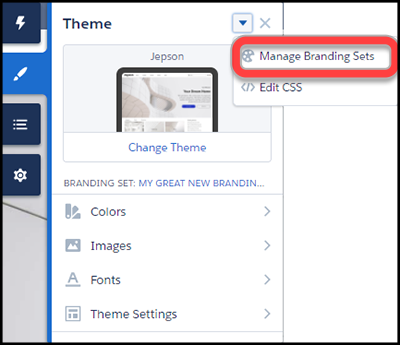
Open the Theme panel and select Manage Branding Sets.
- Choose the branding set to edit, or create one. All of your changes are associated with the selected branding set.
-
(Optional) Experience Builder can generate a color scheme for you when you select
Generate Palette from Image in the Colors panel.
- In the Colors panel, click Generate Palette from Image
- Choose your previously uploaded company logo or a different image, like an image of your company palette. Experience Builder extracts the main colors from the image and generates a scheme.
-
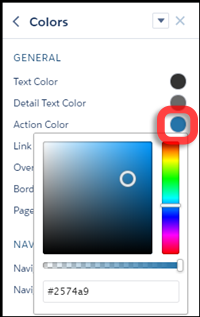
To modify colors, click the color swatch. To adjust the color, use the slider or
enter hex values.
-
To set the attributes of your branding set, in the Theme panel, select or adjust the
fonts, images, and colors.
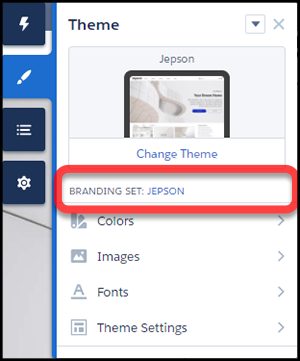
Your changes are saved automatically and appear instantly on the page. To review the results, select various page types from the Pages menu.You can always tell which branding set is active by looking at the Theme panel.Note If public access is enabled in Experience Builder at the page or site level, the Let guest users view asset files and CMS content available to the site preference is enabled in Administration | Preferences. This preference remains enabled as long as any page has public access enabled. If you upload images for use on site login pages, be sure that this preference is enabled.When you add an image to your site for the first time, an asset file is automatically created and stored in the Org Asset Library.
Remember that branding sets apply only to colors, images, and fonts. For more information on targeting layout or content to a specific group, see Personalization with Audience Targeting in Aura Sites
If you can’t find a
way to control aspects of your site through the Theme panel or component properties, you can
create your own CSS overrides. Your overrides apply to, and are remembered for, the
currently active theme. Click  | Edit CSS on the Theme panel to use your own CSS styles. Use CSS sparingly, and only
when necessary, in case future releases of template components don’t support all CSS
customizations.
| Edit CSS on the Theme panel to use your own CSS styles. Use CSS sparingly, and only
when necessary, in case future releases of template components don’t support all CSS
customizations.
