Create a Salesforce CRM Collection for Your Aura Site
To display CRM object data on your site, create CRM collections. CRM collections are
automatically updated based on the data in your Salesforce org. When you add a CRM collection to
your Aura site, you can customize its layout and formatting.
Required Editions
Available in: Salesforce Classic and Lightning Experience
Available in: Enterprise, Performance, Unlimited, and
Developer Editions
To access an Experience Builder site’s Content Management workspace:
Create and Set Up Experiences
AND is a member of the site
To customize an Experience Builder site:
Create and Set Up Experiences OR assigned an experience admin, publisher, or
builder role in that site
AND is a member of the site
Before you can create CRM collections, add CRM connections to your Aura site, and ensure
that these CRM connections are approved for use.
As you add records in Salesforce, they’re automatically added to the CRM collection
connected to that object. You can create a CRM collection for an object even if you don’t
have any records for that object in your org. If you anticipate having records to show on
your Aura site, create a CRM Collection.
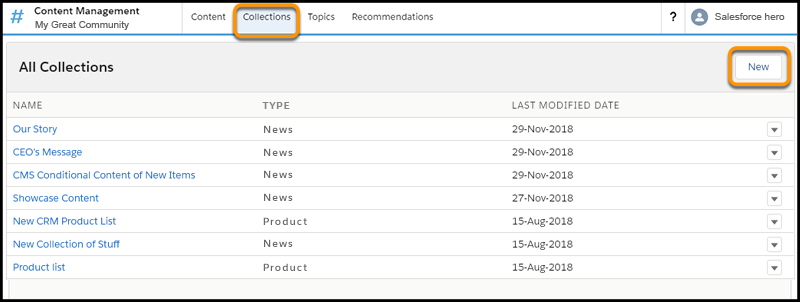
In your site’s Experience Workspaces, navigate to Content Management.
Go to Collections, and click New.
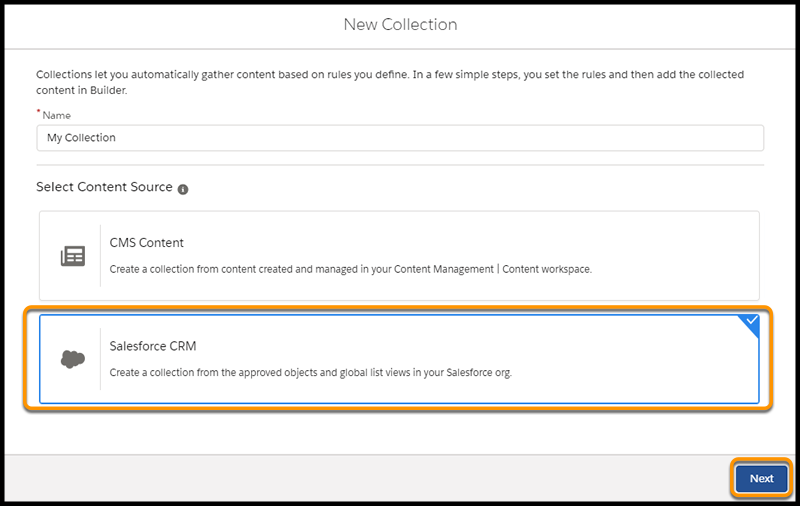
In the New Collection window, enter a descriptive name for your collection, select
Salesforce CRM, and click Next.
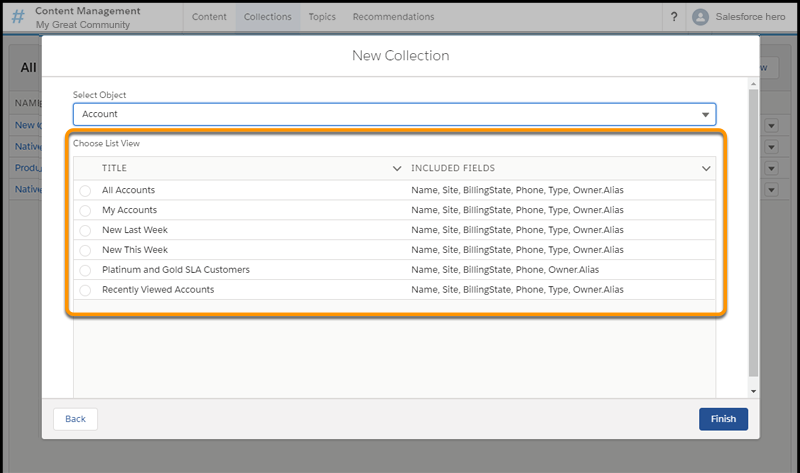
From the dropdown menu, select the object that you want to include in your
collection.
Select the best list view to display your CRM collection. You can have multiple
collections associated with an object, but each collection can only have one list view
associated with it at a time. Objects with only one list view available can only have one
collection at a time.
Only global list views are available for creating CRM collections. All fields in a list
view are available for display when that view is added as a content source in Experience
Builder.
We use three kinds of cookies on our websites: required, functional, and advertising. You can choose whether functional and advertising cookies apply. Click on the different cookie categories to find out more about each category and to change the default settings.
Privacy Statement
Required Cookies
Always Active
Required cookies are necessary for basic website functionality. Some examples include: session cookies needed to transmit the website, authentication cookies, and security cookies.
Functional Cookies
Functional cookies enhance functions, performance, and services on the website. Some examples include: cookies used to analyze site traffic, cookies used for market research, and cookies used to display advertising that is not directed to a particular individual.
Advertising Cookies
Advertising cookies track activity across websites in order to understand a viewer’s interests, and direct them specific marketing. Some examples include: cookies used for remarketing, or interest-based advertising.