Deliver and organize CMS content with Experience Builder and Content Management. Use
Experience Builder to configure the content formatting and layout on your site pages. And use
Content Management to organize your CMS content into collections and topics.
Required Editions
Available in: Salesforce Classic and Lightning Experience
Available in: Enterprise, Performance, Unlimited,
and Developer Editions
To display CMS content on your Aura site, first create the site in Experience Builder. Then,
in the CMS workspace or enhanced CMS workspace where you created and published the content,
add the site as a channel.
In Experience Builder, control and customize how your Salesforce CMS content appears on your
site pages using CMS components such as CMS Single Item or CMS Collection. Choose which type
of content to show, such as an image, document, a news item, or a CMS collection. And format
the content so that it appears exactly how you want it on your site.
In Content Management, create collections and topics to organize multiple items of Salesforce
CMS content. Collections and topics help you group related content items for use in your Aura
site. Collections and topics are unique to each Aura site, so you can reuse and reorganize CMS
content for different audiences.
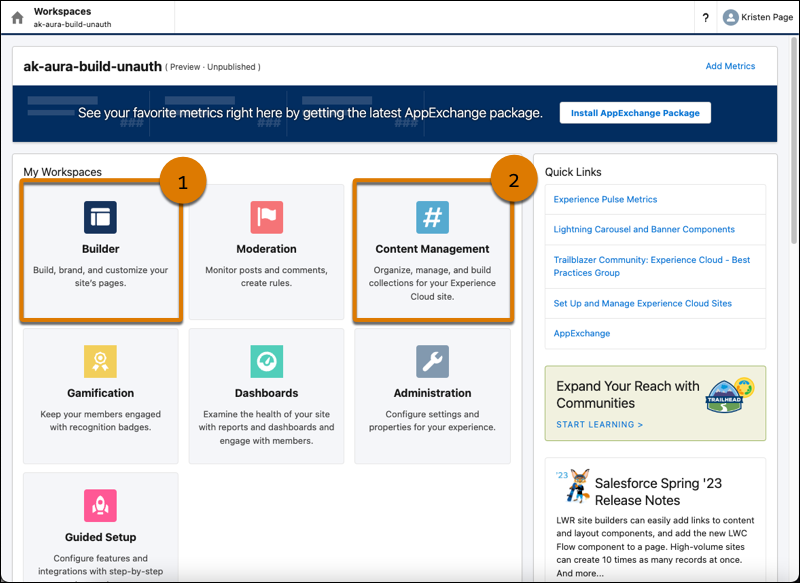
Access Experience Builder (1) and Content Management (2) from your site’s Workspaces.
Salesforce CMS Collections for Aura Sites Collections help you organize and display multiple pieces of content from your Salesforce CMS workspace on your Aura site. View, create, and edit collections in the Collections tab in the Content Management tile of your Aura site’s workspace. Create collections manually or use conditions for collections that update automatically.
Salesforce CMS Topics for Aura Sites Assign topics to Salesforce CMS content so that it’s easier to organize and display on your Aura site. Topics help you organize your Salesforce CMS content in the same way that they help you manage your Experience Cloud site’s feeds.
We use three kinds of cookies on our websites: required, functional, and advertising. You can choose whether functional and advertising cookies apply. Click on the different cookie categories to find out more about each category and to change the default settings.
Privacy Statement
Required Cookies
Always Active
Required cookies are necessary for basic website functionality. Some examples include: session cookies needed to transmit the website, authentication cookies, and security cookies.
Functional Cookies
Functional cookies enhance functions, performance, and services on the website. Some examples include: cookies used to analyze site traffic, cookies used for market research, and cookies used to display advertising that is not directed to a particular individual.
Advertising Cookies
Advertising cookies track activity across websites in order to understand a viewer’s interests, and direct them specific marketing. Some examples include: cookies used for remarketing, or interest-based advertising.