
You are here:
Create and Save Search Configurations
To make search results from LWR sites more relevant to your site, create a search configuration in Search Manager. You can filter out fields that you don’t need. After you save your configuration, it can be applied to multiple sites, simplifying the process of creating search configurations.
-
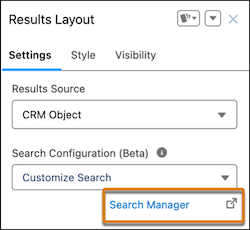
To create a search configuration that can be applied to multiple sites, click
Search Manager.
Salesforce redirects you to the Search Manager configuration page.
- In the Search Configuration section, click New
- Create a name for your search configuration and then select the LWR Experience Sites channel. Click Continue.
-
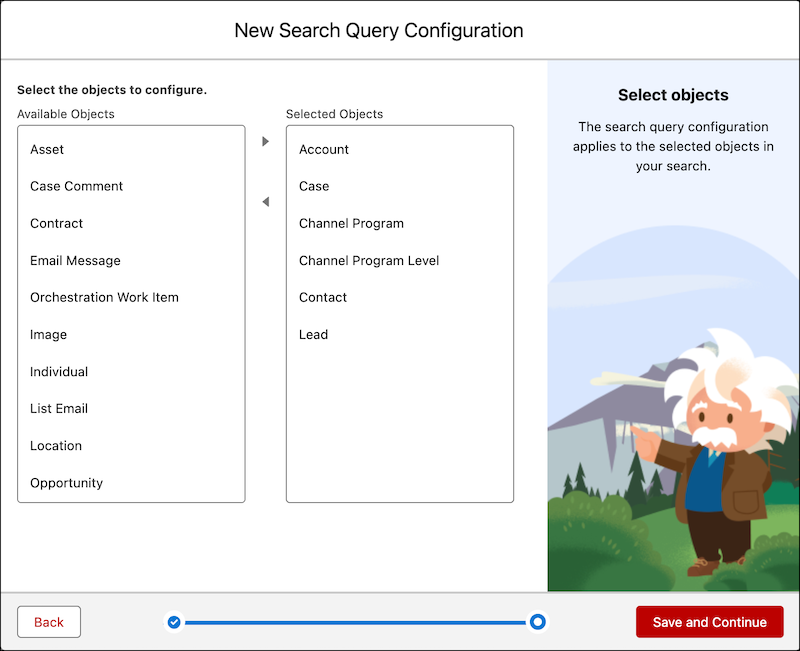
From the New Search Query Configuration box, move the objects to include in your search
from the Available Objects panel to the Selected Objects Panel. Click Save and
Continue.
-
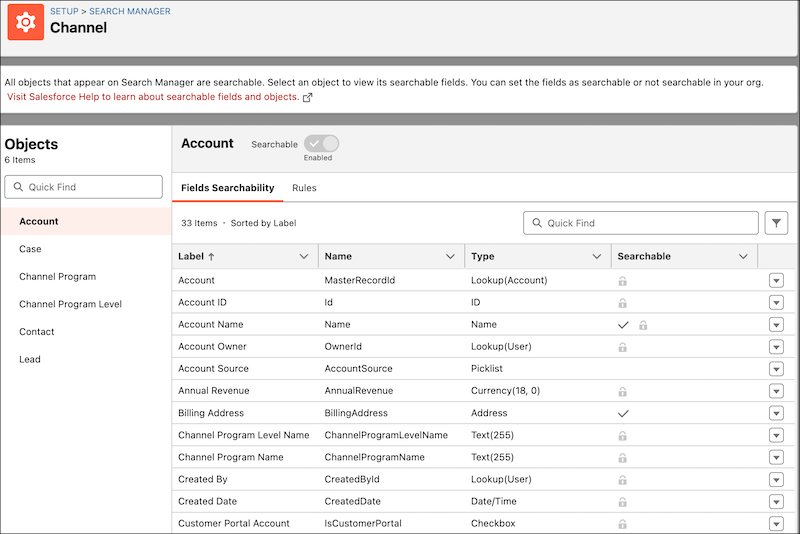
To designate which fields are searchable, click the object and then select the
Field Searchability tab.
-
To exclude a field from Search, click the down arrow and select Exclude from
Search.
Fields with a lock next to them can’t be excluded from Search.
-
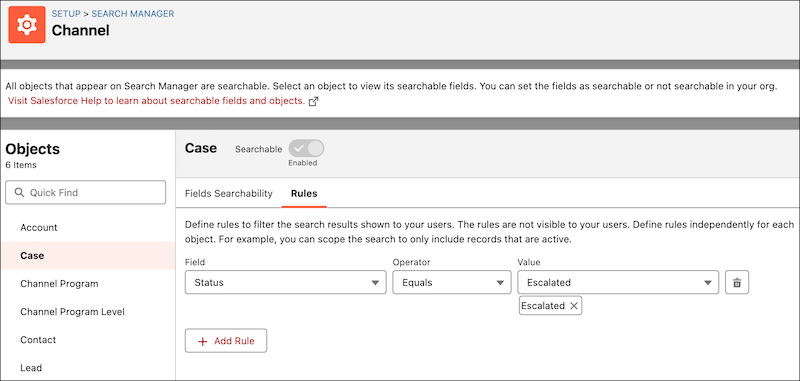
To control which field values appear in your search, select the
Rules tab. Select the field you want to filter on and the
criteria it must meet to be included in your search.
For example, if you only want escalated cases to appear in your search, select the Case object and create a rule where Status equals Escalated.
- Save your configuration.
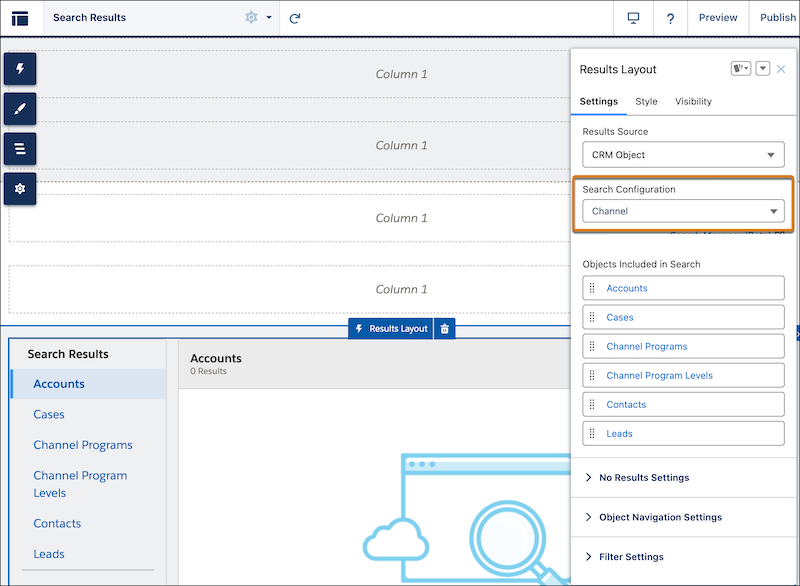
After you save the configuration, it appears in the dropdown menu of Search Configuration (Beta) in the Results Layout properties panel and can be applied across multiple sites.
When you apply a saved configuration to your sites, the objects added automatically appear in your new site.
Did this article solve your issue?
Let us know so we can improve!
