
You are here:
Configure the CRM Search Results Page
Set up and configure LWR search components to customize how your site is searched. The Search Bar component displays a field where visitors enter search terms. The Results Layout component displays the search results for your site.
- Go to your site’s Search Results page in Experience Builder.
-
From the Components panel, drag the Search Bar component onto
the header section of the page.
When you add the component to the header section, CRM search is available across all site pages.
- Drag the Results Layout component from the Components panel onto the page. To open the component’s properties panel, select the component on the canvas.
-
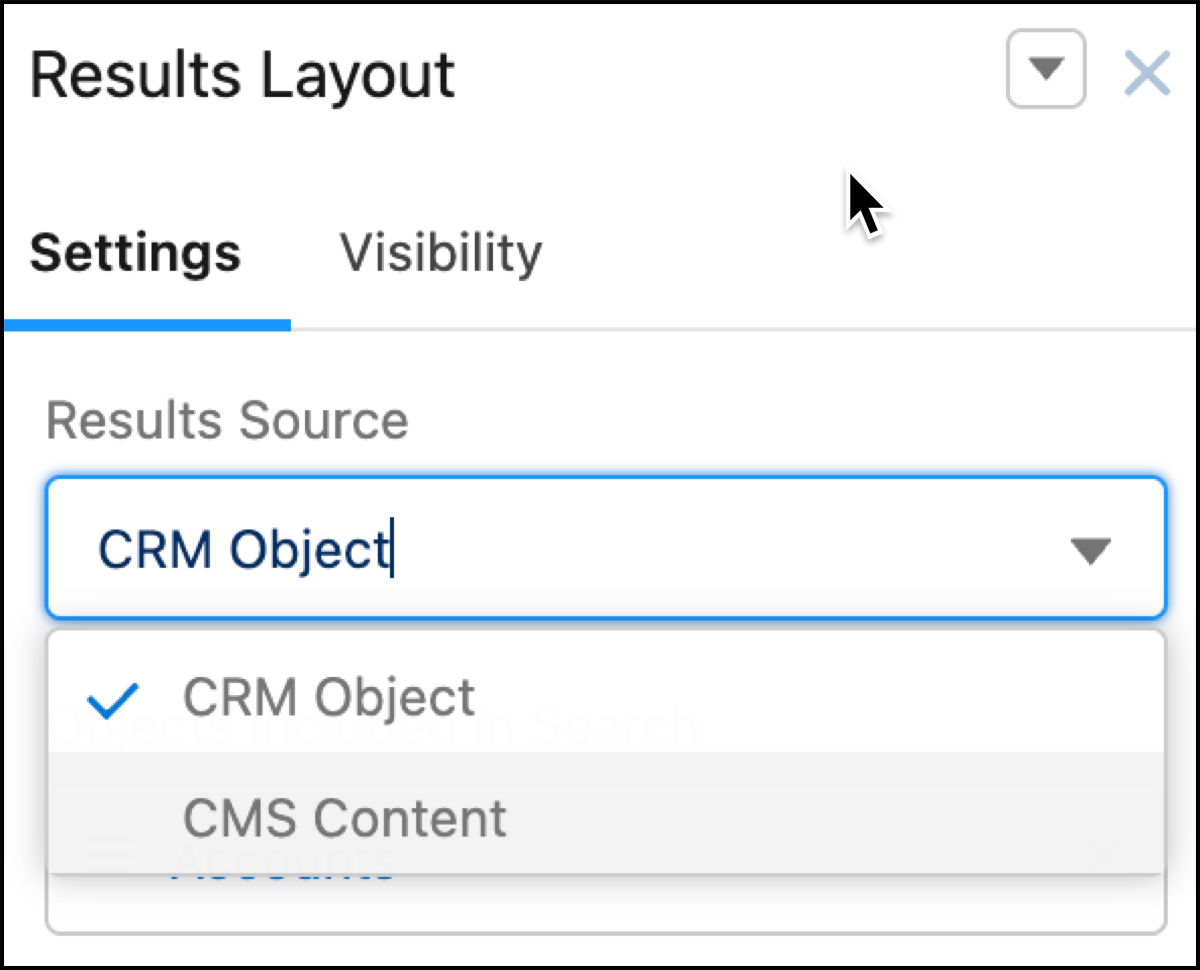
From the properties panel, click Results Source, and then select
CRM Object.
-
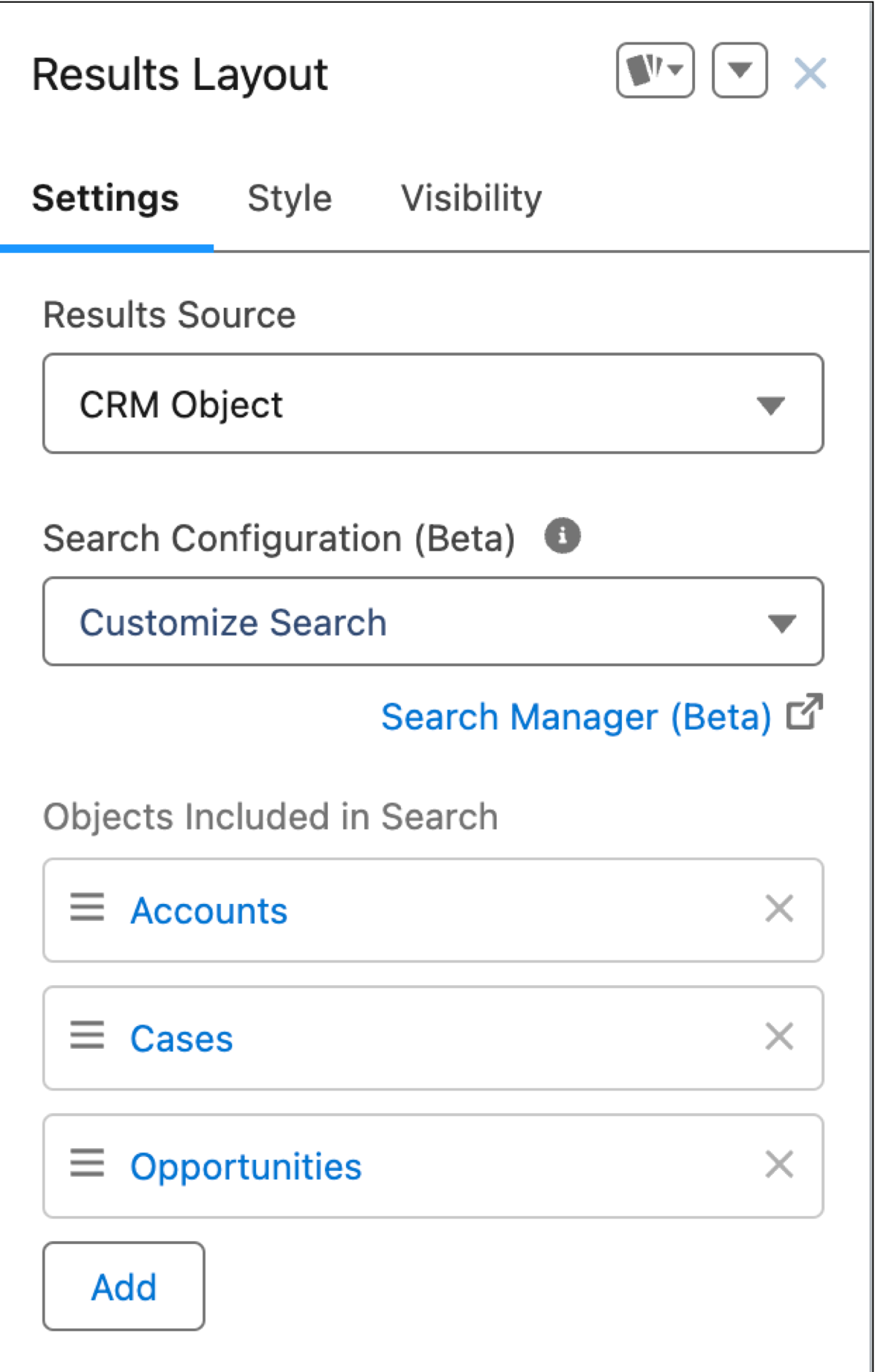
To update the existing search configuration for the site you are on, click
Search Configuration (Beta) and then select Customize
Search from the dropdown menu.
When you select Customize Search, you can update the current search configuration for the site you are on. The dropdown also displays saved search configurations that can be applied to your site.
-
To add objects to the existing search configuration, in the Objects Included
in Search section, click Add.
The Accounts object is automatically included in Search.
-
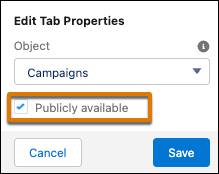
To make an object searchable by guest users, click the object to open the Edit Tab
Properties menu. Select the Publicly available checkbox, and save
your changes.
- The order that objects are listed in under Objects Included in Search is how they appear in the left navigation panel on the search page. Drag objects up or down to arrange them in the order that you want them to appear.
- To remove an object from the Search Results layout, click the X on an object tile.
- Set up an object detail page for each object that you added to the search results layout.
-
Select the object detail page from Pages, then drag the Record Detail
(Beta) component onto the page.
This component displays a Salesforce object’s record information on the object page.
-
To update the fields that appear in the Search Layout of the object:
- Go to Setup, and in the Quick Find box of Object Manager enter the object name.
- Select the object and then select Search Layouts.
- Click the down arrow next to the site name and click Edit.
To ensure that guest users can view CRM Object search results, check these settings.
- In , select Allow guest users to access public APIs.
- In Experience Builder, grant read access to the guest user profile for each applicable object. See Configure the Guest User Profile.
- Create a sharing rule for each object record that you want to share with your users.
Did this article solve your issue?
Let us know so we can improve!
