
You are here:
Use SEO-Friendly URLs in Your Enhanced LWR Site
Boost organic traffic to your site by improving search engine optimization (SEO) with new URL configuration solutions. SEO-friendly URL snippets, or slugs, improve SEO by replacing the record ID in the URL with relevant and human-readable information, ensuring that your site’s pages are optimally surfaced in search engines.
Required Editions
| Available in: Salesforce Classic and Lightning Experience |
| Available in: Enterprise, Performance, Unlimited, and Developer Editions |
| Applies to: LWR sites |
| User Permissions Needed | |
|---|---|
| To customize or publish an Experience Cloud site: |
|
Considerations
When adding URL slugs for your site, keep these considerations in mind.
- You can't disable the SEO-friendly URLs setting after you enable it.
- URL slugs are available for custom objects, accounts, and contacts. They’re also available for product and category pages in LWR Commerce sites.
- URL slugs have a 150-character limit and allow these characters: a-z A-Z 0-9 . - _ $ & : ; * , = @{}. Foreign-language characters are also allowed.
- When URL slugs are enabled and configured for custom object pages, they’re used as the canonical URL in sitemaps created for enhanced LWR sites. Otherwise, the sitemap continues to use the record ID URL.
- SEO-friendly URLs don't support site object pages created with custom metadata. URLs for pages made with custom metadata always use the record ID URL.
- When using the record ID URL for the navigation menu, use either a site page URL or an
external URL.
- Site page URL format: /object/<id>. Example: /account/001SG000006px3iAPM
- External URL format: https://testorg.my.site.com/lwrCMS/account/001SG000006px3iAPM
To use URL slugs on localized versions of your site, keep these considerations in mind.
- Enable Translation Workbench and add active languages for translation. See Translation Workbench.
- When choosing a language for a URL slug, select a language that’s active in your org and site. See Supported Languages.
- Create a URL slug in your site’s default language and translate it for each language you support. For example, if your site is configured to have both English and French URL slugs, then site.com/fr/custom-object/{slug-english} redirects to site.com/fr/custom-object/{slug-french}.
- When a customer is browsing in a language without a URL slug translation, but the page has a URL slug for your site’s default language, the slug falls back to the default language. For example, if your default site language is English and a customer is browsing in French, site.com/fr/custom-object/{slug-english} loads the page.
- When a customer lands on a record ID URL and uses the language selector to change the site's language, the site doesn’t redirect to the SEO-friendly URL format.
- When using multilingual alternate
hreflangtags, guest sharing rules must be set up for translated URL slugs to appear to unauthenticated users.
Step 1: Create SEO-Friendly URLs
For SEO-friendly URLs to function correctly, you must first create the URL slugs either from the record detail page or in bulk using Object Manager. Then you enable SEO-friendly URLs for your site. Alternatively, you can use the ObjectRelatedUrl object in the Salesforce Platform APIs that you typically use.

Create URL Slugs from the Record Detail Page
Upload URLs to your enhanced LWR site directly from your records using the URL Slugs component. By default, the Commerce, Product, and Category record pages have the SEO tab and SEO-friendly URL slug component installed. For all other record pages, add the component manually through Lightning App Builder.
- From Setup, in the Quick Find box, enter App Builder, and then select Lightning App Builder.
- Create a Record Page and select a supported object.
- Select Clone Salesforce Default Page.
- Select the Tabs component and add a tab.
- Select SEO and then click Done.
- Add the URL Slugs component to your new SEO tab.
-
Save and activate your page.
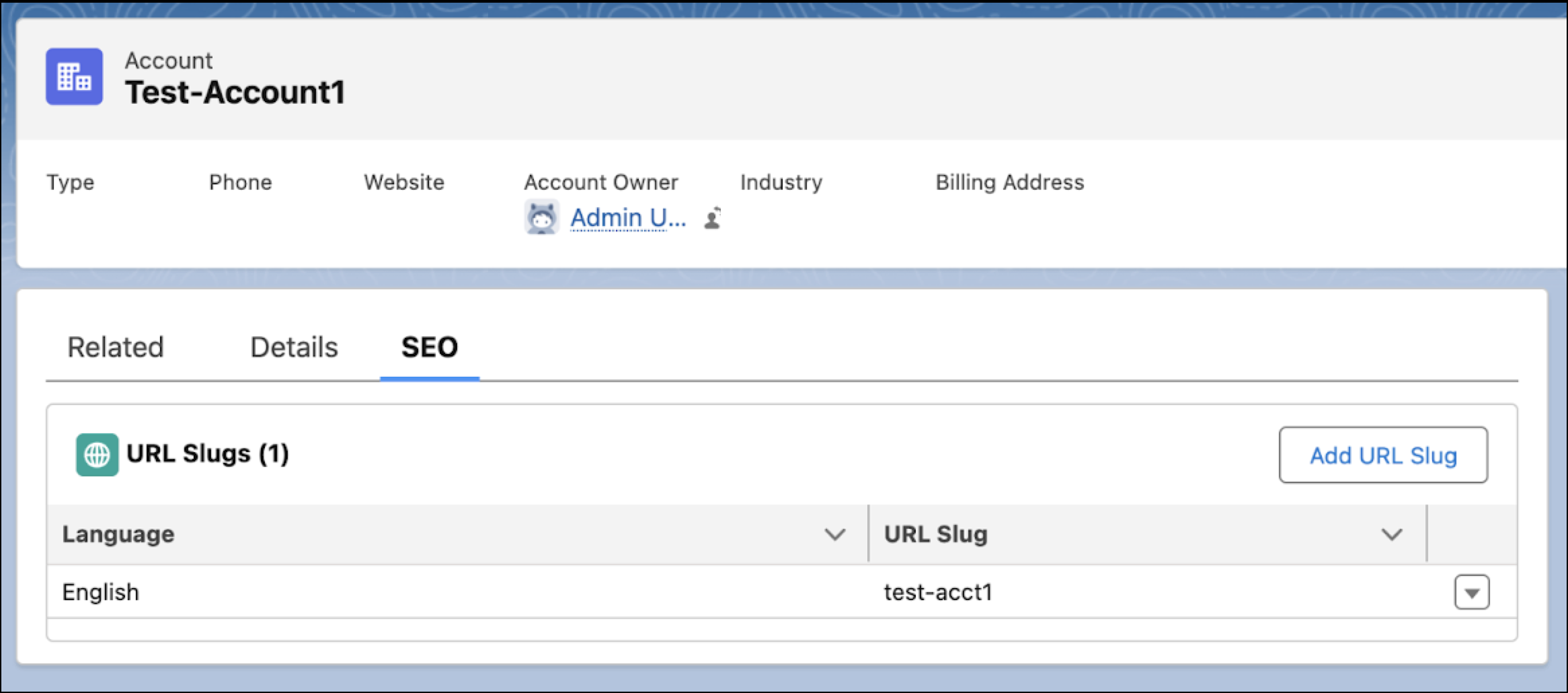
After your component is installed, you can add URL slugs directly from a record page. From the SEO tab, click Add URL Slug. Select a language and then enter a URL.
Create URL Slugs from Object Manager
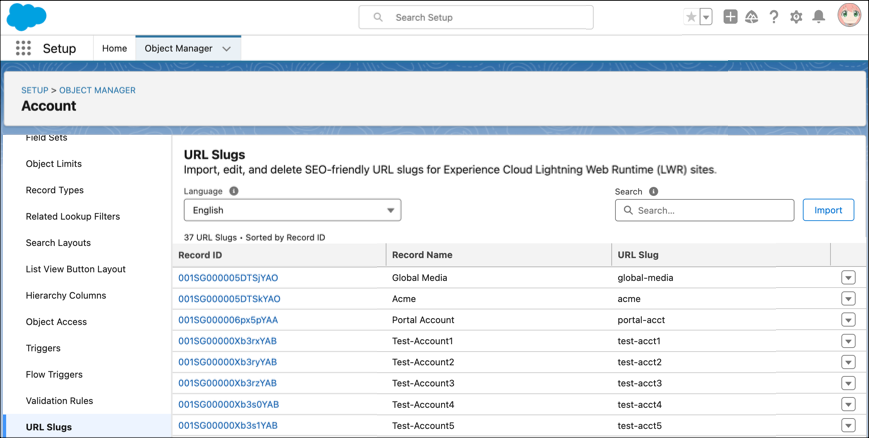
To create SEO-friendly URL slugs in bulk, it’s easiest to go directly to Object Manager. From there, you can bulk import URL slugs via a CSV file. You can also search, filter by language, and edit and delete single URL slugs.
-
Construct a CSV file for importing URL slugs.
Each row in the file represents a URL slug and the associated language. Specify column headings that correspond to parent ID, URL slug, and language code information. The column headings are case-insensitive, and the columns can be in any order.
Column heading column value Parent ID The ID of the record that the URL slug is created for. Language Code A Salesforce-supported language code. For example, en_US.URL Name The SEO-friendly URL slug for the record in the specified language.
URL slugs have a character limit of 150 and allow these characters:
a-z A-Z 0-9 . - _ $ & : ; * , = @{}. Foreign-language characters are also allowed. - When the file is ready to upload, go to Setup | Object Manager.
- Select the object page where you want to upload slugs.
- Select the URL Slugs tab.
- Click Import and upload a CSV file.
- Map the fields in your file to fields in Salesforce.
-
Save your work.
Step 2: Enable SEO-Friendly URLs
After you create SEO-friendly URLs, you’re ready to enable the functionality in your enhanced LWR site. The setting is site-specific, which means you must enable it on a site-by-site basis.

- Open Experience Workspaces.
- Click Administration | Preferences.
- Select Use SEO-friendly URLs on this site.
- Save your work.
- Publish your site.
After you enable the setting, you can see and edit the base-friendly URL in the site’s Experience Builder | Page Properties.
