
You are here:
Upgrade to Enhanced LWR Sites
Upgrade existing LWR sites to enhanced LWR sites to take advantage of the latest platform features, including partial deployment, site content search, and expression-based visibility.
Required Editions
| Available in: Salesforce Classic and Lightning Experience |
| Available in: Enterprise, Performance, Unlimited, and Developer Editions |
| Applies to: LWR sites |
| User Permissions Needed | |
|---|---|
| To customize or publish an Experience Cloud site: |
|
From Winter ’23, new LWR sites that you create are enhanced LWR sites by default. These sites are hosted on the enhanced sites and content platform, a redesigned system that brings together Salesforce CMS and LWR sites. As part of the continued move to this consolidated platform, you can upgrade older LWR sites and gain access to features that are available only with enhanced LWR sites.
- Considerations Before You Upgrade or Revert a Site
Before you upgrade your site, spend some time preparing and learning about the impact of these changes. - Upgrade Your Site
Upgrade an older LWR site to an enhanced LWR site. - Revert Your Site
You can revert an enhanced LWR site to a non-enhanced version manually in Experience Builder only once.
Considerations Before You Upgrade or Revert a Site
Before you upgrade your site, spend some time preparing and learning about the impact of these changes.
Understand Metadata and Deployment Differences
When you upgrade your site to an enhanced LWR site, the site’s metadata changes. Unlike non-enhanced LWR sites, which use the ExperienceBundle metadata type, enhanced LWR sites use the DigitalExperienceBundle and the DigitalExperienceConfig types.
This change can affect your deployment processes and must be factored into your upgrade plans.
If you must upgrade an LWR site that was previously deployed to another org, remember to upgrade the site in both orgs. Let’s say you have an LWR site in sandbox that you previously deployed to production. After you upgrade the site in sandbox, you must also upgrade the site in production before you attempt to deploy it.
If you revert a previously upgraded site, the reverse is true. The site’s metadata reverts from the DigitalExperienceBundle and the DigitalExperienceConfig types to the ExperienceBundle type. Remember to revert the site in both orgs when you deploy a reverted site.
Back Up Your Site
Ensure that you create a backup copy of your site by using the appropriate Metadata API type.
Use Sandbox
We strongly recommend that you work in a sandbox environment to upgrade and test your site before you deploy the site to production.
Remove /s from the Site URL
Some older LWR sites include /s at the end of the site’s base URL, which is unsupported in enhanced LWR sites. Before you can upgrade your site, you must first remove /s from the URL.
Understand Publication Status and History Changes
After you upgrade your site, the published status of the enhanced LWR site changes to Unpublished. At this stage, the non-enhanced version of the site is still live, so to replace it with the enhanced version, you must publish the site.
Additionally, the previous change history for the site is no longer shown in Experience Builder in Settings | Change History. If you want to retain a record of previous site publication history, we recommend that you take a screenshot of the history.
Similarly, if you upgrade your site and subsequently revert it, the published status of the reverted site again changes to Unpublished, meaning that the enhanced version remains live until you publish the reverted site. Additionally, the change history for the enhanced site is replaced by the prior history for the non-enhanced version.
Access Enhanced CMS Workspaces and Channels
After you upgrade your site to an enhanced LWR site, you can take advantage of enhanced CMS workspaces and channels, which offer features that are unavailable to non-enhanced workspaces. If you revert the site, you lose access to these features.
Upgrade Your Site
Upgrade an older LWR site to an enhanced LWR site.

If you’re unsure whether your site is enhanced, check the All Sites list in Setup under
Digital Experiences. Enhanced sites show an  badge beside them.
- Open your LWR site in Experience Builder and click Settings | Updates.
-
Click Upgrade.
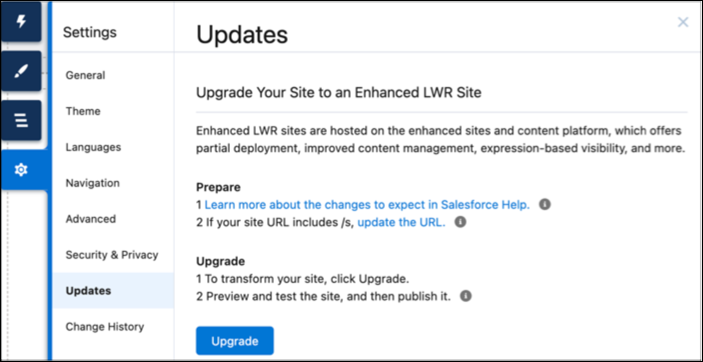
- Click Upgrade in the confirmation window.
- If your site is a B2B or D2C Commerce store that uses images from a Salesforce CMS workspace, after the system upgrades your site, you must add the public site channel to the workspace. This step isn’t required for non-Commerce sites. See Add or Remove a Channel.
-
Preview the site to ensure that all the pages and components look and work as
expected.
- If your site uses data-binding components, ensure that the content loads correctly.
-
Ensure that all images load correctly, particularly for B2B or D2C Commerce sites
- To complete the upgrade process, publish the enhanced LWR site so that the upgraded version goes live. Then verify that the live site functions as expected.
Revert Your Site
You can revert an enhanced LWR site to a non-enhanced version manually in Experience Builder only once.
For any subsequent revert requests, you must contact Salesforce Customer Support.
After you revert a previously upgraded site, the site retains most of the changes made since the site was upgraded. However, some changes can be lost along with the features that are specific to enhanced LWR sites.
- Open your LWR site in Experience Builder, and click Settings | Updates.
- Click Revert.The option to revert a site is available to sites that were previously upgraded from a non-enhanced to an enhanced LWR site and never previously reverted.
- Click Revert in the confirmation window.
- After the system reverts your site, preview the site to ensure that all the pages and components look and work as expected. If your site uses data-binding components, ensure that the content loads correctly.
- To complete the process, publish the site so that the non-enhanced version goes live. Then verify that the live site functions as expected.
