
You are here:
Allow Users to Search Aura Sites
Search in Aura sites depends on the type of template you use.
Required Editions
| Available in: both Salesforce Classic and Lightning Experience |
| Available in: Enterprise, Performance, Unlimited, and Developer Editions |
Searching for Objects in Experience Cloud Aura Sites
Objects must be searchable in Lightning Experience and supported in templates to be searchable in Experience Cloud sites.
In addition to being marked as searchable, more setup is required to make objects discoverable for guest users. For more information, see Enable Search Autocomplete for Guest Users.
Enable search filters to make an object in the internal org searchable in your site. To
make custom objects searchable, the object must be related to a tab in the internal org.
Filtering Search Results in Aura Sites
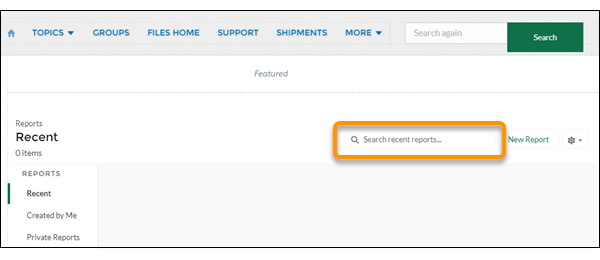
Experience Cloud Aura site users can filter their search results for Accounts, Cases, Contacts, Dashboards, Files, Knowledge, Leads, Opportunities, People, and Tasks. Search filtering for sites is on by default. To add search filters to the Search Filter layout, enter Search Layouts in the Object Manager search box and select the object that you want to add a filter to. Add the fields that users want to filter to the Search Results layout. Supported field types are checkbox, phone number, picklist, text, and URL. You can’t filter encrypted fields.
To enable topic filters, site admins must turn on Allow topic filtering for Lightning Knowledge search results. You can find this site preference on the Administration page of your site’s Experience Workspace. For more information, see Access Experience Workspaces.
To increase search performance, enable Einstein Search for Knowledge. Admins can add more topics for search to filter. They can add more topics in Content Management and include articles to that topic, which advances search when site members filter out more topics. Keep in mind, guest user knowledge searches return results for article titles only. The body of the article isn’t searched.
Search results include all the records and files that a site member has access to, such as:
- Files that they own or are shared with them directly.
- Files they can access from a library.
- Files associated with records they have access to.
- Files shared with groups or sites they’re members of.
Troubleshooting Global Search on Aura Sites
Global search looks for records in the internal org, which has a different network ID than the site. Users created through the contact record of a site are assigned to the site’s unique network ID. If you’re searching for a site user with global search, you get the user associated with the global network ID instead of the site’s network ID. To avoid getting results you don’t want, create User records in the internal org, and then associate the records to your site. Link the internal record to a Contact record to associate the record to your site. After you link both records, you can find the User record through global search and the User record's network ID is now associated with the internal org.
Searching the Customer Service Template in Aura
Keep the following in mind when searching the Customer Service template in Aura:
- The Search Results component only shows search results from articles and discussions.
- Articles must be associated with a topic in Topic Management to surface in the Search Results component.
- The Global Search Results component allows site members to see search results. Results can also be shown on separate tabs for Accounts, Cases, Contacts, Feeds (discussions), custom objects, and any other object that’s exposed in the site.
- You must associate a tab to a custom object to make it searchable in global search.
- The Search & Post Publisher component gives you the option to set up autocomplete search results. These suggested search results are based on the objects made searchable in the site, and included in autocomplete search.
- Set Up Search Pages for Aura Sites
In Experience Cloud sites created with Aura templates, use the Global Search Box and Global Search Results components to create a search page for your visitors. - Enable Search Autocomplete for Guest Users
Sometimes you want your Experience Cloud site’s guest users to benefit from the suggestions that come from autocomplete on their search terms. To make it happen, you must explicitly make result types publicly available. For example, when you want guest users to see suggestions for Knowledge articles, you can set up your search component so that Knowledge results are public. After you set up autocomplete, search shows any Knowledge articles that match a guest user’s search terms in autocomplete suggestions. - Add the Global Search Box to Your Customized Experience Cloud Site HTML Header
If you customize your Experience Coud sites with an HTML header, you hide the global search box. To take advantage of this search functionality, add a form to your custom header.
