
You are here:
Create a Custom Login Discovery Page
To set up passwordless login with an email address or phone number, create a custom Login Discovery page. With this configuration, your users can self-register and log in with an email address or phone number. Set up your page in Experience Workspaces, and customize your login process with Apex.
When you create your Login Discovery page in Experience Workspaces, Salesforce generates a LoginDiscovery handler. You can customize the LoginDiscovery handler later.
- From Setup, in the Quick Find box, enter All Sites, and select All Sites.
- Next to your site name, click Workspaces.
- In the Workspaces page, select Administration, and then select Login & Registration.
- Under Login Page Setup, for Login Page Type, select Login Discovery
Page.
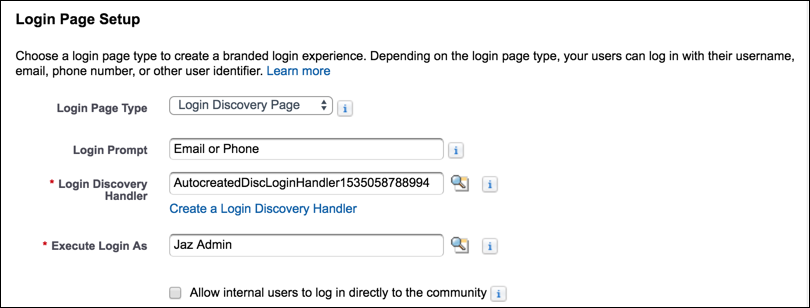
- (Optional) For Login Prompt, enter the text that you want to appear as the prompt on
your login page.
For example, enter Email Address or Phone Number. You can localize the login prompt with a custom label. Use the
$Labelglobal variable, for example,$Label.loginPrompt. - For Login Discovery Handler, leave the field blank and click Create a Login Discovery Handler. Salesforce auto-generates the Apex handler on save. You modify the code later.
- For Execute Login As, select a Salesforce admin with the Manage Users permission to run
the handler.
Execute Login As provides the context in which the Login Discovery handler runs. By assigning a user to the handler, operations performed by the handler are easily traced back to the login process. In production, you typically create a system user for the Execute Login As user.
- If Allow employees to log in directly to the site is selected,
deselect it.
The Login Discovery Page doesn’t support org employees logging in to the site directly. However, you can customize the handler to redirect users to an IdP. For employees, you can set up Login Discovery with My Domain. From your My Domain Authentication Configuration settings, set the login page type to Discovery.
- Save your settings.
Salesforce generates a default login discovery handler and populates the Login Discovery Handler field with its name. This handler accepts an email address or phone number from the login page and emails or texts a verification code to the user. If the user’s email or phone number isn’t verified, the user is prompted for a password.
To customize the welcome email that new users receive when they sign up with their email address, see Customize the Passwordless Registration Welcome Email Template.
