
You are here:
Apply Role-Based Access to an Experience Cloud Site
Use role-based access to control who does what in a community, portal, or site. Assign roles to your contributors with the level of access they need in a specific experience. A contributor’s access role is specific to an Experience Builder site. A contributor can have different access roles in different sites.
Required Editions
| Available in: Experience Builder sites accessed through Lightning Experience and Salesforce Classic |
| Available in: Essentials, Enterprise, Performance, Unlimited, and Developer Editions |
| Applies to: LWR and Aura sites |
| User Permissions Needed | |
|---|---|
| To access Experience Workspaces or Experience Builder: |
|
| To add, remove, or change a contributor access role: |
|
| To be a contributor with a publisher, builder, or viewer role in an Experience Builder site: |
|
Contributors are users in your org that you add to your Experience Builder site. Specify what these contributors can do and see within the site by assigning them one of the following roles.
- Experience admin—These contributors can do just about everything in an assigned Experience Builder site. They can access Experience Builder, manage contributors, and publish the site.
- Publisher—These contributors help you build and publish the assigned Experience Builder site. They can access Experience Builder and publish the site. They can’t manage contributors. They have read-only access to the Experience Workspaces Administration | Contributors tab.
- Builder—These contributors help build and maintain the assigned Experience Builder site. They can access Experience Builder. They can’t publish the site or manage contributors. They have read-only access to the Experience Workspaces Administration | Contributors tab.
- Viewer—These contributors have read-only access to Experience Builder in an assigned site. They can view a site in Experience Builder. They can’t build, revise, or publish the site or manage contributors. They have read-only access to the Experience Workspaces Administration | Contributors tab.
In addition to these contributor roles, existing Salesforce admins have broad access to your Experience Builder sites. They can control all Experience Cloud settings and can create communities, portals, and sites.
Considerations for Applying Role-Based Access Control
- Even if you’re an admin, you can’t update your own contributor role. To change your level of access to a site, another admin must update your role.
- Contributors assigned an access role can’t upload images to the Tile Menu component or export templates, pages, or themes from Experience Builder.
- To ensure that your contributors can access Experience Builder and Experience Workspaces in an inactive site, enable the “Modify All Data” permission.
- To limit a user’s ability to modify or publish a site, ensure that the user doesn’t have the Create and Set Up Experiences permission. Then assign that user the appropriate role.
- Contributors in your Experience Workspace can curate Salesforce CMS content from within each site and decide who sees CMS content and how it appears.
- If you use a sandbox, keep in mind that CMS workspaces are copied only to Full Copy sandboxes. Even though the Digital Experiences app is available in your Full Copy sandbox, you can’t migrate CMS content created in a sandbox to production. If you want to use CMS content beyond testing, we recommend that you create it in production.
Add Contributors to a Site
Add users as contributors to a specific site by assigning them an access role.
- From your site in Experience Builder, go to Workspaces | Administration.
-
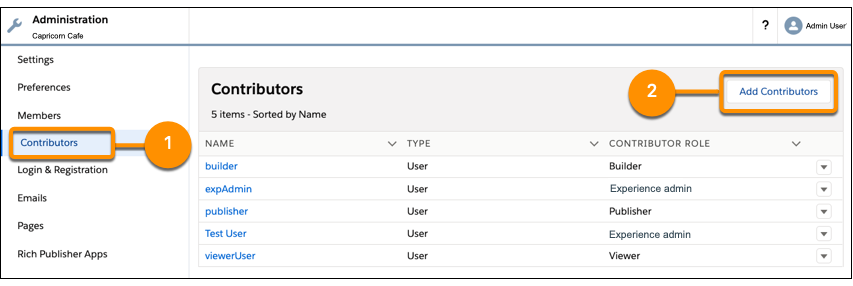
Select Contributors (1) and click Add
Contributors (2).
- Search users by name. Only members of the Experience Builder site are listed.
-
Click
 next to the users that you want to add.
- Click Next.
-
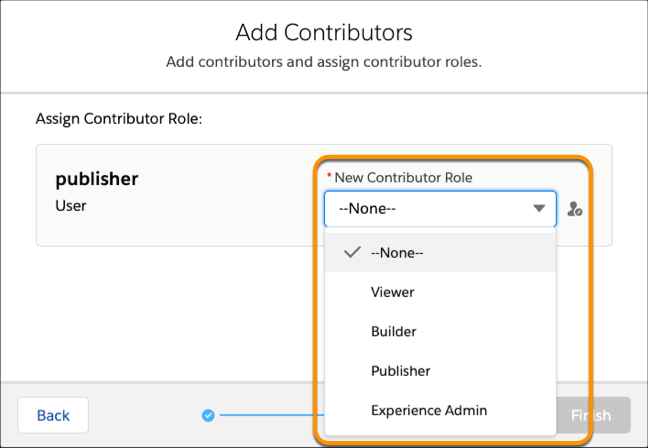
For each user, assign a contributor role.
- Click Finish.
Update a Contributor’s Access Role
Change a contributor’s role to increase or decrease the contributor’s level of access to a site. Experience admins can’t change their own role.
- From your site in Experience Builder, go to Workspaces | Administration.
- Select Contributors.
-
Click
 next to the contributor you want to update and select
Change Role.
next to the contributor you want to update and select
Change Role.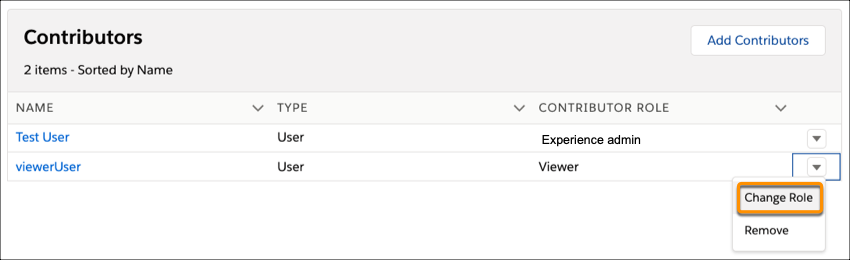
- Select the new contributor role, and click Update.
Remove a Contributor from a Site
If a contributor leaves your company or transfers to a different team, you can remove the contributor from a site. The user is removed from the site but not from Salesforce.
- From your site in Experience Builder, go to Workspaces | Administration.
-
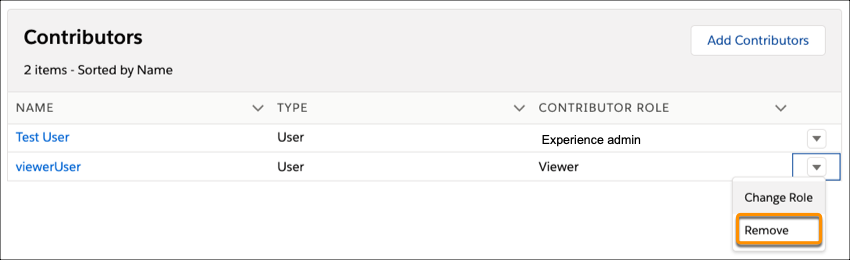
Click next to the contributor you want to update and select
Remove.
After you remove a contributor from a site, the contributor can no longer access Experience Builder or Experience Workspaces for that site.
