
You are here:
Assign an Audience to a Branding Set
You can tailor your branding to different audiences. For example, you can show one look and feel to your customers and another to your partners.
Required Editions
| Available in: Salesforce Classic and Lightning Experience |
| Available in: Enterprise, Performance, Unlimited, and Developer Editions |
| Applies to: Aura sites |
| User Permissions Needed | |
|---|---|
| To customize or publish an Experience Cloud site: |
|
-
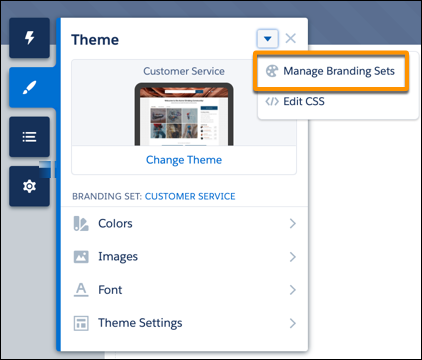
In Experience Builder, open the Theme panel, click the down arrow next to the panel title,
and select Manage Branding Sets.
- In the Branding Sets pane, click the down arrow for the branding set that you want to work with, and select Assign. Or, if the branding set already has an assigned audience, select Edit Assignment.
- In the Assign Audience window, click New Audience. Name the audience, set the criteria to define it, select the conditions when the audience matches, and click Save & Assign.
-
To assign an existing audience to the branding set, select the audience, click
Assign, and click Done.
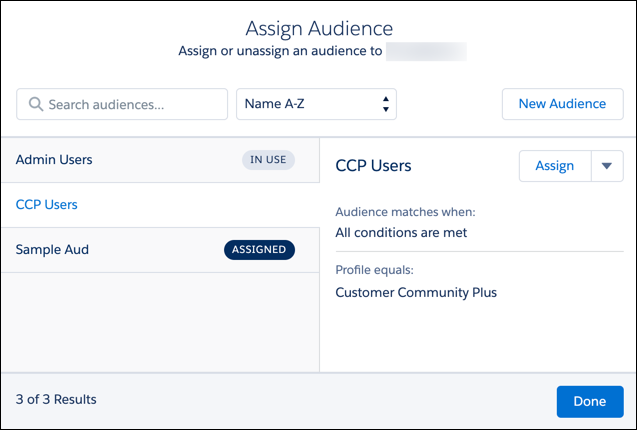
You can’t assign an audience that includes record-based criteria to a branding set. Therefore, the Assign Audience window for a branding set doesn’t show audiences that include record-based criteria.
- To make these changes visible to your site visitors, publish the site.
Each Experience Cloud site has a branding set that’s assigned to the default audience. Site visitors who don’t meet the criteria for an assigned audience see the default branding. You can’t edit the audience assignment of the default branding set.
Did this article solve your issue?
Let us know so we can improve!
