
You are here:
Chatter Streams in Aura Sites
Your Aura site members can combine multiple feeds into a stream to create a single point of access to related information. Combine feeds of top contributors or discussions concerning a particular product line. Create a stream that combines feeds from discussions, groups, topics, profiles, and all kinds of objects, like cases, opportunities, and accounts. No more jumping from feed-to-feed to figure out what people are saying. Each member can create up to 100 streams.
Required Editions
| Available in: Salesforce Classic and Lightning Experience |
| Available in: Enterprise, Performance, Unlimited, and Developer Editions |
| Applies to: Aura sites |

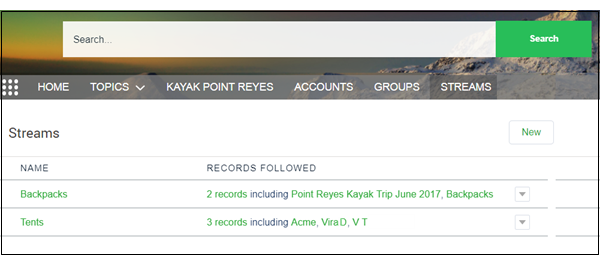
Each site member has their own view of the Streams page where they see their own streams. On the Streams page, members can create streams and use row actions menus to edit and delete their streams.
Add a Chatter Stream
Create and manage streams in your Aura site’s Streams home page.
- Open the Streams page, and click New.
-
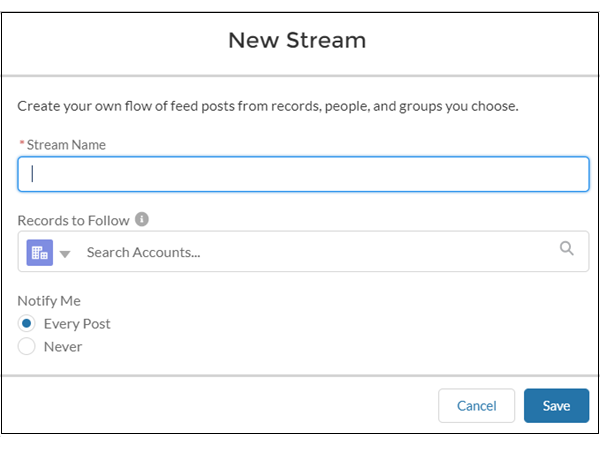
In the New Stream dialog, enter a name for your stream.
-
Under Records to Follow, select a type of feed you want to add
to this stream.
Note Knowledge articles (KAs) aren’t fully supported in streams. You can add them when you create and edit a stream by searching for the article’s ID number rather than its title. But you can’t add a KA to a stream from its Follow button like you can with other record types. Articles added to Streams using the article’s ID don’t appear in Records to Follow on the Stream's edit page. KAs also don’t appear when viewing the Follow button details on the article's detail page.
- In the same field, enter the name of a feed you want to add.
-
In your search results, click the feed you want to add.
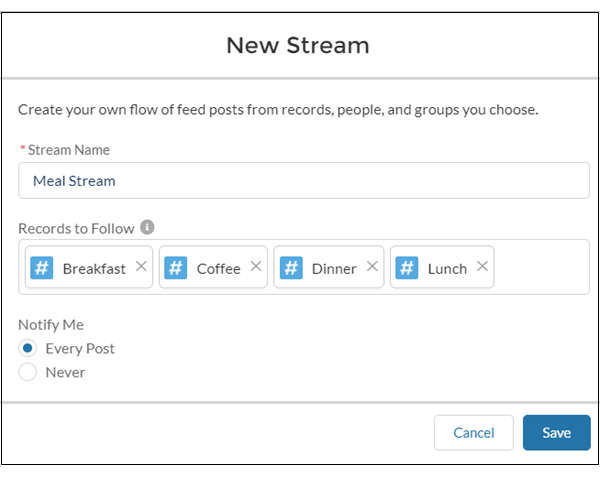
Selected feeds appear below the Records to Follow field.
-
Under Notify Me, select a notification option.
To receive an email notification whenever a new post appears in the stream, select Every Post. To turn off notifications for this stream, select Never. You can change this selection later in a stream’s detail view.
-
Click Save.
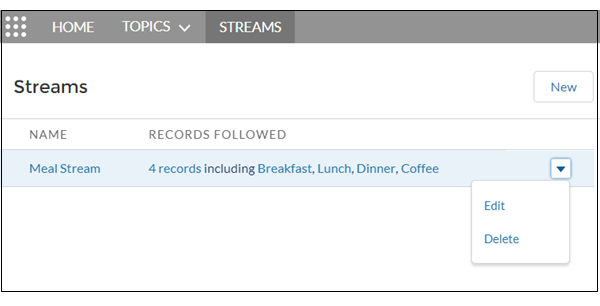
Your new stream appears in a row on the Streams page. The row lists the number of feeds (records) that are included in the stream and the names of added feeds. Stream actions appear on the row actions menu at the end of the row. To open a stream, click its name.
Edit or Delete a Chatter Stream
Easily edit a stream or delete it from your list of streams in your Aura site. Deleting a stream doesn’t delete the records or posts it contains. It deletes only the stream, which frees up space for you to create more streams.
- Open the Streams page, and, from the row actions menu on the stream you want to remove, select Edit or Delete.
-
In the Edit Stream dialog, change the values you want to change. For example, rename
the stream, delete a stream feed (record), add more feeds of a different type or the same
type.
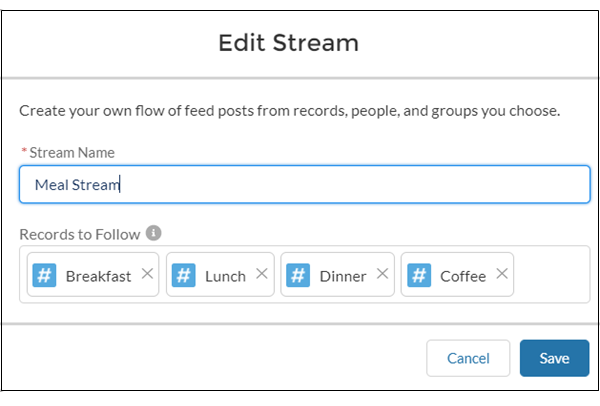 When you delete a record from a stream, the stream retains the posts from the deleted feed up to the point of deletion. Deleting a record stops the flow of new information from that feed into the stream.
 - Save your changes, or select Delete.
View Aura Site Streams from Your Internal Salesforce Org
Site members who have access to their internal Salesforce org can view their site streams from the org. When you click most site-based links from the internal org view, they lead right back to the site.
You can take many feed actions, like answer, comment, mention, and like, when you visit a site stream in your internal org. Here are some others.
- Upvote and downvote questions and answers, and see the impact in your site.
- Verify answers, and see the verification in your site.
- Click a link to a user profile, account, topic, or case, and jump to its home site.
- Add a topic, and it’s added to your site.
- Click the timestamp on a post, and jump to the post detail view in its home site.
- Copy a link that leads to the item, person, or post detail view in its home site.
- Click a mention in a site stream, and go to its home site.
There’s no special setup to get links working between your site and your internal org. However, features, such as upvote and downvote and mark as company verified, do require that you enable them for your site.
- You can’t create a site stream from your internal Salesforce org. Create streams from your site.
- Some Chatter features that are available in a site aren’t available when you visit a site stream from your internal org. For example, file attachments, inline images, post sharing, and hover cards aren’t available when you view site streams internally.
- Site topics don’t appear when you view a stream from your internal Salesforce org. However, you can add topics.
