
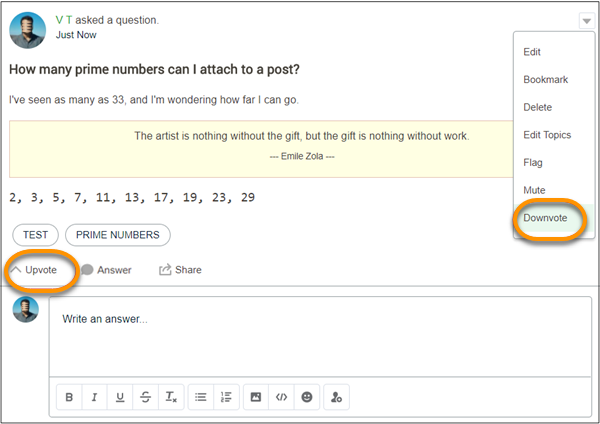
Enable upvoting and downvoting in lieu of liking questions and answers in your
Experience Cloud site. When you enable upvoting and downvoting, members see an
Upvote option under a question or answer and a
Downvote option on the question or answer’s overflow menu. The
Like option goes away. Upvoting and downvoting are disabled by default
in Experience Cloud sites created in Spring ’19 and later.
Required Editions
Available in: Salesforce Classic and Lightning Experience
Available in: Enterprise, Performance, Unlimited,
and Developer Editions
For sites created before the Winter ’18 release, it’s an easy task to enable up and down
voting.
When you change to upvotes, pre-existing likes are included in the upvote count. Click the
count to see a list of the people who have upvoted.
Note
No one is listed more than once, even if a person both liked and upvoted a question or
answer. But each like and upvote is counted. For example, if someone both liked and
upvoted a question, the count is 2, although their name is listed only once. If you
prefer not to merge your like and upvote counts, contact Salesforce support.
On influence cards, upvotes count as likes received. Your own upvotes on your own
posts or comments aren’t counted towards influence. Downvoting a post or comment doesn’t
reduce the like count, unless a user is changing their own upvote to a downvote.
Members must be logged in to a site to use the upvote and downvote feature.
Go to Experience Workspaces and click Administration | Preferences.
Under Experience Management, select Allow members to upvote and
downvote.
Click Save.
Did this article solve your issue?
Let us know so we can improve!
Loading
Salesforce Help | Article
Cookie Consent Manager
General Information
Required Cookies
Functional Cookies
Advertising Cookies
General Information
We use three kinds of cookies on our websites: required, functional, and advertising. You can choose whether functional and advertising cookies apply. Click on the different cookie categories to find out more about each category and to change the default settings.
Privacy Statement
Required Cookies
Always Active
Required cookies are necessary for basic website functionality. Some examples include: session cookies needed to transmit the website, authentication cookies, and security cookies.
Functional Cookies
Functional cookies enhance functions, performance, and services on the website. Some examples include: cookies used to analyze site traffic, cookies used for market research, and cookies used to display advertising that is not directed to a particular individual.
Advertising Cookies
Advertising cookies track activity across websites in order to understand a viewer’s interests, and direct them specific marketing. Some examples include: cookies used for remarketing, or interest-based advertising.