
You are here:
Enable Direct Messages in an Aura Site
Allow members to send direct messages to start a private conversation with up to 16 people, including the sender. Direct messages are supported in all Aura sites and in Lightning Bolt Solutions, such as the Lightning Partner Management solution.
Required Editions
| User Permissions Needed | |
|---|---|
| To enable direct messages: | Access Experience Management OR Manage Experiences OR Create and Set Up Experiences AND Is a member of the Experience Cloud site |
| To enable Chatter: | Customize Application |
Direct messages offer privacy for more sensitive conversations. Imagine a scenario where a customer brings up an issue they have with a product in the Experience Cloud site feed. A support agent can share that post and address the customer’s concerns privately in a direct message. Similarly, a channel manager can discuss sensitive sales data with one or more partner users in a partner site.

- Make sure that Chatter is enabled in your org.
- Open Experience Workspaces.
- Under Administration, click Preferences.
- Select Enable direct messages and save your changes.
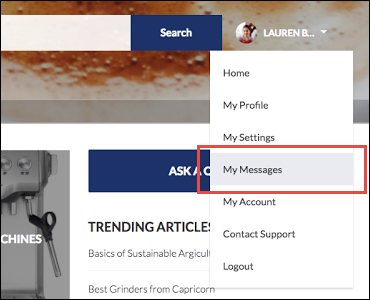
- In Experience Builder, click the Profile Header component on the Home page and select Include My Messages. The My Messages link appears in the user profile dropdown menu.
- Publish your Experience cloud site.
To facilitate easy access to direct messages, add other components to your site.
- Add the Messages page to your site’s navigation menu for prominent placement and easy access.
- Add the New Message Button component to any page you want to allow members to create messages from.
- Add the Message Notification component to the home page.
After enabling direct messages, members can start a direct message conversation:
- From the Messages page.
- From user profiles and from hovers on users names.
- From the Message Notification and the New Message Button components on-site pages.
- By sharing a feed post as a direct message.
Members can flag messages that are spam or inappropriate. They can also opt to receive email notifications when someone sends them a direct message or responds to a conversation they’re a part of. Members can access their direct message conversations by clicking My Messages in their user profile dropdown menu.
To allow members to flag messages that are inappropriate,
Allow members to flag content preference in the Administration tile of Experience Workspaces.
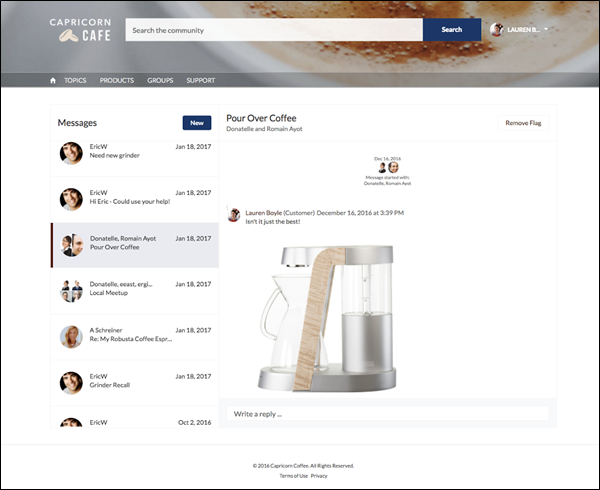
Here’s what the messages list view looks like:
Direct Message Limitations
Before you enable direct messages for your Aura site, review these considerations.
- Direct messages require that Chatter is enabled in your org.
- Direct messages can be enabled only in Experience Builder sites and in Lightning Bolt Solutions.
- Users with the View All Data and Modify All Data permissions can’t access direct message data unless they’re participants in the conversation.
- Only users with the Manage Chatter Messages and Direct Messages permission can view all the direct messages data in your org.
- The maximum number of people who can participate in a single direct message, including the sender, is 16. If people leave, you can add more people, up to a total of 16.
- To moderate flagged direct messages, the moderator needs the Moderate Chatter Messages and Direct Messages permission and the Moderate Experiences Chatter Messages permission.
- To maintain privacy, direct messages aren’t included in search results.
- When members flag a direct message, the entire conversation is flagged. Individual messages can’t be flagged.
- If you have private messages enabled, they remain available. However, direct messages are better integrated with Lightning technology. We recommend that you switch to direct messages.
For Developers
Direct messages are supported in Connect REST API. Under the hood, direct messages are a special implementation of feed posts and comments parented to a direct message entity. If you use Connect REST API to create a custom implementation of direct messages, a few things to keep in mind:
- The first message is stored as a feed post and the responses are stored as comments.
- Unlike other objects, direct messages can’t have multiple feed posts associated with a single direct message conversation.
- You can’t follow, like, share, mention people in, mute, and bookmark feed items associated with direct messages. You also can’t associate topics with direct message feed items.
- Feeds associated with direct messages aren’t accessible via search, public feeds, or streams.
- Email notifications for direct messages aren’t supported for custom implementations built for the internal Salesforce org.
- Direct messages are only supported on the Messages page. Using direct messages on custom pages isn’t supported and can lead to unexpected authentication results.
- In the Experience Cloud site UI, direct messages display only to the participants in the
conversation. However, Apex code runs in system mode, which means that the permissions of
the current user aren’t considered. This limitation has implications for pages that use
Apex and Visualforce.
- Review your Visualforce pages for any potential exposure of direct message data.
- Review your AppExchange apps that are written in Apex to ensure that direct message data isn’t exposed.
- Visualforce and Apex developers in your org might be able to access direct message data.
Use permission sets, profile-level permissions, and sharing checks in your code to limit user access.
