
You are here:
Make Files on Records Visible to Customers
The Customer Access toggle on a file’s sharing detail page lets you decide when customers can see individual files on records.
Ensure that your customers can access files on records. Enable digital experiences to view the Customer Access option on a file’s sharing detail page. Users with collaborator or owner access to the file can change the Customer Access option. Users with view-only access to the file have read-only access to the Customer Access Option. External users can’t see this option.
On Files home in Salesforce, from the row-level action list or file preview, click Share. To see where the file is shared, in the sharing detail window, expand the Who Can Access section. The customer access option is visible in the sharing detail of any file shared with a record.
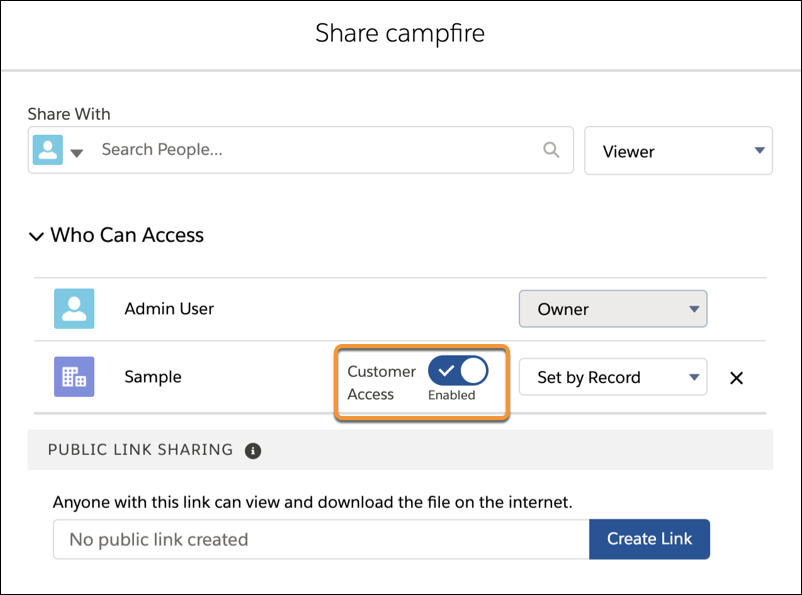
To set the sharing level, in the menu next to the Customer Access option, select Viewer to give the customer view access to the file. If you choose Set by Record, then the customer’s file access depends on their record access. View access on the record provides view access to the file, and edit access on the record provides collaborator access on the file. The Customer Access option isn’t available to files shared with users, groups, workspaces, Experience Cloud sites, or orgs. If your org doesn’t have Experience Cloud enabled, the sharing setting for files on records defaults to Customer Access - Enabled. If you do enable digital experiences in your org, check record access settings to ensure you’re sharing the files you want with the correct customer users.

To set the sharing settings for files sent through email, make sure that the email is in a draft form for the settings to go into effect.
