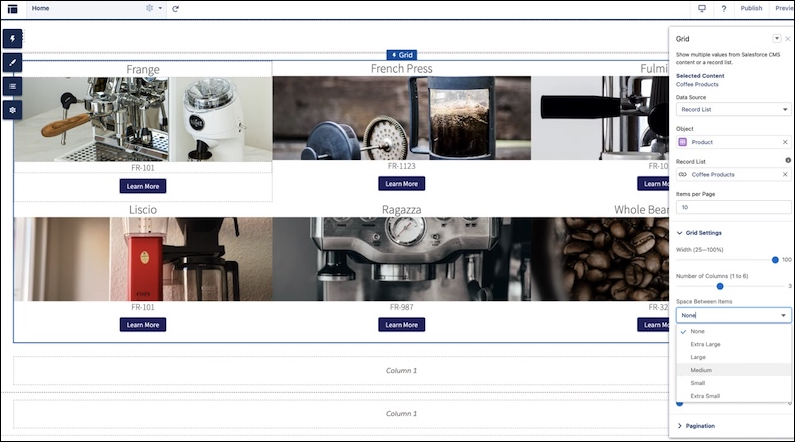
Use a Grid Component to Show Enhanced CMS Collections and List Views in LWR Sites
The Grid component dynamically populates with data that’s saved in enhanced CMS
collections and record list views. After you pick a data source, you add a content component
within the grid to show the content that you want. The component provides data binding and
pagination logic.
Required Editions
Available in: Enterprise, Performance, Unlimited,
and Developer Editions
You must have at least one active community license in your org to use
this feature.
User Permissions
Needed
To customize or publish an Experience Cloud site:
Create and Set Up Experiences AND View Setup and Configuration AND be a member
of the site
OR
View Setup and Configuration AND be a member of the site AND have appropriate
role-based site access
Before you can add a collection from an enhanced CMS workspace to your site, add the site as a
channel to the workspace. Then make sure that the collection is published in the CMS
workspace.
In Experience Builder, click Components.
Drag the Grid component onto the page. You can add the component to any standard or object
page.
Select a data source: a CMS collection or record list view.
Set the layout and design options for the content.
From the components panel, drag in a content component to show the content. Commonly
used components include Text Block, Tile, and Image.
Map the fields for the content that you want to display. For example, you can map the Text
Block in a Tile component to a blog title, image, or similar content.
Note
Enhanced CMS collections can be added only to enhanced LWR sites.
Grids backed by CRM record list views show a maximum of 2,000 records.
When you use record list as your data source, the only fields you can bind to are fields
that have been selected in the list view. For example, if you want to show the All Accounts
list view, and the list view shows five fields in your internal org, only those five fields
are shown as options for data binding.
We use three kinds of cookies on our websites: required, functional, and advertising. You can choose whether functional and advertising cookies apply. Click on the different cookie categories to find out more about each category and to change the default settings.
Privacy Statement
Required Cookies
Always Active
Required cookies are necessary for basic website functionality. Some examples include: session cookies needed to transmit the website, authentication cookies, and security cookies.
Functional Cookies
Functional cookies enhance functions, performance, and services on the website. Some examples include: cookies used to analyze site traffic, cookies used for market research, and cookies used to display advertising that is not directed to a particular individual.
Advertising Cookies
Advertising cookies track activity across websites in order to understand a viewer’s interests, and direct them specific marketing. Some examples include: cookies used for remarketing, or interest-based advertising.