
You are here:
Configure Features with Guided Setup
Guided setup walks you through setting up visibility, processes, workflows, record types, layouts, and assignment rules for Salesforce features. From start to finish, guided setup leads you through each step with easy-to-follow directions and navigable links to settings pages.
As long as you have a Partner license, you can access Guided Setup from Experience Workspaces. Click the Guided Setup tile, and select which feature you want to set up.
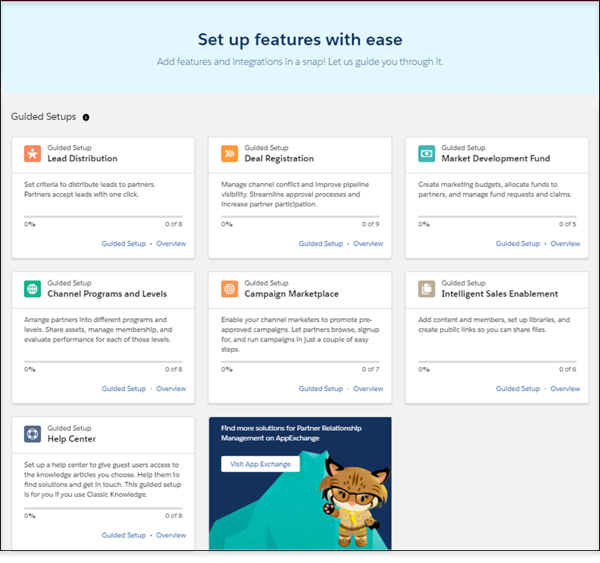
Click Overview to get a description of the feature and the setup tasks.
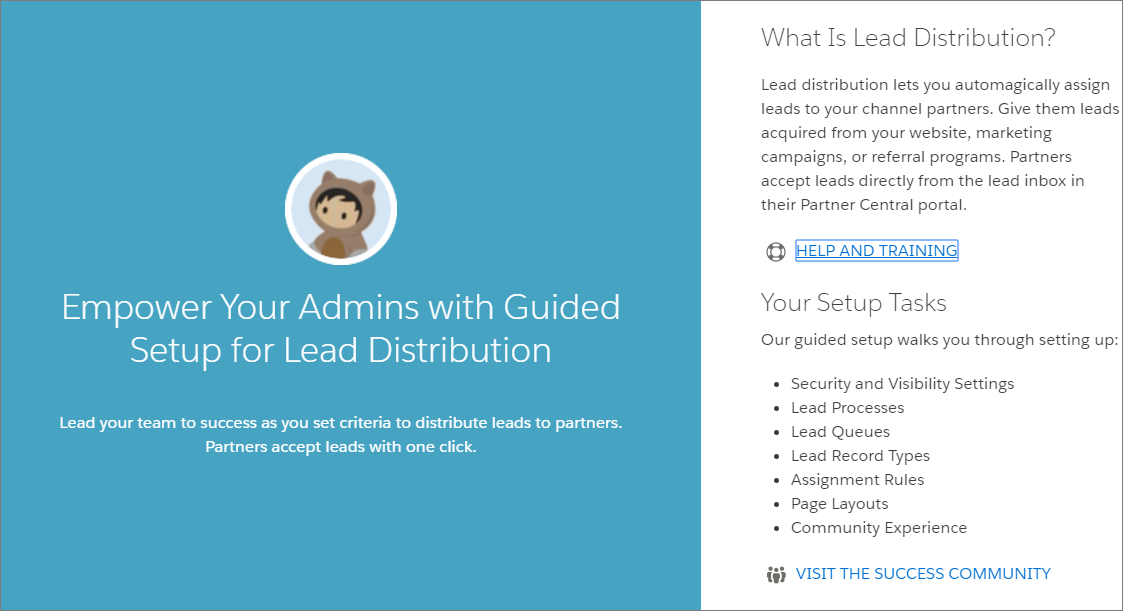
Click Guided Setup to begin setting up the feature.
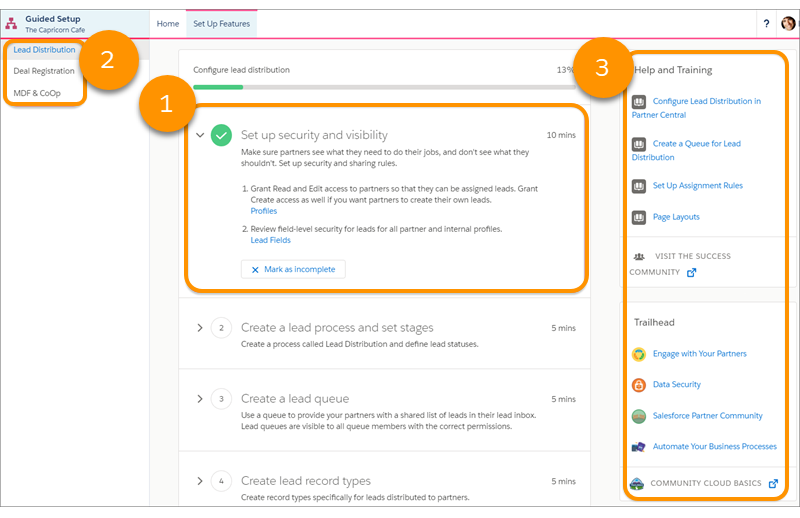
- (1) Each setup task has been organized into a separate step. Navigable links take you to the right setup pages for completing tasks. After you complete the step, you can mark that task as complete and move on to the next.
- Not able to finish one of the setups? Or do you want to hit pause on a setup and move on to the next one? Not a problem. You can easily switch between setups from the upper left corner of the Guided Setup page (2). Any completed steps remain marked until you come back to them, so it’s easy to find your place again.
- Need a bit more information about a process or step? Want to learn more? Salesforce Help, a link to the Trailblazer community, and related Trails are easily accessible on the right side of the screen (3).
Did this article solve your issue?
Let us know so we can improve!
