
You are here:
Allow External Users to Create and Edit Reports
Partner and customer users can create, delete, and edit reports in their own personal folder or, with sufficient permission, in a privately shared folder. Grant partner and customer users permissions to create and edit reports through their profiles or permission sets. After you grant the required permissions, partners and customers can use the drag-and-drop Report Builder tool.
Required Editions
| Available in: Salesforce Classic and Lightning Experience |
| Available in: Enterprise, Performance, Unlimited, and Developer Editions |
| Applies to: LWR, Aura, and Visualforce sites |
| User Permissions Needed | |
|---|---|
| To create permission sets or enable custom permissions in profiles: | Manage Profiles and Permission Sets |
| To assign a permission set to a user: | Assign Permission Sets |
| To share a report folder with external users: | Manager folder access or Manage Reports in Public Folders |

- If your org was created before the Summer ’13 release, then before granting external users permissions you must first turn on enhanced sharing for reports and dashboards.
- To create, customize, and delete reports, external users must use the Report Builder tool.
Data visibility is based on two things: the user role the partner or customer belongs to and your organization’s sharing rules. Your organization’s field-level security is respected. So, if a field isn’t visible for external users, a partner or customer user doesn’t see it in Report Builder.
-
To let external users create and edit reports, assign Create and Customize Reports, Report
Builder, and Edit My Reports permissions through custom profiles or permission sets. If you
want external users to export report data, also assign them Export Reports permission.
In Setup, enter Permission Sets in the Quick Find box, then select Permission Sets or Profiles. Assign the following permissions:
External User Permissions Needed to Create and Edit Reports To create, customize, and delete reports in a personal folder: Create and Customize Reports To create, customize and delete their own reports in a privately shared folder with Viewer access: Edit My Reports To export report data: Export Reports You can give permission to create and edit reports to all role-based external users with licenses. For example, you can give permission to Customer Community Plus and Partner Community. You can also give permission to all legacy role-based portal licenses, such as Customer Portal and Gold Partner.
 Note
Note- These permissions aren’t available to high-volume user licenses, such as Customer Community, High Volume Customer Portal, Service Cloud Portal, and Authenticated Website.
- External users with legacy portal licenses can create and edit reports in Experience Cloud sites, but not in portals.
- Users with Customer Account Portal, Partner Central, and Customer Service templates can create, edit, and delete reports in Experience Cloud sites. If you don’t see the New Report button, enable reports and add the Report List page to your site. If the button doesn’t appear after you enable Reports, republish your site.
- Objects that don’t have a sharing rule for external users can’t be accessed by external users with the licenses listed. If an object is set to Public Read and no sharing rule is present, it shows an error on the report when accessed by the external user.
- Objects that don’t support standard sharing (using Sharing settings) aren’t visible in reports intended for external users.
-
If you want your external users to create or edit reports in a privately shared folder,
grant them Viewer access on the folder.
On the Reports tab in the Folders view, click
 next to the folder you want to
share, then select Share.Note Partner and customer users can’t create, edit, or view reports in the Unfiled Public Reports folder.
next to the folder you want to
share, then select Share.Note Partner and customer users can’t create, edit, or view reports in the Unfiled Public Reports folder.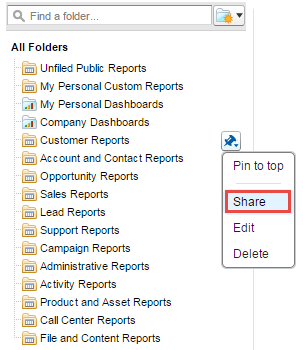
Depending on the objects, fields, and categories that your external users can access, they sometimes see custom report types in the UI when they create a report. If a user has read access on any fields or objects included in the custom report type, custom report types are visible.
- Create a Report from Your Site with Report Builder
With the new Report Builder page, external users can create, edit, and delete reports directly from their Experience Cloud site.
