
You are here:
Select a Security Level in Experience Builder Sites
Choose a security level to control whether scripts can be executed from your Experience Builder site and whether third-party components and custom code can share data.
Required Editions
| Available in: Salesforce Classic and Lightning Experience |
| Available in: Essentials, Enterprise, Performance, Unlimited, and Developer Editions |
| User Permissions Needed | |
|---|---|
| To customize or publish an Experience Cloud site: |
|
Selecting a security level depends on your needs and tolerance for risk. We recommend running Strict CSP for optimum security. You can easily switch between levels to test how different security levels affect your customers’ experience.
-
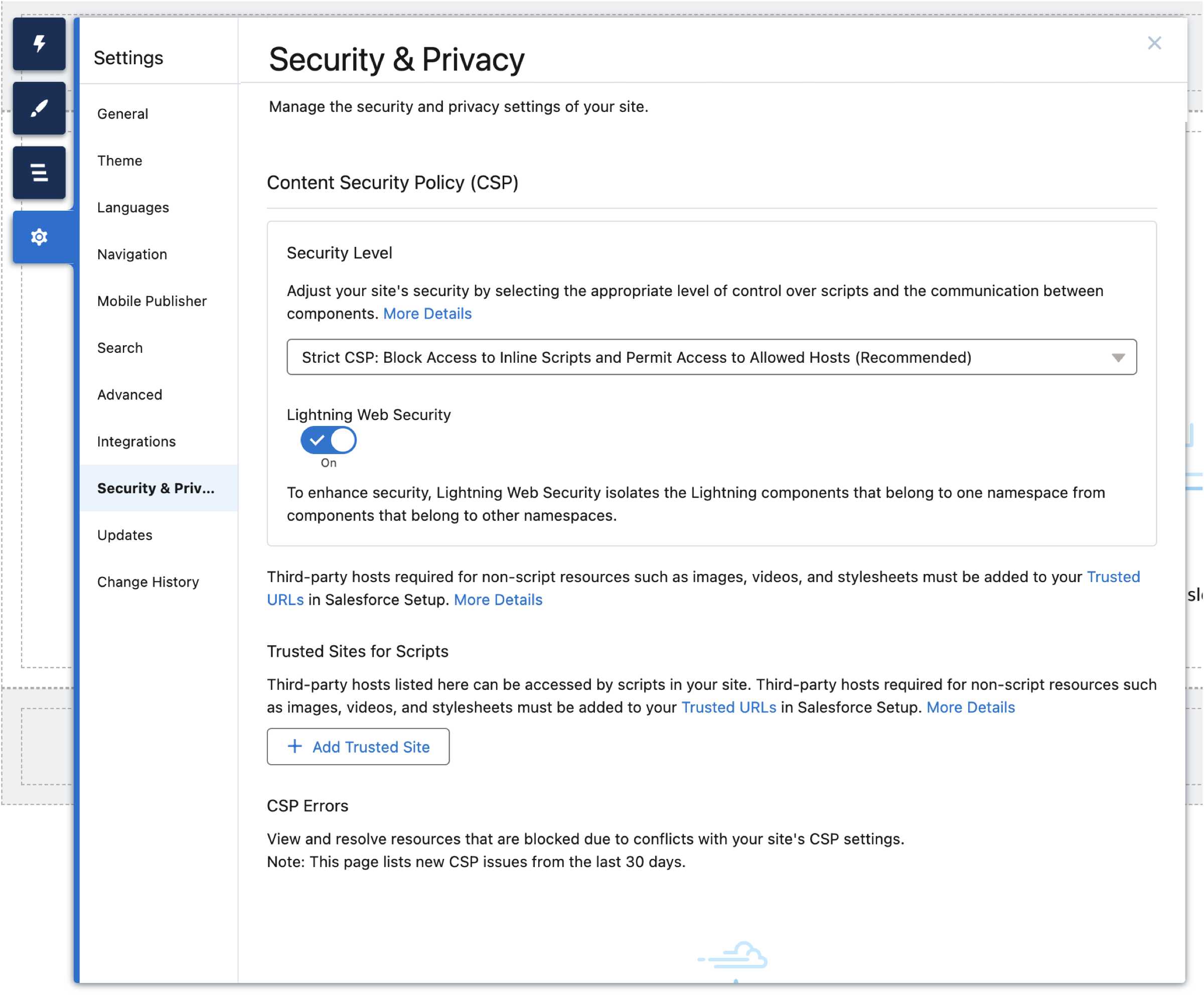
In Experience Builder, open Settings | Security & Privacy.
-
Select a security level.
Security Level Description Strict CSP: Block Access to Inline Scripts and Permits Access to Allowed Hosts Default setting for sites created in Spring ’19 (February 2019) and later.
Provides maximum security.
- Blocks the execution of all inline scripts and all requests for remote JavaScript files unless explicitly allowed.
- Allows the display of non-script resources, such as images, from third-party hosts that are explicitly allowed.
- Lightning Locker is turned on automatically, but can be turned off.
Relaxed CSP: Permit Access to Inline Scripts and Allowed Hosts Provides moderate security.
- Allows inline scripts to run in your site.
- Allows the loading of remote JavaScript files and the display of non-script resources, such as images, from third-party hosts that are explicitly allowed.
- Lightning Locker is turned on automatically, but can be turned off.
Allow Inline Scripts and Script Access to Any Third-party Host Provides no added security, but enables your site to work as currently designed.
- Blocks nothing.
- Allows access to all third-party hosts without the need to explicitly allow those hosts.
- Lightning Locker is turned on and can’t be disabled.
 Note This option is only visible for sites created before Spring ’19. In Spring ’22 (February 2022), this option is being removed.
 -
If you use non-script resources hosted outside Salesforce, such as images or style
sheets, add the hosts to Trusted URLs in Setup. See Manage Trusted URLs.
Hosts allowed in Trusted URLs are available to Lightning Experience, Experience Builder sites, or both, depending on the context you apply. If available to Experience Builder sites, that host is allowed for all sites in your Salesforce org.
-
If you use script resources hosted outside Salesforce,
you can
select
either Strict CSP or
Relaxed
CSP,
and allow the third-party hosts in the Trusted Sites for Scripts area that
appears.
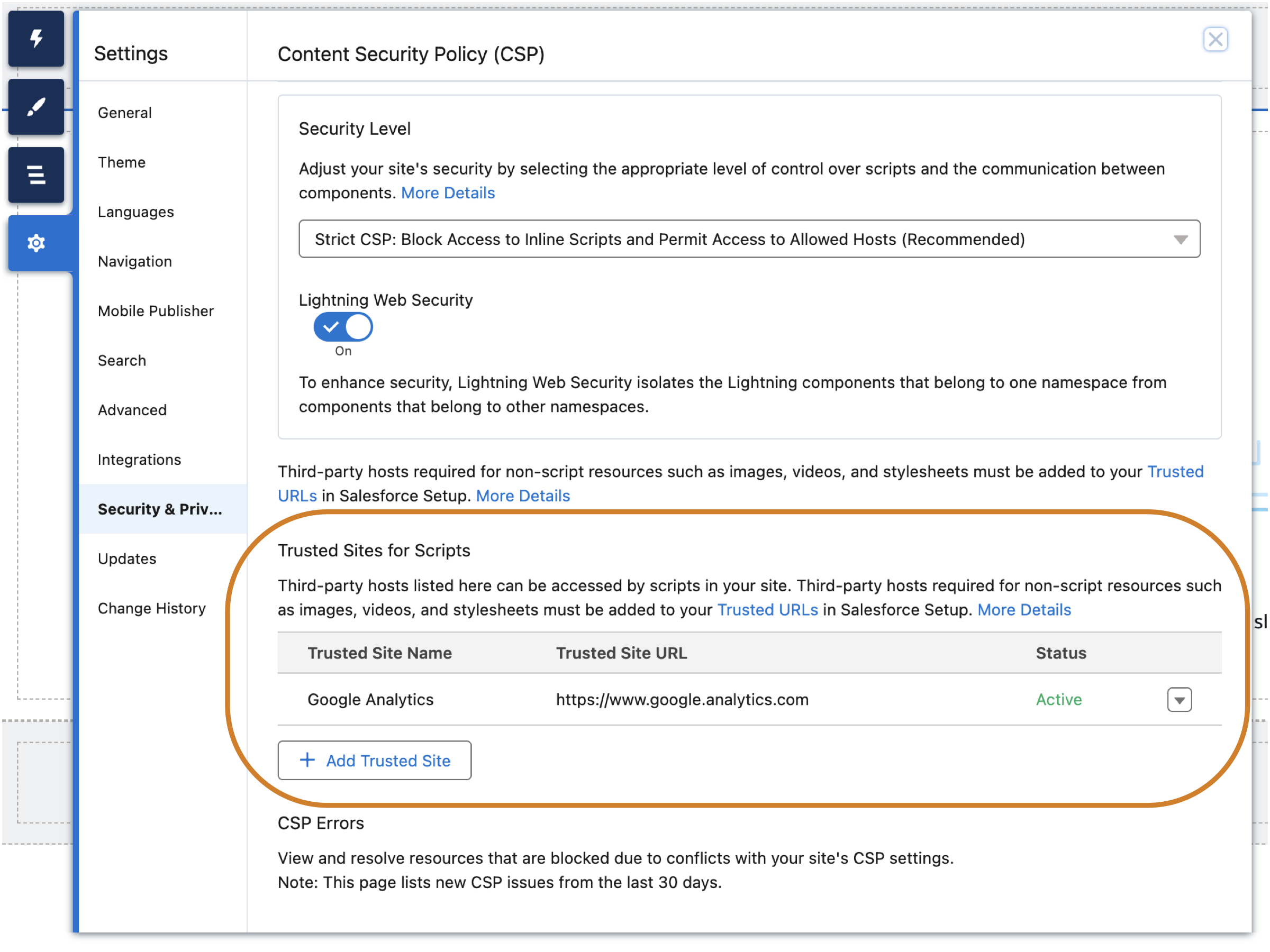
- Click Add Trusted Site.
-
Enter a friendly name and the resource URL.
For added security, include the entire URL path to the resource folder—for example, https://www.example.com/logos/. Use the syntax https://site_url/resource_folder/, and ensure that the URL ends in /. If you add the URL for the whole domain rather than a specific resource folder, you extend trust to all resources on that domain, which can introduce a security vulnerability.
- Click Add Site.
Note- Allowed external sites are specific to each Experience Builder site.
- You can activate or deactivate a trusted site for easy testing and maintenance, without having to remove it from your site configuration.
-
Optionally,
you can turn off Lightning Locker.
Sometimes it’s necessary to turn off Lightning Locker to use custom components that automatically inject additional third-party JavaScript into the page, including the site’s
headmarkup. Warning Turning off Lightning Locker can potentially cause security flaws in your site and prevent third-party Aura components from being available at design time and rendering at runtime. Disable Lightning Locker only as a last resort. See Enable Third-Party Components to Run When Lightning Locker Is Off and Resolve Lightning Locker Conflicts in Experience Builder in the Experience Cloud Developer Guide.
 - Publish your site.
