
You are here:
SEO Page Properties in Experience Builder
Set the title, description, and head properties for your Experience Builder site pages to improve search results.
Required Editions
| Available in: Salesforce Classic and Lightning Experience |
| Available in: Enterprise, Performance, and Unlimited Editions |
| Applies to: LWR and Aura sites |
To view a page’s properties, in Experience Builder, open the Pages menu and click  | Page Settings.
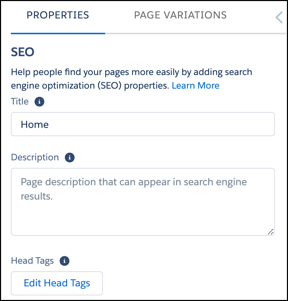
- Title
- The title of the page. Shown in search engine results, the browser’s tab or window title, and bookmarks.
- For data-based pages such as record and content pages, the title is set dynamically.
- Description
- The description of the page. Shown in search engine results to help users decide if it’s the page that they’re searching for.
- For data-based pages such as record and content pages, the description is set dynamically.
- If a page’s
descriptionvalue is empty, search engines populate the description from the first text they find.
- Head Tags
- Edit Head Tags lets you enter specific
headtags for the page to assist search engine optimization. - For data-based pages, such as record and content pages, you can enter expressions to access values from the record associated with the page. Associated values can include things like name, title, and value of specific fields.
- To prevent search engines from indexing a page, add the
noindextag.<meta name="robots" content="noindex"> - You can specify local
headtags for individual site pages, for example to indicate a non-canonical page. And you can augment any global tags that are in yourheadmarkup. Tip Alternatively, you can take a rules-based approach to controlling the visibility of specific areas of your site to search engines by creating a custom robots.txt file.
 - For security purposes, we restrict the tags, attributes, and values allowed in the
headtags on your pages. -
Allowed Tags Allowed Attributes <link> as,charset,crossorigin,disabled,href,hreflang,id,import,integrity,media,rel,relList,rev,sheet,sizes,target,title,typeFor
rel, the allowed values are alternate, apple-touch-icon, apple-touch-icon-precomposed, apple-touch-startup-image, author, bookmark, canonical, external, help, icon, license, manifest, mask-icon, next, nofollow, noopener, noreferrer, pingback, prefetch, preload, prev, search, shortcut icon, stylesheet, and tag.<meta> charset,content,http-equiv,name,property,schemeFor
http-equiv, the allowed values are cleartype, content-type, content-language, and default-style.You can use the attribute
http-equiv="X-UA-Compatible"only in combination withcontent="IE=Edge".<script> typeFor
type, the allowed value is application/ld+json.
Dynamic SEO Page Properties
Record and CMS Content pages can contain dynamic data, such as from a database or ever-changing inventory. To make these pages discoverable, provide the title and identify which object it comes from. Use expressions to dynamically update the page title, description, and meta tags based on the changing content. The expressions differ depending on the page type. For Record pages, the Expression Language (EL) starts with {!Record.}. For Content pages, the EL starts with {!Content}. Null field values are returned as empty strings. Output appears in the appropriate language, if available.
Some object pages with dynamic data don’t affect SEO and aren’t indexed, such as Messages. So those page properties don’t include fields for title or description.
Most standard fields are accessible to a guest user by default. To ensure access, confirm that Public Access is enabled in the Experience Builder settings so that the Guest User profile has access to the fields displayed. Custom fields are enabled for the Guest User profile through field-level security (FLS) settings before they can be used in expressions. If a profile or FLS restricts any queried field, the entire record doesn't load and your expressions don't render on the page.
You can use these expressions only in the SEO section of the Experience Builder Pages Properties tab.

To implement dynamic properties for the PageType
Record:
| Expression | Description |
|---|---|
| {!Record._Object} | Returns the display name of the object. |
| {!Record._Title} | Returns the title of the record as defined in the name field. Keep in mind that the name field can have a different label than Name. |
| {!Record.FieldName} | The value of the specified field for the record. The field name is case-sensitive and
includes For example, show a record’s type and title in search results using{!Record.recordTypeLabel}.{!Record.title}. |
For example, you can display the object name of a record followed by its title: {!Record._Object}: {!Record.title}. Or add a specific field, such as
{!Record.Description}.
For the CMS ContentPageType, implement
dynamic properties using these expressions:
| Expression | Description |
|---|---|
| {!Content.contentTypeLabel} | Returns the display name of the object. |
| {!Content.title} | Returns the title of the content as defined in the name field. Keep in mind that the name field can have a different label than Name. |
| {!Content.FieldName} | The value of the specified field for the content. The field name is case-sensitive and
includes For example, for a blog post, use {!Content.Body.Title}. |
For example, {!Content.title}.{!Content.lastModified}
displays the Content page’s title and last modified date.
Canonical URL Tags
To consolidate a single page that uses multiple URLs or different pages with similar content, choose a canonical URL . Improve SEO and direct search bots to the most representative page from a set of duplicate pages on your site. Without canonicalization, search engines consider all of your identical or similar URLs as unique pages, which can cause several SEO issues.
- Search engines can miss your unique content.
- Too much duplicate content can dilute content ranking.
- Ranked content doesn’t reflect the best URL.
To set up a canonical URL for a standard page, open the Experience Builder Page Properties tab. Select the SEO tab, then Edit Head Tags. Enter the properties as shown with your canonical URL.
<link rel="canonical" href="https://mysite.com/s/canonicalURL">For Record pages with dynamic data, your site adds one canonical URL for each record page. URLs use either the record ID format or, if the Use SEO-friendly URLs on this site setting is turned on, the SEO-Friendly format. Here's an example record ID URL: https://mysite.com/s/account/001SG000005DTSjGAO/global-media.
Structured Data
To improve your site’s visibility in search results and to increase site traffic, add structured data to page head tags. Structured data provides key page details in a standardized format that helps search engines understand the content and meaning of a web page. Search engines use structured data to display your site pages in enhanced and engaging ways in search results. For example, search results for a recipe can include a hand-selected image of the finished dish with cook time, recipe ratings, and other details. You can use structured data to define thumbnail images, carousels, knowledge boxes, and more.
To add structured data to one of your pages, add the <script> tag with the application/ld+json
type attribute to the Edit Head Tags section, and then provide the page details that you want to
highlight. For examples of using structured data, see the structured data search gallery from
Google.
<script> tag to add JavaScript to a page’s
head tags.Here’s an example of structured data for a recipe on a Content page.
<script type="application/ld+json">
{
    "@context": "https://example.com/",
    "@type": "Recipe",
    "name": "{!Content.title}",
    "author": {
        "@type": "Person",
        "name": "Granny Smith"
    },
    "datePublished": "2022-05-28",
    "description": "My family has loved this apple pie recipe for generations.",
    "prepTime": "PT60M"
}
</script>
To include dynamic page information in your structured data, use expressions. Be sure to start expressions for Record pages with {!Record} and expressions for Content pages with {!Content}.
