
You are here:
Find Your Way Around Experience Workspaces
Experience Workspaces is your one-stop shop for building, setting up, and monitoring your Experience Cloud site. Access Builder and Administration workspaces to manage your site’s setup and branding. Community managers can view dashboards for groups, members, feed activity, and license usage, and manage the community's reputation system. Moderators can see which items have been flagged for review.
Required Editions
| Available in: both Salesforce Classic and Lightning Experience |
| Available in: Enterprise, Performance, Unlimited, and Developer Editions |
| User Permissions Needed | |
|---|---|
| To access Experience Workspaces or Experience Management: |
|
| To access moderation rules and criteria: |
|
| To customize administration settings or use Experience Builder: |
|

If Experience Workspaces isn’t enabled in your org, enable it in Digital Experiences | Settings . Experience Workspaces is enabled by default for all Experience Cloud sites created after Spring ’17.

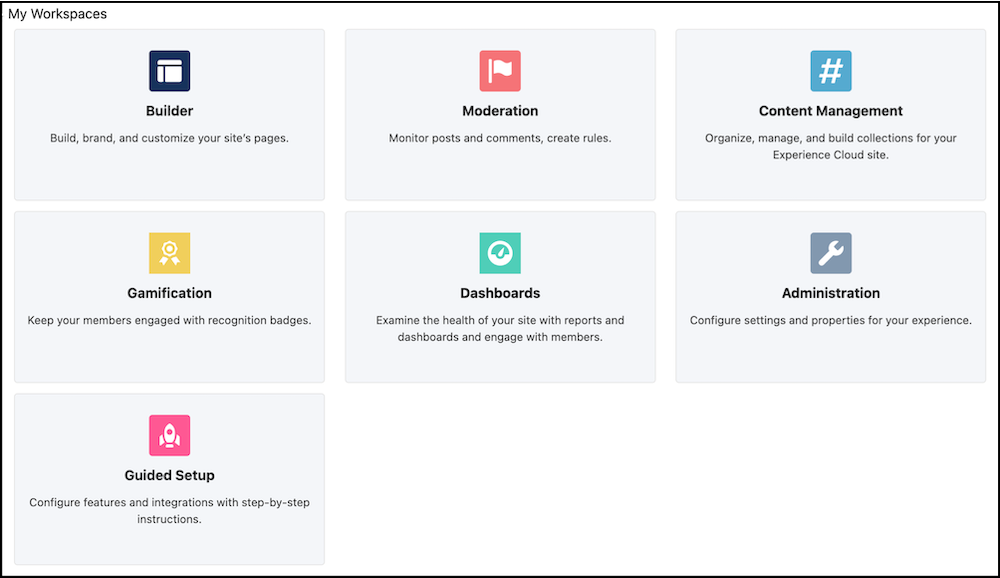
Experience Workspaces includes the following workspaces.
- Builder
-
Experience Builder lets you brand and design your pages. Create and customize pages, modify or add Lightning components, customize the site’s navigation menu, and manage page-level settings.
- Moderation
-
From the Home tab in Moderation, view your site’s home page dashboard and reports for flagged posts, comments, messages, and files. From the Rules tab, administrators can set up moderation rules and content criteria for the community.
Note If your home page still displays a message to install the Salesforce Experience Management package, your administrator hasn’t mapped a dashboard yet. - Content Management
-
Add CMS content to your site and manage your site’s Topics and Recommendations from the Content Targeting workspace. Create a navigation menu and showcase popular topics in your site from the Topics tab. Drive engagement from the Recommendations tab. Dynamically render headers, footers, banners, CSS, JavaScript, and other CMS content on your pages.
- Gamification
-
Use gamification tools to keep your site members engaged, like Recognition Badges and Reputation.
- Dashboards
-
View dashboards and reports for your site. The administrator sets up dashboards that display in the Reporting tabs. Monitor activity and take immediate action in your site from the Engagement tab using Insights.
- Administration
- From the Administration workspace, you can update the basic setup of your site. Configure preferences, manage membership and site contributors, set reputation levels and points to reward members for activity in the feed. Configure tabs, select branding properties to apply, and customize your site’s login experience. Determine which pages are available to your site, customize email templates, and configure URL redirects. You can also create your own app with Rich Publisher Apps, or get one from AppExchange.
- Guided Setup
-
Configure features with Guided Setup. It walks you through setting up visibility, processes, workflows, record types, layouts, and assignment rules for Salesforce features. Each setup step gives easy-to-follow directions and navigable links to setup pages.
-
Important If you’re an administrator and accidentally remove yourself from a site, you can’t access the Administration settings in Experience Workspaces. To add yourself back to the site or to make other membership updates, use the API.
-
Note If you set clickjack protection for your site to the level for the most protection, pages in some workspaces, including Administration, appear as blank pages. To avoid this problem, use the recommended setting. If you encounter this issue, in Setup, enter Custom URLs in the Quick Find box, and select Custom URLs. Click the label for the site (not the Site.com link), and reset the clickjack protection level to the recommended setting.
- Configure Settings in Your Administration Workspace
Configure settings in your administration workspace, and enable other optional features in your Experience Cloud site such as user nicknames, guest access, private messages, direct messages, content flagging, and reputation levels. - Streamline Customer Support with Customer Insights
Customer Insights informs support agents working in the Service Console whether the customer has looked at the pertinent documentation. It also shows if the customer has filed a case before calling support. As a result, agents don’t suggest articles that a customer has accessed or open duplicate cases, decreasing customer frustration and improving support. - Update Your Experience Cloud Site’s Name, Status, and Description
Manage your Experience Cloud site name, description, status, and template all from one location. - Key Concepts in Page Redirection in Aura and LWR Sites
Page redirects help maintain the discoverability and SEO equity of your sites in Experience Cloud. Learn some of the key concepts and considerations before you set up page redirection in your Aura and Lightning Web Runtime (LWR) sites.
