You are here:
Create Case Form
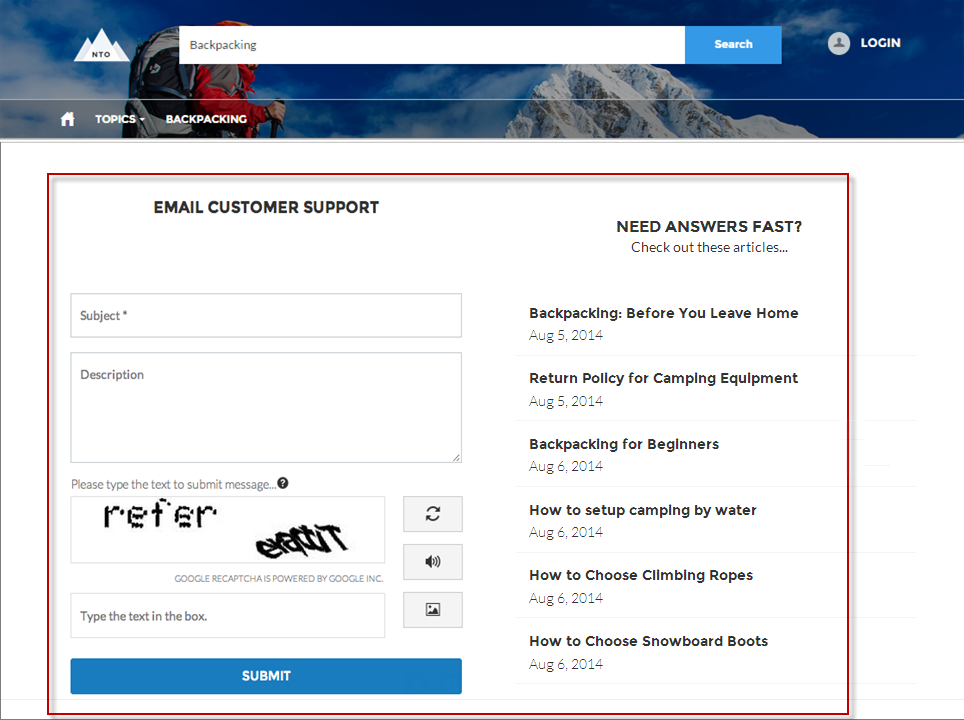
The Create Case Form component searches text as it’s being entered into a case and displays articles based on the typed text. If users don’t see an answer, they can contact support for help. You can also protect your site from spammers by adding a reCAPTCHA widget that guest users must complete before they create a case.
Before Spring ‘16, this component was named Case Creation.

- Select the Create Case Form component in the page you're configuring.
-
In the property editor, configure the properties for the component.
Property Details General Settings Click to expand the section with general setting properties. Attach Files Lets authenticated users attach a file to the comment in the case. Your organization’s settings control the limits for file sizes. If you enable Web-to-Case to let guest users create cases, keep in mind that guest users can’t attach files to a case. Header Title Text that displays at the top of the page customers use to create a case. The default is Email Customer Support. Confirmation Message Title Text that appears as the title of the message confirming that the case has been created. The default is: Your request was submitted successfully. Confirmation Message Description Text that appears as the body of the message confirming that the case has been created. For example, You'll hear back from us soon. Actions in the Publisher Click to expand the section with action properties. Signed-In User Case Action The name of the action that creates cases for authenticated users. Use the action layout editor for the case object in Salesforce setup to specify which fields to include in the layout. The NewCase action is a default in your Salesforce org. Guest User Case Action The name of the action that creates cases for unauthenticated users. Use the action layout editor for the case object in Salesforce setup to specify which fields to include in the layout. Case Deflection Click to expand the section with case deflection properties. Use Case Text to Suggest Articles Uses the text users type in the case title and description fields to suggest articles in the deflection area of the page. Article deflection appears only when you’ve implemented Salesforce Knowledge in your org. Number of Articles Number of articles that display in the component. Top-Level Category Top-level data category for template-driven sites using data categories. This data category is where articles used for deflection come from. Category Group name for article deflection Data category group name for template-driven sites using data categories. Deflection Banner Text Text that displays as the title of the deflection area of the page. The default is Need Answers Fast?. Deflection Text Text that displays as the subtitle in the deflection area of the page. Mobile-Only Deflection Text Text that displays in the deflection area for users of mobile devices. reCAPTCHA Settings Click to expand the section with reCAPTCHA settings.
Google no longer supports reCAPTCHA v1, which is the only version currently available in Experience Builder sites. In order to use reCAPTCHA v2 and above your sites, use a custom Lightning component.
reCAPTCHA for Guest Case Creation Adds the reCAPTCHA widget to your page. The reCAPTCHA widget requires guest users to complete a text field successfully before they can create a case. Secret Key for reCAPTCHA Enter the key that you received when you registered for the service. Site Key for reCAPTCHA Enter the key that you received when you registered for the service.
Make sure that you thoroughly test the reCAPTCHA widget in your production organization.