You are here:
Case Deflection
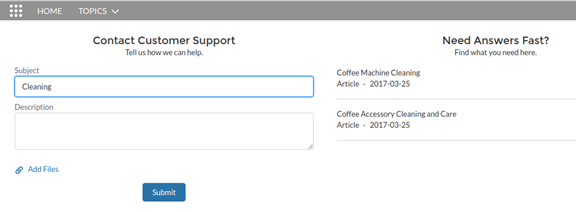
The Case Deflection component searches text as it’s being entered into the Contact Support Form component, and returns relevant articles and discussions. If users don’t get the answer they need, they can continue with their request for support.

If you built your Experience Cloud site before Spring `18, you could be using the Create Case Form component. A revamped version, ushered in with Spring `18, has split the component into two: the Contact Support Form and the Case Deflection components. We recommend you update your existing site to use the new components, as future updates and improvements are made on Contact Support Form and Case Deflection. Moreover, the new components allow you to use the Case Deflection Dashboard to verify the efficacy of your site’s case deflection.
- Select the Case Deflection component in the page you’re configuring. Avoid placing the component in the template header or footer of the page. Doing so causes the component to appear on all pages.
-
In the property editor, configure the properties for the component.
Property Details General Settings Click to expand. Title Bold text that appears over suggested articles and discussions. The default is Need Answers Fast?. Subtitle Bold subtitle shown over suggested articles and discussions. The default is Find what you need here.. Maximum Suggestions to Display Maximum number of suggested articles and discussions to show. The default is 6. Empty State Content Click to expand. Topic ID Use the dropdown menu to elect a topic to show before site users start entering text in the Contact Support Form component. If you leave this field empty, the component shows trending topics. Content Types Click to expand. Articles Select to include articles in suggestions. Discussions Select to include discussions in suggestions. Deflection Metrics Click to expand. You can view the data that’s gathered in this section in the Case Deflection Dashboard. This dashboard is available as part of the Salesforce Community Management Package, which you can find on AppExchange. Ask users if they’re satisfied with the suggested content Let users tell you whether the suggested articles and discussions helped solve their case. Satisfaction Prompt Ask users if they’re satisfied with suggestions. Default text is: Did the content help solve your issue? Ask follow-up prompt Ask a follow-up question, provided users answer the first question. Follow-Up Prompt Enter the text to use for your follow-up question. Default text is: Stop creating your case? Redirect URL for Abandoned Cases The URL of the page you want users to see if they abandon their case. Confirmation Message Default text is: Got it!