You are here:
CMS Collection
Add a CMS Collection to your Aura site using the CMS Collection component in Experience Builder. If you created a collection in your Content Management Workspace, you can customize the layout on your site page. If you don’t have a collection yet, you can still add the component as a placeholder on your page.
Required Editions
| Available in: Salesforce Classic and Lightning Experience |
| Available in: Enterprise, Performance, Unlimited, and Developer Editions |
| Applies to: Aura sites |
| User Permissions Needed | |
|---|---|
| To access an Experience Builder site’s Content Management workspace: |
|
| To customize an Experience Builder site: |
|
The CMS Collection component can be added to a page multiple times and can use collections created from CMS content or Salesforce CRM data. Collections are created in the Content Management area of Experience Workspaces. You can add the CMS Collection component to a page before you create your first collection. But until a collection is associated with the component, you can’t access the layout options.

- Be careful when using the CMS Collections component to show products in a B2B Commerce store. The component doesn’t respect user entitlements. All users with access to a page where the component shows products see all products that are exposed through the component.
- When a CMS collection is configured, it's shown in a grid layout. Mobile devices only show a single column, even if you have more than one column configured.
- In Experience Builder, click Components.
- Drag the CMS Collection component onto the page.
- In the component property panel, click + Add Collection.
-
Select the collection that you want to add from the list, and save your changes.
 Tip The Type column indicates the source of a collection. For example, News is any collection composed of CMS News content. An object name such as Account or Product indicates a Salesforce CRM Collection.
 - In the component property panel, customize the collection layout and content layout as needed.
-
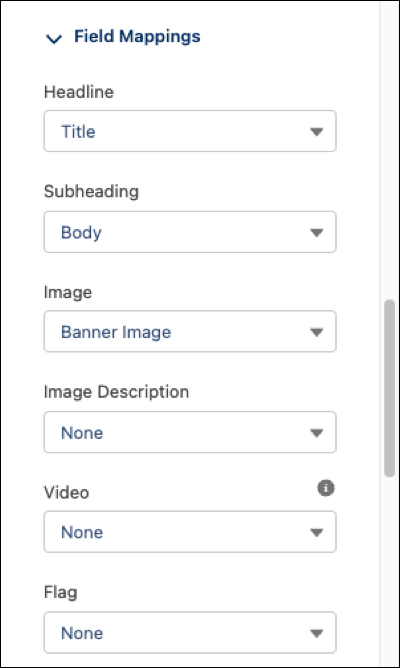
To control what information the component displays, select field mappings in the
component property panel.
Your changes are saved as you make selections, and they’re reflected in the preview.
- If you have a CMS collection, map component fields to properties of the CMS content.
- If you have a CRM collection, map component fields to object field names.
To make the content accessible to site visitors who use screen readers, map the Headline field to a text element from your CMS content or CRM object. For example, for a CMS Collection, you can map to the content title. Or if you have a CRM collection for the Account object, map to the Account Name field.