
You are here:
CMS Connect (HTML)
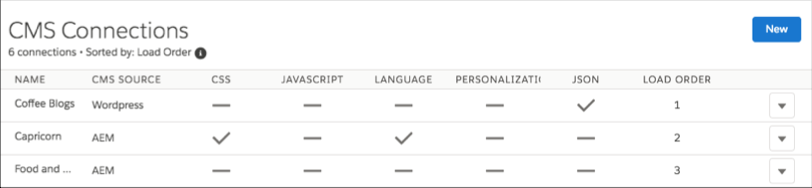
The CMS Connect (HTML) component lets you display HTML content from a content management system (CMS). After setting up a connection in your CMS Connect workspace, drag a CMS Connect component on a page to render content from that connection.
Before using the CMS Connect (HTML) component, see Create a CMS Connection in CMS Developer Guide. Then choose Use in Builder for the connection you want to use.
- From the Component panel in Experience Builder, drag a CMS Connect component to the page and location where you want to display it.
-
Select the component. In the property editor, configure its properties.
Property Details CMS Source Select the CMS source that contains the content to display. If no sources are listed, click Manage Connections to set one up. Component Path Enter the path to the component to display. If the connection has a root path, enter only the component part of the path. For example, if you entered content/capricorn for the root path, enter only banner1 for the component path. If your connection doesn’t have a root path, enter the full path for the component. Personalization Select the option to enable personalization for this instance of the CMS Connect (HTML) component. Personalization lets you keep branding and other content consistent between your community and your website.
Did this article solve your issue?
Let us know so we can improve!
