
You are here:
CMS Connect (JSON)
The CMS Connect (JSON) component displays JSON content from a content management system (CMS).
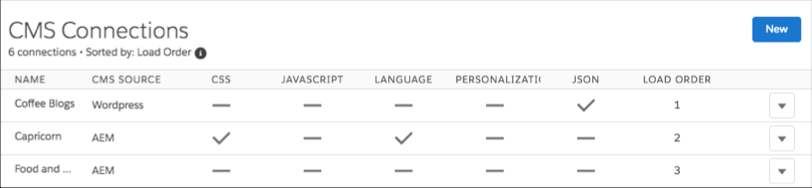
Before using the CMS Connect (JSON) component, see Create a CMS Connection in CMS Developer Guide. The connection includes the server URL and paths to your JSON information. It also defines content lists and content items that you want to display. Then choose Use in Builder for the connection you want to use.
- In Experience Builder, drag a CMS Connect (JSON) component from the Components panel to the location on the page where you want to display it.
-
Using the property editor, configure the component’s properties.
Property Details CMS Source Select the CMS source containing the content that you want to display. If no sources are listed, go to your CMS Connect workspace and define content items and content lists for the connection. JSON Content Select the JSON content. Choose from the content items and content lists that you set up in the connection. In the property editor, the fields that you see depend on what you select. For example, if you select a content list, you see the layout options for a list. Component Path Applies only for content items. Enter the path to the component to display. For example, enter the ID of a blog. Content List Layout Choose a layout for your content list. Currently, the only option is Grid. Define the grid layout using the Items Per Page and Columns properties. Content List Item Layout Choose a layout for items in your content list. Currently, the only option is Card. To specify card properties (Title, Author, and so on), enter a JSON expression or value. For example, enter @key, 6, or {!id}. Content Item Layout Choose a layout for your content item. Currently, the only option is Detail. To specify detail properties (Title, Author, and so on), enter a JSON expression or value. Items Per Page Enter the number of content items that display on each page. Columns Enter the number of columns of content items that display on desktops and tablets. Phones display content items in a single column. Title Enter a JSON expression or text for the title, such as @title. Author Enter a JSON expression or text for the author, such as @author/name. Published On Enter a JSON expression or text in ISO format for the publish date. For example, @date or YYYY-MM-DDTHH:mm:ss.sssZ. Body Enter a JSON expression or text for the content body, such as @content. Image Source Enter a JSON expression for the image source of the content item, such as @featured_image. Navigation section Set up the navigation link for content items in your content list. Link Text Enter the link text to display on your site page. The default is Read More. Type Select whether the link points to a generated page or an external URL with the content items in your content list. Page Displays the name of the generated detail page. The default name reflects the CMS source and content type name for your connection. To change the default name, URL, or layout of this page, change the page properties using the Pages menu. URL Enter the fully qualified URL to the content.
You can also specify JSON expressions, such as @link.
Did this article solve your issue?
Let us know so we can improve!
