You are here:
Contact Support Form
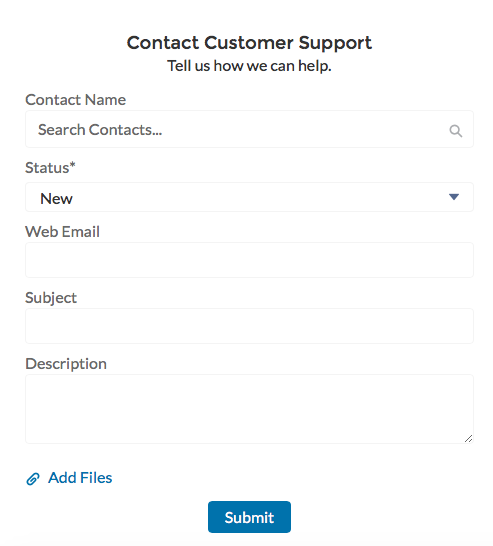
The Contact Support Form allows guest and authenticated users to create cases from a site. It works with the Case Deflection component to help site members find articles and discussions to answer questions as text is being entered into the form.
If you built your Experience Cloud site before Spring `18, you could be using the Create Case Form component. A revamped version, ushered in with Spring `18, has split the component into two: the Contact Support Form and the Case Deflection components. We recommend you update your existing site to use the new components, as future updates and improvements are made on Contact Support Form and Case Deflection. Moreover, the new components allow you to use the Case Deflection Dashboard to verify the efficacy of your site’s case deflection.
Check out this topic if you want to migrate to the new components.

- Feed items aren’t generated for attachments when you create a case with the Contact Support Form component.
- When you configure the case page layout for your site, specify that some fields are required. Adding required fields to the layout ensures that customers don’t accidentally submit cases with empty fields.
- Fields with the data type
lookup, such as Contact Name, Account Name, and custom lookup fields, aren’t supported for guest users. - Automatic triggers that change record ownership can affect what object details are visible to users or where the details are displayed. For example, if you create a case using the Contact Support Form component and an automatic trigger changes the case owner, the case record ID appears in the Case Number field.
- Select the Case Deflection component in the page you're configuring.
-
In the property editor, configure the properties for the component.
Property Details General Settings Click to expand the section with general setting properties. Title Text that displays at the top of the form customers use to create a case. The default is Contact Customer Support. Subtitle Subtitle at the top of the form that customers use to create a case. The default is Tell us how we can help. Performance Settings Click to expand. Create Cases in Batches A global action that allows users to create cases in batches, rather than one at a time. Batching creation increases the number of cases that can be created at a time for high-volume sites. Authenticated Users Click to expand. Global Action A global action that allows users to create cases. The global action must be a Create a Record type, and on the case object. Configure global actions for authenticated users Link to the area in Salesforce Setup where you can create global actions. Attach files Select to allow users to attach files to their cases. They can upload up to 10 files. File Upload Button Label Label for the button to allow customers to upload files. Default text is Upload File. Guest Users Click to expand. Global Action A global action that allows guest users to create cases. The global action must be a Create a Record type, and on the case object. Configure global actions for guest users Link to the area in Salesforce Setup where you can configure global actions for guest users. Confirmation Text Click to expand. Confirmation Title The title at the top of the page confirming that a case was created. Default text is Your case was created. Confirmation Subtitle More information under the confirmation title, after a case was created. Default text is We’ll get back to you soon. Case Summary Shows the case subject and case number for the user’s future reference. Show Call to Action button Select this option to have folks take a follow-up action after filing a case. Call to Action The URL of the site you want users to see after filing a case. Call to Action Text Call to action text label, based on what you want users to do. Call to Action Button Text Text label for the call to action button.