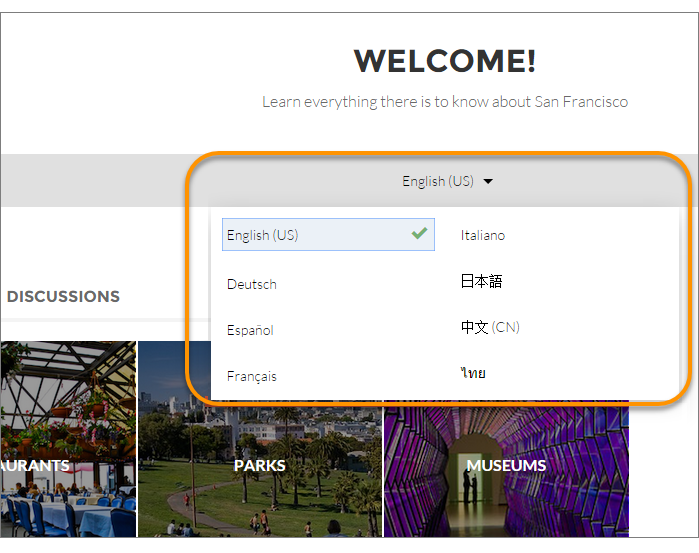
You are here:
Language Selector
Add the Language Selector component to multilingual sites so guest users can select their preferred language on public site pages.
Only guest users on public pages see the Language Selector component. The site initially appears in the default site language until the user selects a different language. The page then reloads in the selected language if a translation is available.
For authenticated users on private pages, the site typically appears in their profile language automatically. But when users have credentials and they’re not yet logged in, they’re treated like a guest user. So if a user selects a language on a public page that contains a Language Selector component—let’s say the Home page—that language choice persists after the user logs in. There are two exceptions to this rule.
- The Login page is a public page, but even if it contains the Language Selector component, the language selection that a user makes on this page doesn’t persist after login.
- If a user’s profile language differs from the default site language, and the user chooses the default site language in the language selector, that choice doesn't persist after login. Instead, the site appears in the user’s profile language.
To change the profile language preference as an authenticated user, open the Experience Workspace for the site that you want to view, and follow these steps.
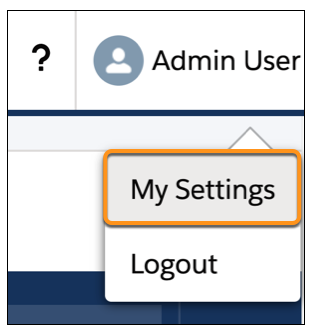
- From the User Profile, click My Settings.
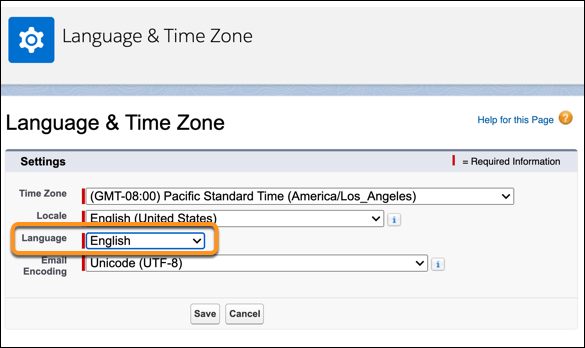
- From the My Personal Information menu, click Language & Time
Zone, and select a profile language. Then when you access a site
as a logged-in user, the site URL displays your selected language.
- To view the updated profile language, log out, and then log back in to your site.
The Language Selector component isn’t included on any page by default. Add it manually to the pages in your site. You can add the Language Selector component to any section of any page, but we recommend placing it where it’s easy to spot. Also, consider adding the component to a theme region, such as the Template Header Top region. Items that are added to theme regions are common across all pages, so it’s not necessary to add the component to every page.
Customized components and Salesforce Knowledge articles use the translations that the site admin adds through Translation Workbench.
- To add the Language Selector component to your page, drag it onto the page that you’re configuring.
-
In the property editor, configure the properties for the component:
Property Details Label Identifies this component on a page. This text helps increase accessibility. Default text is Preferred Language. Button Label Alignment Specifies how the language selector’s label is aligned on the button. Select Left, Center, or Right. The default value is Center.  Note
Note- For information about setting up languages in a site, see Multilingual Communities Overview. If no languages apart from the default language are set in the site, the language selector shows the default language without a dropdown option.
- To see the list of languages that guest users see, make sure that you’re on a page that contains the Language Selector component. Then click the selector’s dropdown icon.
- When a guest user accesses a site in a language that’s not included in the Language Selector component, the site redirects to the set default language in Experience Builder.
- A user can add the query parameters for one of the site's supported languages to the site's URL in the browser address bar and override the default site language. However, this method isn’t supported and can cause inconsistent behavior. When authenticated users want to view a multilingual site in another language, their best option is to view the site as a guest user. Or, these users can change their profile language.
- Ensure that all translated content and Salesforce Knowledge articles have a version in the site’s default language.
- Before Summer ’18, the Language Selector component was named Language Picker.